miFormulas manual
miFormulas is a perfume formulation app that runs as a single HTML file in your browser. It keeps your materials and your formulas with their full version history, and it does the perfumery arithmetic: dilution-corrected percentages, batch scaling, dilution changes, premixes, an IFRA check, weighing sheets.
A few things set it apart. It imports your formulas and materials from Formulair, complete with notes, dilutions and colour marks (section 17). You can select several lines of a formula at once and act on them together: mark them, shift their dilutions, or bundle them into a premix (sections 7 to 9). You can let your own AI assistant turn a photo, a PDF or a spreadsheet into a formula ready for import (section 16). The bench view lays a formula out in open groupings of materials, the way a perfumer builds a batch at the bench, so that batches are prepared in the order you weigh them (section 10). And you can install it as an app with its own icon on Windows or macOS (section 15).
There is nothing to install and no account, and your data stays with you: in your browser, in a file of your own, or on a server of your own.
What changed in each version, in plain words, is on the What’s new page: https://miformulas.com/docs/whats-new.html. The start screen links to it next to Manual, and so does the Help bar.
And it will keep working. Before leaving Formulair the question was whether the next app would still exist in five years: many are one developer's hobby, and hosted ones stop when the hosting stops. miFormulas is one file that runs without any server, so your copy keeps working as it is, whatever happens to the site or the author. Your data is a plain JSON file you can read with any text editor. And the source is free software under the GPL: if the author loses interest, anyone can take it further.
This manual describes build 261021a. The build number of the copy you are using is shown next to the name in the top-left corner of the app, and in the Help bar; on a phone, and in the installed app on a screen narrower than about 1360 pixels, the header leaves it out, so read it there.
Contents
- Getting started
- The screen
- Materials
- Formulas and versions
- Editing a formula
- Percentages and the perfumery arithmetic
- Changing dilutions
- Batch scaling and premixes
- Colour marks, notes and the trial log
- Bench view and printing
- Comparing versions
- IFRA check and category panel
- Stock, orders and deliveries
- Where your data lives, and the other ways in
- Install as an app with its own icon
- Import, export and sharing
- Coming from Formulair
- A server setup for cross-device use
- Settings, theme and keyboard shortcuts
- Backups and recovery
- Privacy: who can see your formulas
- Questions and answers
- Licence
1. Getting started
Open https://miformulas.com in a modern browser. New to miFormulas? https://miformulas.com/docs/first-five-minutes.html takes you through a material, a formula and a version in five minutes, with pictures; this manual is the reference behind it.
Which browser. Chrome or Edge give you everything, on Windows and on a Mac, and Chrome does on Android as well: your data in a file of your own and the app installed with its own icon. Safari on a Mac, on an iPhone or on an iPad, and Firefox keep your data in the browser's storage, where Backup is your safety net; section 14 says what each of them can do.
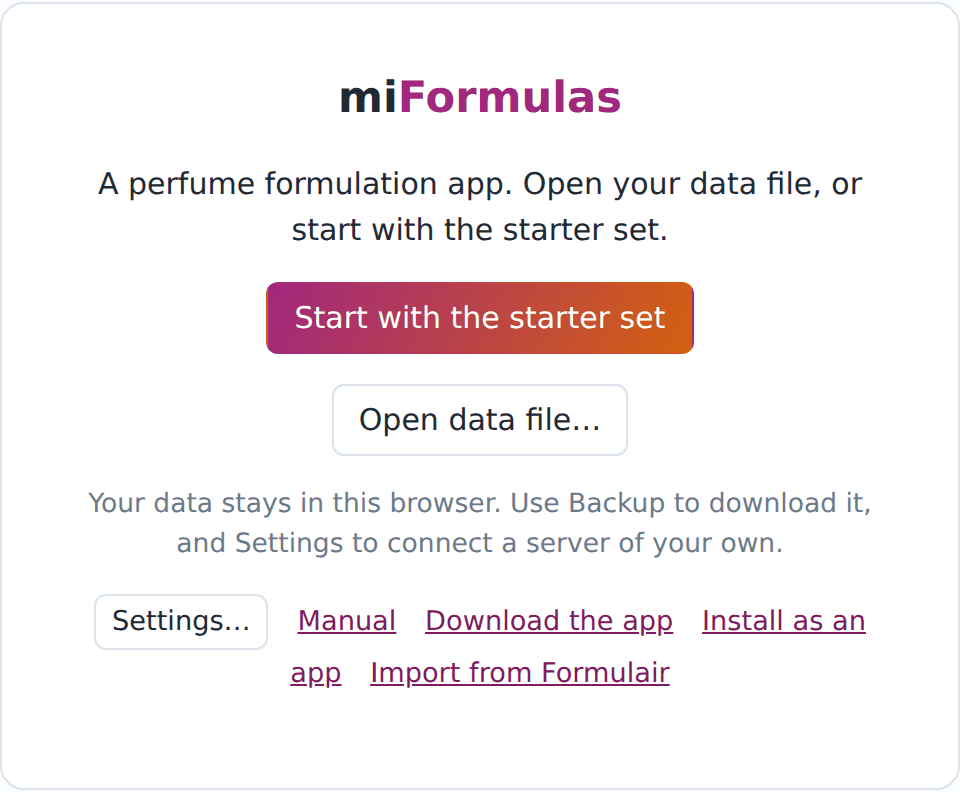
The start screen offers three ways in, and a fourth for Formulair users:
- Start with the starter set loads sixteen formulas and nearly two hundred materials to explore. Each formula has two versions: the concentrate, and a second one diluted in ethanol to a sensible strength and scaled to 100 g. They are marked "starter" so you can tell them from your own; edit or delete them as you like, or take them all out at once in Settings (section 19) once you work on your own. Whatever you change or add from here on is your work, so make a habit of Backup (in the header) before you close the browser: it writes a copy of the complete data file, named with date and time. In Chrome and Edge it asks where to put it and remembers that folder; elsewhere it lands in your downloads folder. Keep those copies together, for instance in
Documents\miFormulas\backups(Windows) orDocuments/miFormulas/backups(Mac). - Open data file… opens a miFormulas data file you already have: the Backup you made last time, a file made by the Formulair importer, or a file a colleague sent you. This is how you get your own work back on another computer or in another browser: choose the most recent Backup from your backups folder and carry on where you left off. In Chrome and Edge the app then keeps saving to that file and offers to reopen it next time (section 14).
- Start empty gives you nothing at all: no formulas, no materials, an inventory you fill yourself. Use it when the starter set would only be in the way. Changed your mind? Delete the data kept in this browser in Settings (in the downloaded app: Forget the remembered data file) brings the start screen back. In the downloaded app it creates your data file, as the starter set does, and it needs no internet connection.
- Import from Formulair…, in the bottom line, takes you to the importer (section 17).
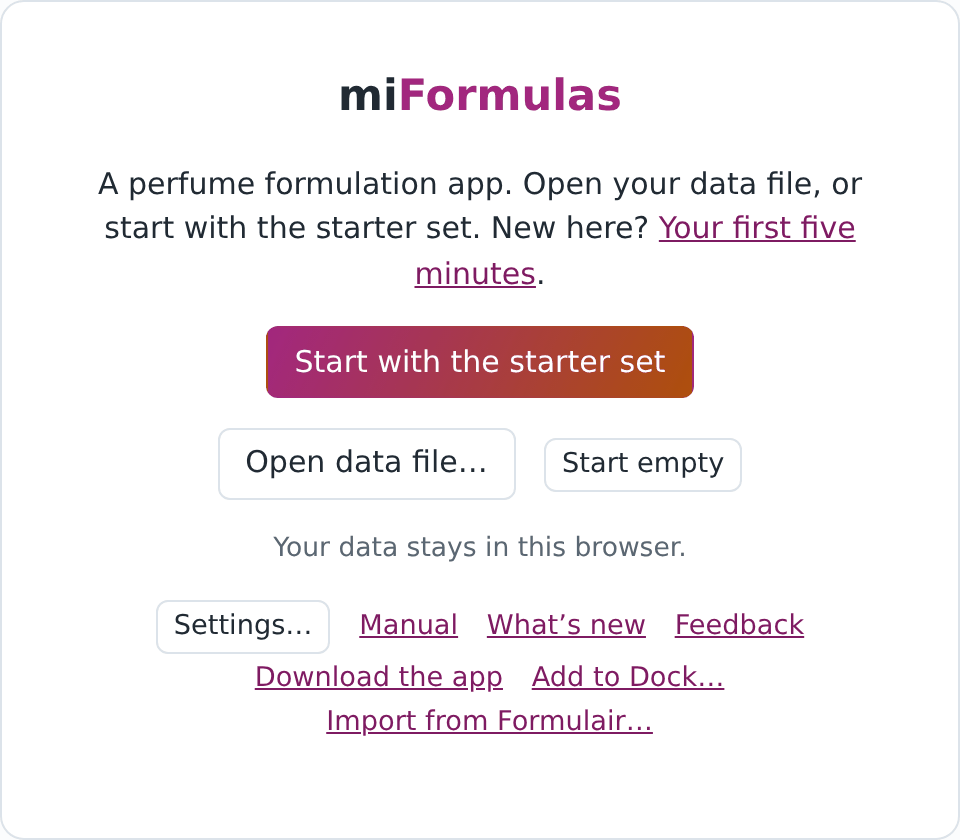
The bottom line of the start screen has Settings…, Manual (this text, with its screenshots, on the site), What’s new, Feedback, and, where they apply, Download the app, Install as an app and Import from Formulair….
The recommended setup: Chrome, on Windows and on Mac. It gives you an app with its own icon and your formulas in a file on your own computer.
- Open https://miformulas.com in Chrome. No Chrome? On Windows, Edge is already there and works exactly the same (the screenshots in section 15 are from Edge); on a Mac, install Chrome first, or read the Safari way in section 14.
- Click Install as an app on the start screen and confirm the browser's dialog. The app opens in its own window with its own icon; section 15 has the pictures and the menu route in case the link does not appear.
- Click Start with the starter set, or Import from Formulair… in the bottom line if that is where your formulas are (section 17).
-
Click Save to a data file…: in the amber storage bar under the header when there is one, otherwise in the line "Your data: kept in this browser" under Start here on the Welcome page; it is also in Settings. The app explains that it will create your data file, then asks where to keep it: choose a folder of your own, for instance
Documents\miFormulas, and keep the namemiformulas-data.json. From now on the app saves to that file; next time it opens straight into it, or shows Reopen when the browser wants a click to allow it again (section 14). Make a subfolderbackupsthere for the copies Backup makes. On a Mac, macOS asks once whether Chrome may use your Documents folder: click Allow, because without it the browser cannot create the file.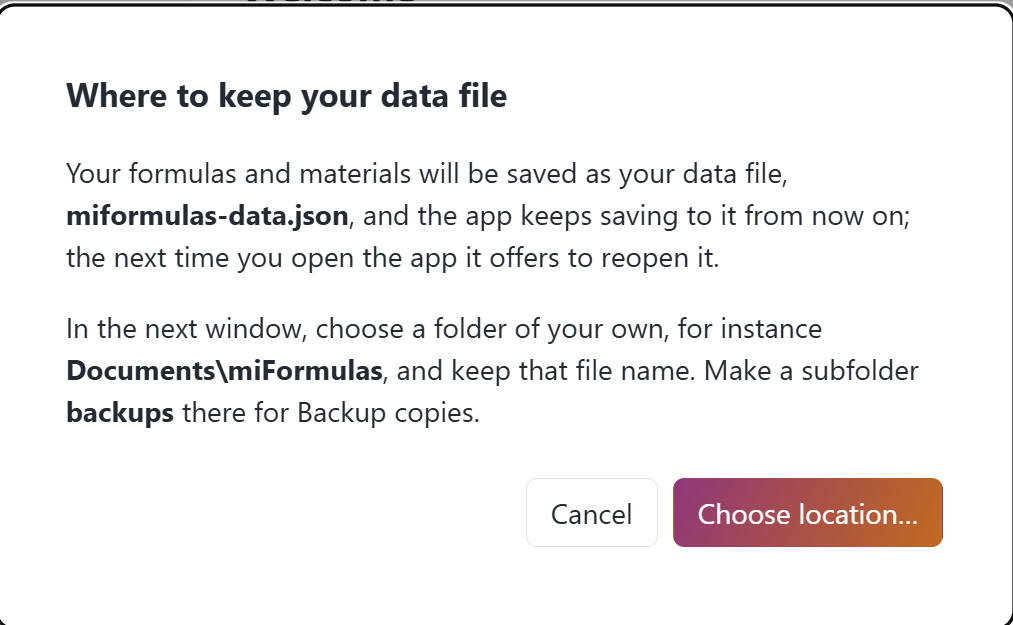
The app explains what it is about to create… 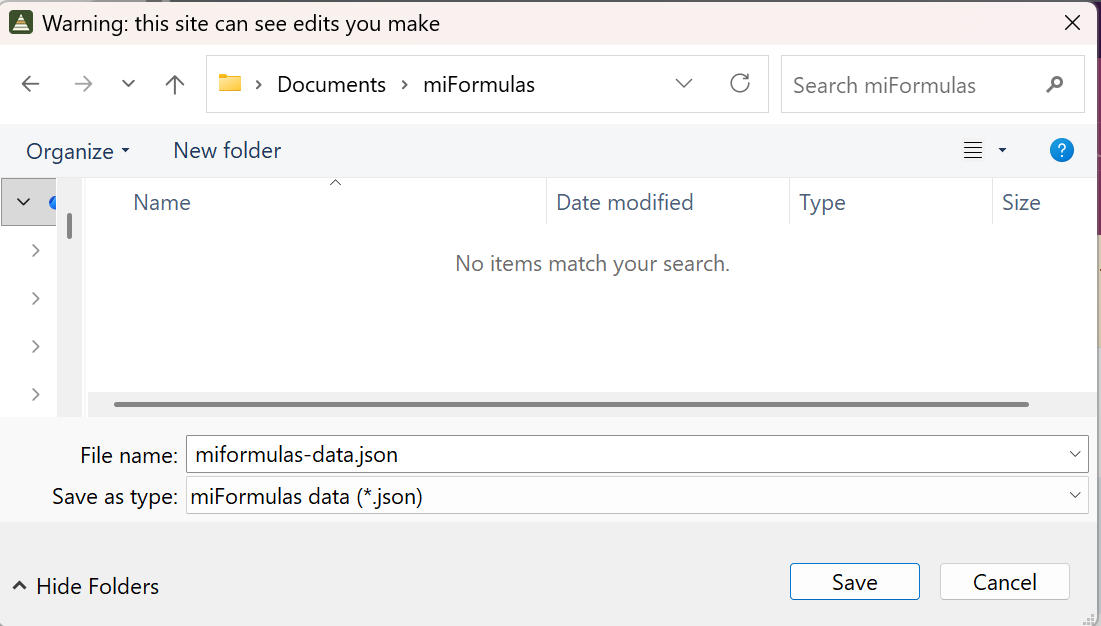
…and the browser asks where to keep miformulas-data.json.
That is all: your data is a file you can see, copy, put in a synced folder or restore from a backup, the app is a program of its own, and updates arrive by themselves.
Whichever way in you take, you land on the Welcome page: four tiles (formulas, versions, materials, to order) that open the list they count, a block Start here with the three things you usually come for (open a formula, + New formula…, + New material…), a line saying where your data lives, the recently edited items once you have edited something of your own, and the ways in for materials and formulas that come from elsewhere, one line once you have work of your own (section 16; the downloaded app leaves out the Formulair line, which needs the site). Pick a formula or material in the list on the left, or create a new one with + New formula… and + New material… in the header.
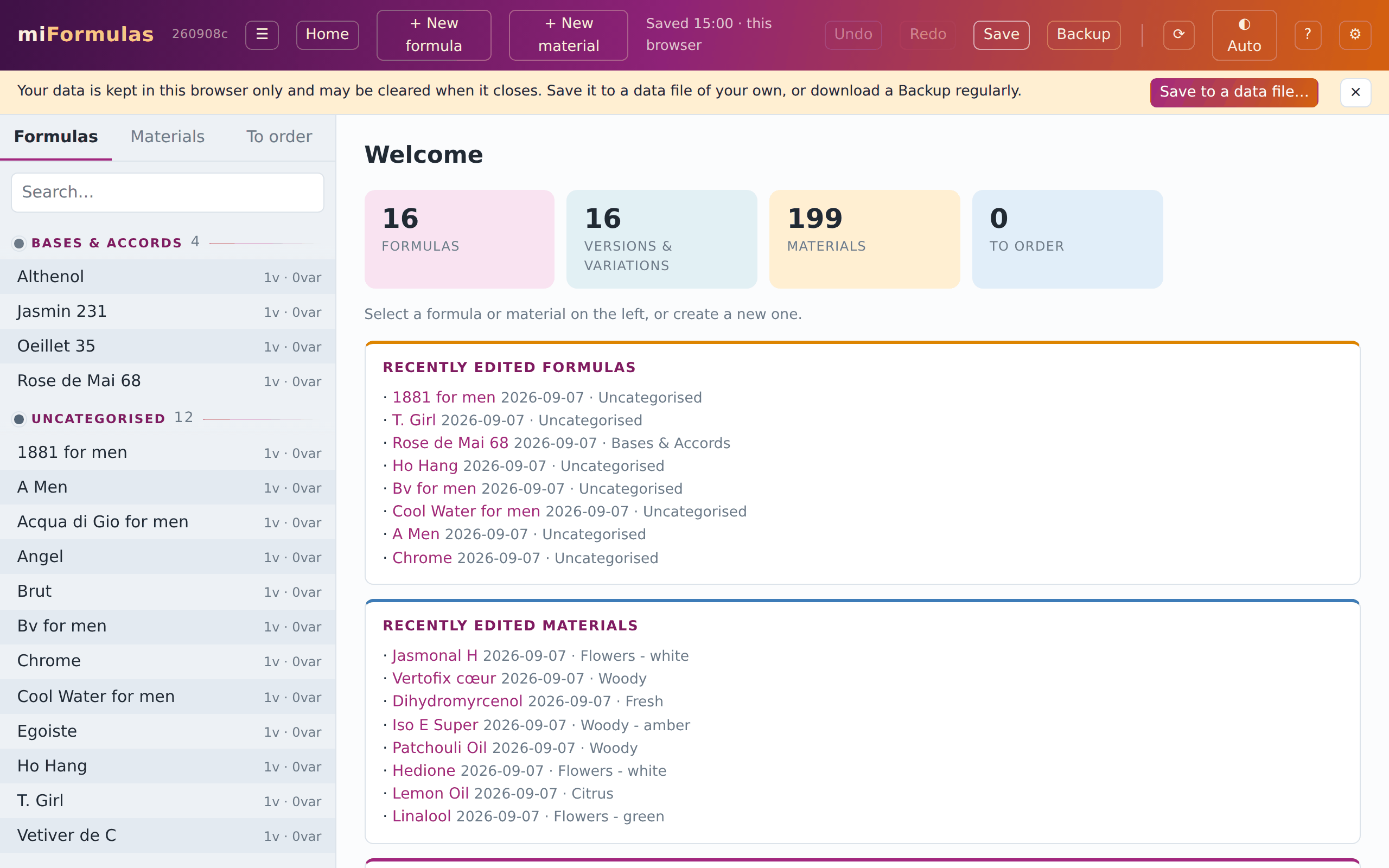
Every change is saved automatically a few seconds after you make it, and straight away when you switch away from the page or it goes out of sight, so a phone that puts the app aside keeps your last change. Close or reload the page within those few seconds and the browser asks first: answer Leave and that last change may be lost, so press Save (or Ctrl+S) before you close when you want to be sure. Ctrl+Z undoes a change. Deleting a line, a version or a formula always asks for confirmation, and a material that is still used in a formula is not deleted at all: the app says which formulas hold it (section 3).
2. The screen
The header holds two groups. On the left what the content is: the list toggle (☰, also Ctrl+B), Home, + New formula… and + New material…; the installed app adds a back and a forward arrow there, because an app window has no toolbar of its own (see Back and forward below). On the right what the file is: the save state, Undo and Redo (arrows on a narrow window), Save (saving is automatic; this forces it now, also Ctrl+S), Backup, Import & export (⇅, section 16), and then the four buttons you need rarely: reload (the circular arrow, for after an update), the theme (◐ auto, ● dark, ○ light; the icon is the setting and the tooltip spells it out), Help (?, this manual inside the app, without the screenshots) and Settings (⚙). On a window too narrow for one row, from around 1200 pixels down (a little more in the installed app, with its two arrows, or with a longer save state), the right group moves to a second row as a whole, so nothing ever runs off the edge.

The list panel on the left has three tabs. Formulas and Materials group their items by category with a coloured dot; the counter after each formula tells how many versions it holds. To order is the shopping list. Above the search box, Formulas has + New formula… and Classify several…, Materials + New material… and Classify several…: the same as the buttons in the header, which a phone leaves out, and the way to give many items a category at once (sections 3 and 4). The search box filters the list, and then shows one list by name, without the categories: you know what you are looking for, and the groups would scatter it. A formula then shows its category in grey beside its name, where the number of versions stood (a formula without a category keeps its number of versions); the tooltip gives both. Formulas are searched by name; materials by name, alternative names, CAS number and supplier, and from three characters also by the text in their description. A material found only in its description is the least likely to be the one you mean, so those come after the others, under In descriptions ✎, each marked with ✎. A material found by an alternative name, its CAS number or its supplier shows what was found in grey on its right. Names are searched word by word, in any order: "gamma decalactone" finds Decalactone gamma and "alpha damascone" finds Damascone Alpha. All the words have to be in the same name, so each word you add narrows the list, and only a space separates words ("C-11" stays one). The CAS number, the supplier and the description are searched for the whole term as typed. The search fields in Browse the library… and Export my inventory as a library… treat names and categories the same way. Accents and ligatures do not matter: "coeur" finds Vertofix cœur, and the same folding decides whether an import lands on a material you already have. Each tab keeps its own term, so the name of a material does not stay behind in the formula list when you switch. Typing "starter" lists the starter set. With a materials library loaded, the Materials tab also lists what the library knows and you do not have, at the very end, with + Add (section 3).
The page on the right shows the selected formula or material, the order list, or the Welcome page.
The app stays in English: a browser that translates pages leaves it alone, because a translation also renames your formulas and materials on the screen. The manual on the site can still be translated by the browser.
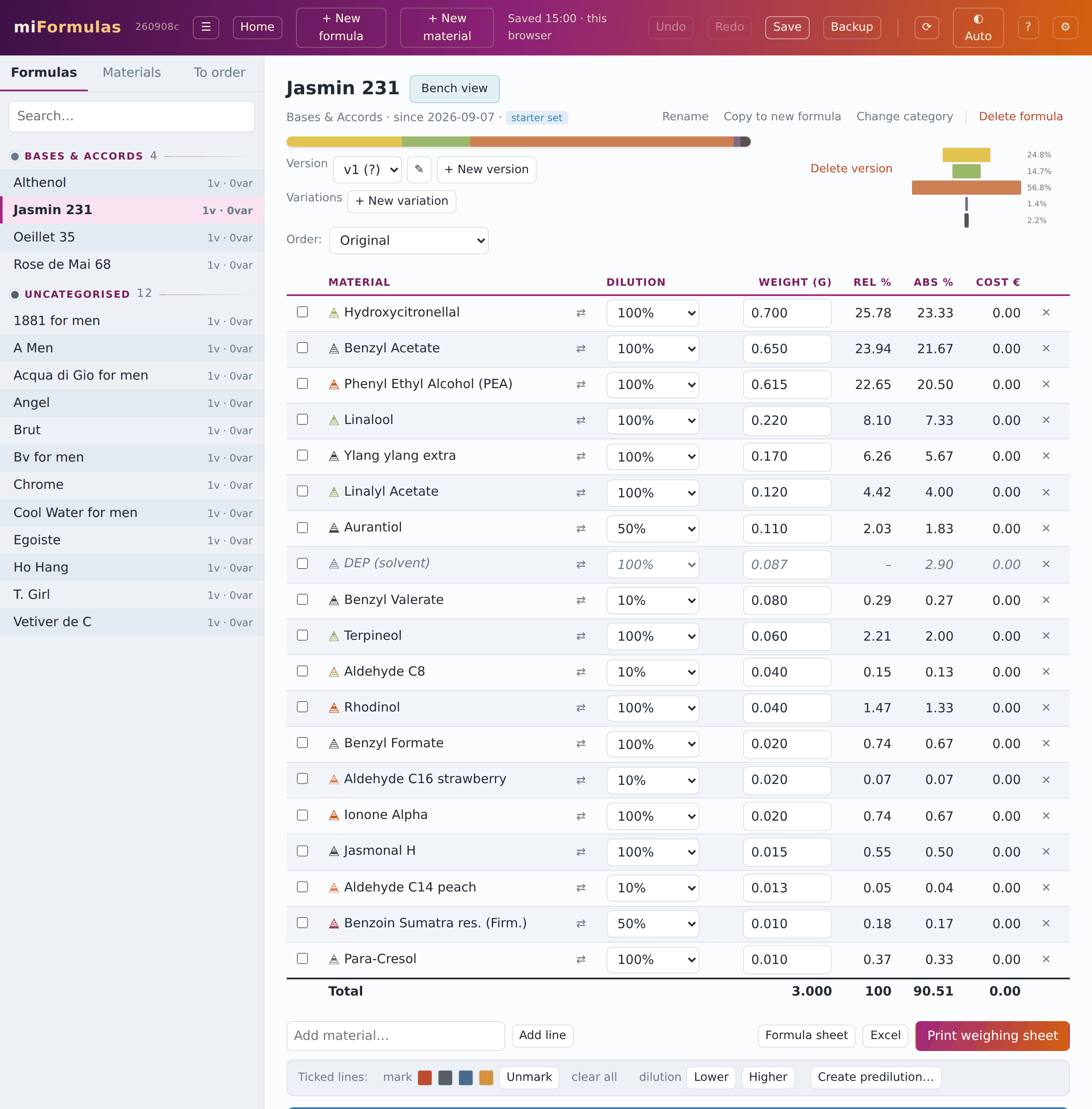
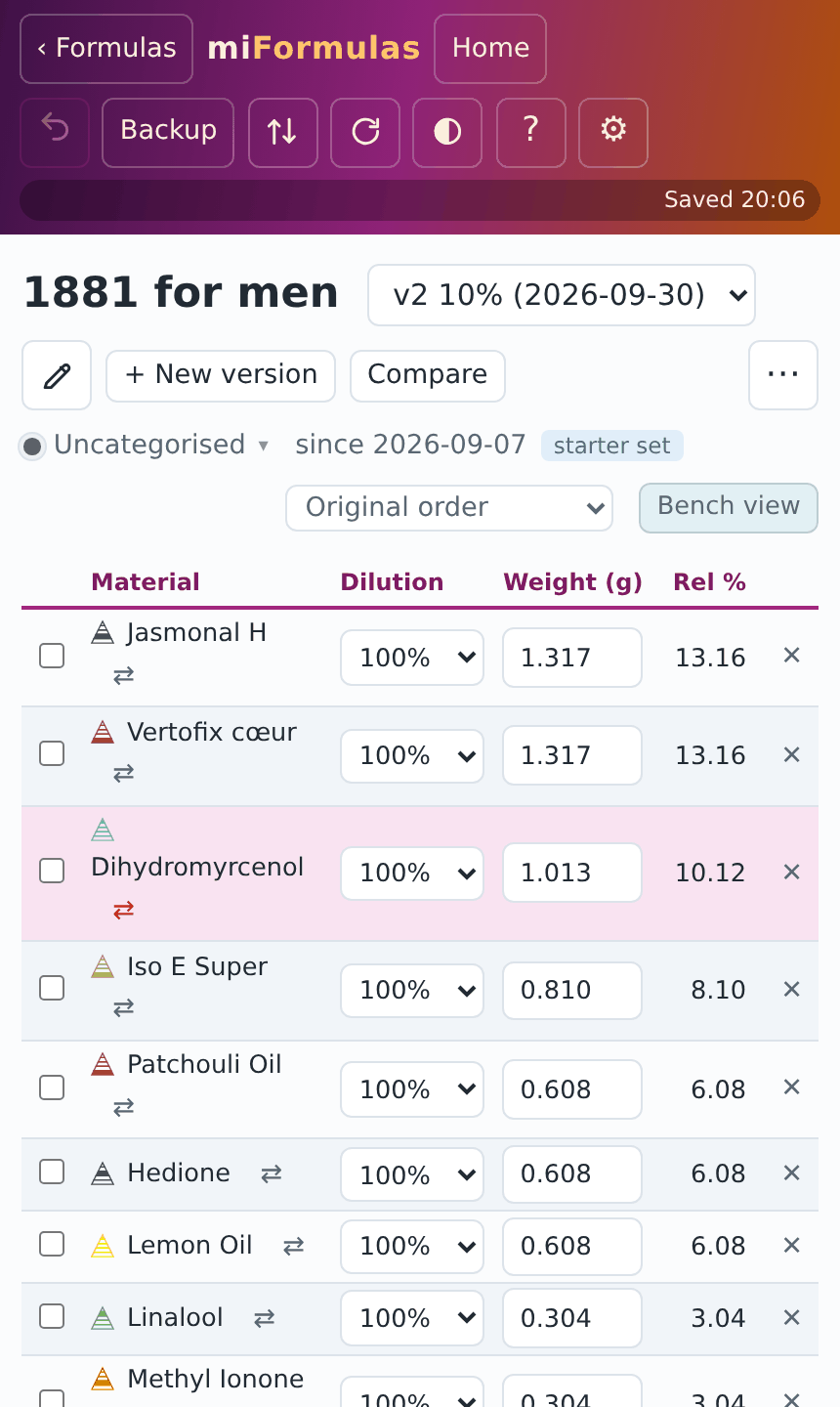
On a phone the list and the page take turns; the app is read-only there unless it can save (server, browser storage or a writable file), so that a tap cannot lose anything. Read-only takes away what would change something, in the windows as well: a materials library cannot be imported or fetched there, and Import from Formulair… is not offered, because there would be nowhere to save the result. Printing, the Excel export and Share this version stay where they are, because none of them touches your data. The header leaves out ☰, + New formula…, + New material…, Redo and Save on a phone: the list is the main screen there, with its own + New formula… and + New material… above it, and saving happens by itself. Instead of ☰ it shows ‹ Formulas or ‹ Materials, which takes you back to the list. The formula table drops the columns Abs % and Cost there and gives the room to the material names, so the whole table fits without swiping; the bench view drops Rel %, so the weight you are putting on the scale stays in sight. Beside the list on a screen between 701 and 1000 pixels wide, a tablet held upright for instance, the formula table takes the same compact form; hide the list with ☰ (Ctrl+B) for the full table. The order list drops Note, Price € and Product, so that the material, the amount and the three buttons fit on the screen without swiping: in a shop you work from that list, you do not fill it in.
Back and forward. Every place you open is a step: a formula and the version you were looking at, with the comparison or the bench view you had open, a material, the order list, the Welcome page, the manual. Moving through those steps uses the browser's own history, so the back and forward buttons of your mouse work, and so do the browser's own two buttons, Alt+Left and Alt+Right (Cmd+[ and Cmd+] on a Mac), the swipe gesture on a trackpad, and the back button of an Android phone. Going back moves you, it never changes your data: Ctrl+Z stays the way to take a change back. Switching to another version of the same formula is a step of its own, so back returns you to the version you were reading. Each step also remembers how far down its page you were when you clicked away, so back to a long formula lands on the line you left it at, not at its top. A step whose formula or material has been deleted since shows the Welcome page instead; one more step back takes you past it. Reloading the page lands you back on the step you were on when Open where you left off is ticked; with it off a reload starts on the list, like any other start. The installed app has no toolbar, so it shows the two arrows in the header instead; they grey out at the ends, and also when the browser has run out of steps to give, because a browser keeps only the last fifty or so. One step too far back at the very start leaves the app, as on any web page, and if you have unsaved work the browser asks first.
3. Materials
The Materials tab is your inventory: the materials you own or have on order. A materials library is something else, a reference file of facts that you import (section 16); it never changes what you own.
A material is anything you weigh: a raw material, a natural, a base, a solvent, one of your own premixes. Its page holds the name, CAS number, alternative names (trade or common names such as Ambroxan for Ambroxide, separated by semicolons; they count in the search box and when an import matches its lines), category (the categories that come with the starter set and with a Formulair import carry a colour, used for the dots and the pyramid; the field shows the category with its colour, and a click on it opens the list of categories, the colour of the chosen one, so that a category you make yourself does not have to stay grey, and + New category, which makes one without leaving the page), its position in the olfactive pyramid (Top, Top-heart, Heart, Heart-base, Base, or ?), whether it is a solvent, IFRA limit, supplier, the amount purchased (free text, so an imported “2 × 50 ml” stays exactly as it was), cost per gram (of the pure material: for a dilution you bought, divide the price by its percentage), and where it is stored (cupboard, fridge, freezer). The page is laid out like a formula page: the name at the top with Add to order list (or Mark as owned) and the menu ⋯, which holds Fill in from the library… (while a materials library is loaded) and Delete material; under it, smaller, starter set or to order where that applies, and the three look-up links; then the fields in two columns where the window is wide enough, what the material is on the left and what you have of it on the right. Below the fields stand four panels, two by two: the dilutions, the optional stock ledger (which also holds the date you bought it, the density in g/ml that section 13 uses to read a volume as a weight, and a note), a free description, and the list of every formula the material appears in, one line per formula with the versions that hold it (v1–v3); click a name there to jump to its latest version. The panels start closed, and the title of each says what is in it: the dilutions, the stock (with “· note” when its note holds text), "recorded" or "empty" for the description, the number of formulas. Open one with a click on its title and it stays open for every material, also the next time you start the app on this computer, until you close it again. The usage list shows the first sixty, with "and N more" underneath when there are more. A material always keeps at least one dilution, so the last one cannot be deleted: add the other one first.
Look it up. Next to the CAS number and category sit three small links that open in a new tab, so that checking a material is one click instead of copying its name around. TGSC and Olfactorian open the material's own page on that site when the materials library (section 16) links to it, and otherwise look the material up through DuckDuckGo by its CAS number (only the number itself, whatever else the field holds; or the name, if there is no CAS), Olfactorian within that site and TGSC as a search for the number with "tgsc"; the tooltip says which of the two a link does. The library's link counts when your material carries the name of a library material, as its own name or as an alternative name (a material made from the library under another name keeps the library's name there), or when exactly one library material carries your material's name as an alternative name; never on the CAS number alone, because one number can stand for several materials. IFRA opens the IFRA Standards library with the CAS number (or the name) already on your clipboard, because that library has no address per material: paste it in the search box there. The app copies nothing from those sites into your inventory; what you enter is up to you.
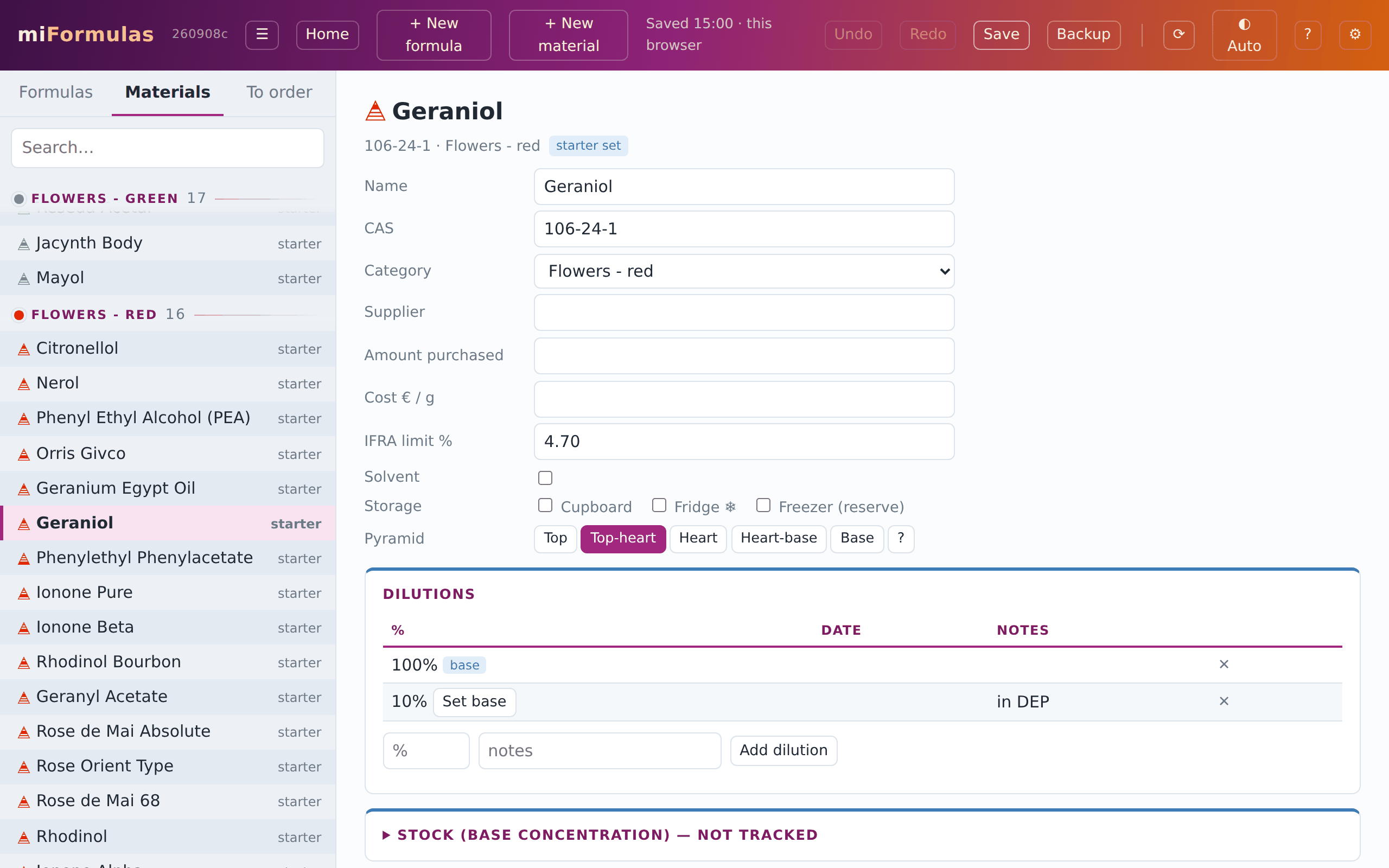
Dilutions. A material offers only the dilutions you actually own. If you have Iso E Super at 100 % and at 10 % in ethanol, add both; if you only ever bought a 10 % dilution of a costly absolute, add only 10 %. Add one with Add dilution (a percentage and an optional note) and make it the base with Set base; ✕ removes one after a question that says whether formulas use it, and the highest remaining dilution becomes the base if you remove that one. One of them is the base dilution, the concentration that new formula lines start with; any dilution can be the base, and 100 % is not assumed. Deleting a dilution that formulas use is allowed: those lines keep their value, and on the version you can still edit they get the ⚠ of a dilution you do not stock (section 7); new lines no longer offer it. The date and the note of a dilution can be changed in the table.
Ethanol is the diluent. The app takes every dilution to be in ethanol, so a dilution needs no note to say so, and the tools work that way: Preserve rel % and exchange solvent, Lower and Higher exchange against the ethanol line (another solvent only when there is none, section 7), and Set EtOH works with ethanol only (section 8). A dilution in DPG or DEP computes the same, because the app only uses its percentage; write the solvent in the dilution's note if you want to remember it.
Solvent. Tick this for ethanol, DPG, IPM, TEC and the like. Solvent lines carry no aromatic content: they do not count in the relative percentages and they are what the dilution tools exchange against.
IFRA limit. Enter the limit in percent of the finished product for Category 4 (fine fragrance), taken from the standards library on ifrafragrance.org. Three special values: 99 means checked, no restriction; 0 means prohibited in this category; empty means not yet checked (a figure below zero from an imported file counts as empty too). The IFRA panel of a formula uses these figures (section 12).
Storage. A material stored in the fridge shows a ❄ next to formula lines that use it at its base concentration, also on the printed weighing sheet, so you know which bottles to fetch first.
To order. A material you do not have yet, whether you added it from the order list or it came out of an import, carries the label "to order" and a 🛒 in the list until it is delivered.
Materials come from + New material… in the header (name, category and base dilution; the rest is filled in on the page), from the order list, from an import, or from Create premix…. With a materials library loaded (section 16) the name field suggests the names in it, by name and by alternative name, and a match brings its facts along: CAS, category, pyramid level, IFRA limit, the alternative names, and a few lines at the top of the description: the odour words, then the impact, the substantivity and the concentration it is typically used at. Everything stays editable, and one Undo takes the whole material back. While no library is loaded, the window says so and offers Get the latest library on the spot, so that the facts are there for the material you are typing; Don’t remind me, next to it, stops that reminder for good (so does removing a library in Settings), and Settings keeps the button for whenever you want it after all. The search box in Materials also reaches the library: under your own results it lists what the library knows and you do not have ("Also in the materials library:", or "Not in your inventory. In the materials library:" when you have none of them), the first eight, with "and N more; narrow the search" underneath, each with a + Add. Browse the library…, in the + New material window, opens the whole library with a search field, which starts with the name you typed, and a tick box per material: useful when you start from nothing and want ten materials at once. Cancel there takes you back to the + New material window as you left it. Shift-click ticks a range, as in the formula table. What you already have is greyed out and cannot be ticked, everything arrives at 100 % base dilution, and the whole batch is a single Undo step. Delete material refuses as long as any version uses the material, an older or a frozen one included, and names the formulas; the list of them stands on the page as well. Removing the lines from the latest version is the way out, and for a version that cannot be edited the refusal points at Delete version. When nothing uses it any more, deleting asks for confirmation and says how many order-list entries go with it.
Fill in from the library…, in the menu ⋯ of a material, brings the facts of the library to a material you already have: one that came from Formulair or from a spreadsheet, or a second bottle of the same material under a name of its own, such as a rose absolute from another country. Pick its entry in the list, which you search by name, alternative name or CAS number; an entry you already have can be picked too. Only what is still empty is filled in: the CAS number, the category (Uncategorised counts as empty), the pyramid level (?), the IFRA limit and the description. What you filled in yourself stays. The name of the entry and its alternative names are added as alternative names, so that the TGSC and Olfactorian links of the page open the pages the library links to; a name that another material of yours carries as an alternative name is left out, so that an import never has to ask which of the two you mean. The window says what it will fill in before you confirm, and one Undo takes it all back.
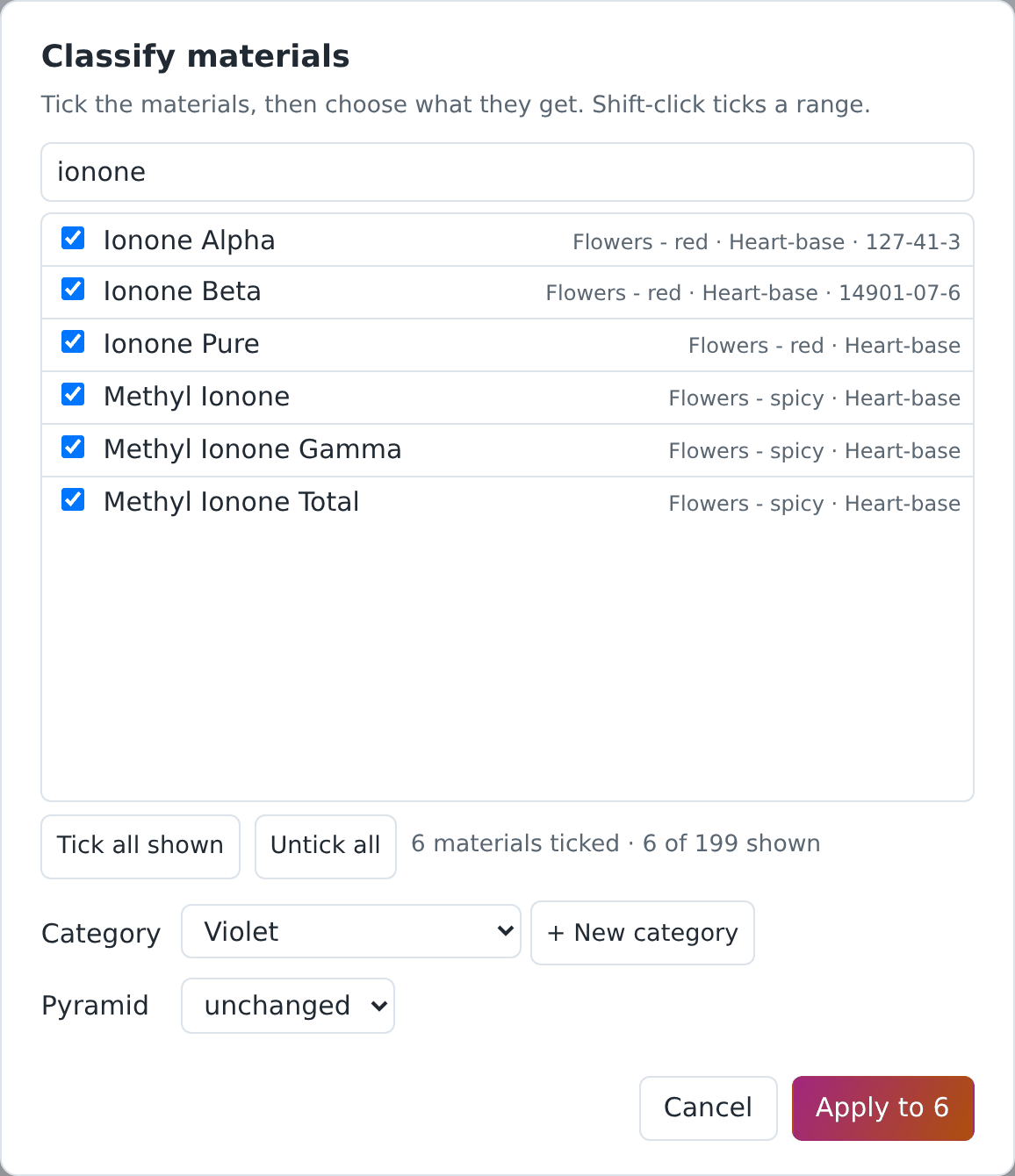
Classify several…, above the search box of the Materials list, gives many materials a category, a pyramid level or both at once: every perfumer has a classification of their own, and the one of the starter set or the library need not be yours. The window lists your inventory with a search field (names, alternative names, categories and CAS numbers, as in Export my inventory as a library…) and a tick box per material; the material you have open is ticked already. Tick all shown ticks what the search shows, so "ionone" and one click take all your ionones; Shift-click ticks a range, Untick all starts again, and what you ticked stays ticked when you search for something else. Under the list, Category and Pyramid stay "unchanged" until you choose, so you can set one and leave the other, and + New category makes a category there. Apply (it counts what you ticked: Apply to 12) changes the ticked materials in a single Undo step and says how many it changed. Premixes are not in the list: they keep their own group. The same button above the Formulas list does this for formulas (section 4).
You cannot give a material the name of another one, and the app watches the alternative names in both directions. Type a name that one of your materials already carries as an alternative name and it says so before making a second material. Rename a material to a name that another one carries as an alternative name and it asks as well, with the consequence: from then on an import that uses that name lands on the renamed material instead of the other one.
Alternative names may be shared, and often have to be. Four ylangs come from the same plant, and two isomers with a profile of their own sit under one chemical name, so a botanical or common name can belong to several of your materials at once; the library published by miFormulas has a good twenty such names. Your own names always win, but a shared alternative name no longer says which jar you mean. The app therefore does not choose one behind your back: Add line, ⇄ Replace and Delivered… ask which of them you mean, the import page shows the match it would make together with the other materials that answer to the same name, and the alternative names field tells you when a name you type is already carried by another material. It says which of the two cases you are in: another material carries it as an alternative name too, and typing it will ask which of you meant; or it is the own name of another material, and then that one always wins, so the alternative name you are typing will never reach this material at all. The suggestion lists behind those boxes carry one line per material with its alternative names beside it, and Chrome and Edge match what you type against those names too, so a botanical name four of your materials share brings up those four and picking one puts its own name in the box.
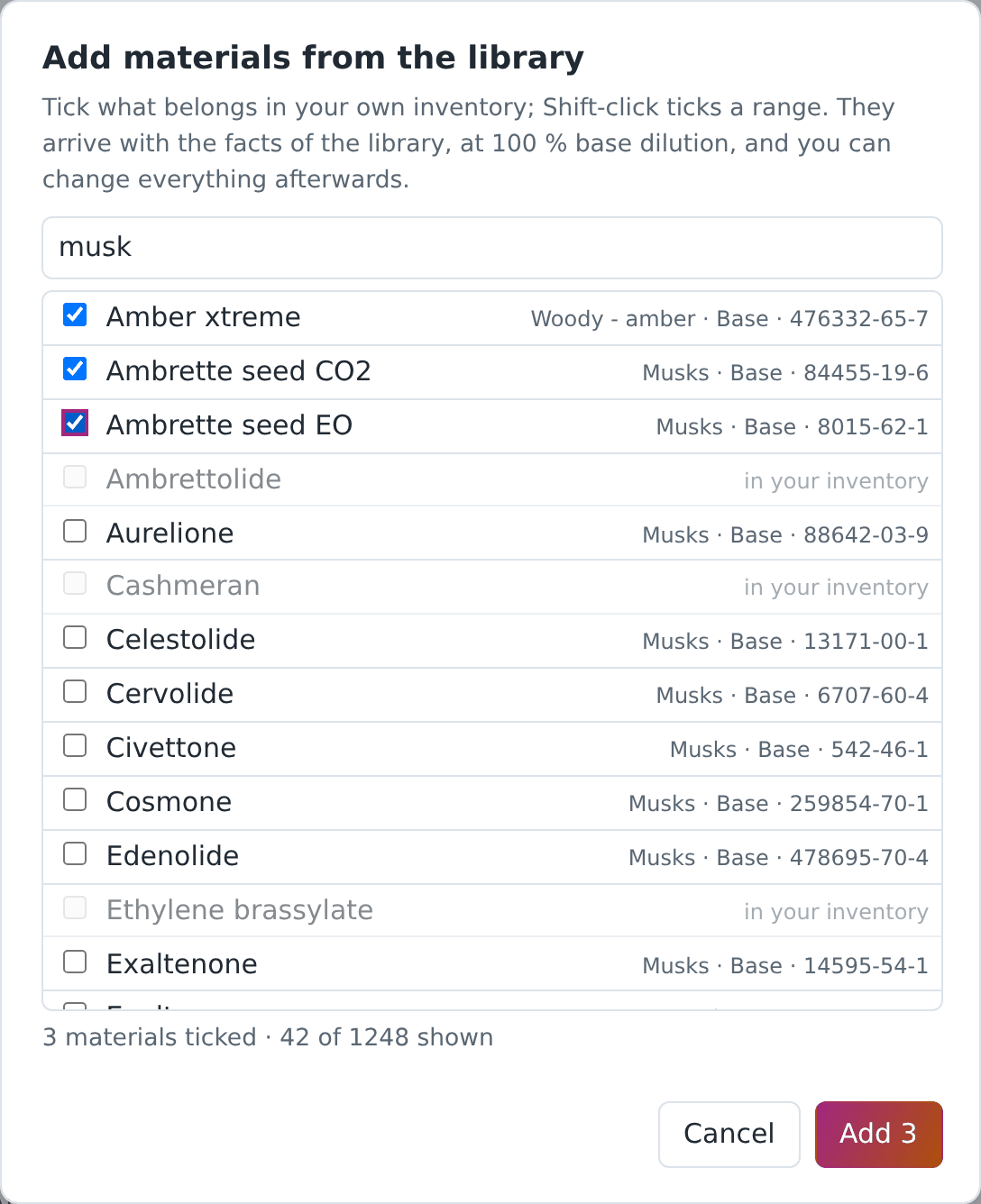
Filling in CAS numbers, IFRA limits, pyramid levels and descriptions for many materials is tedious; docs/ai-prompts.md has a prompt that lets an AI assistant propose them from the Export all materials (Excel) export, for you to check and enter.
What some apps ship as a built-in materials database, miFormulas keeps as a file you import: a materials library (section 16). With one loaded, a new material arrives with its CAS number, category, pyramid level, IFRA limit, alternative names and a few lines of odour facts already in place, all of it editable. Those are facts, and facts can be shared freely; the odour descriptions on supplier sites are somebody's writing and are not in it. The library published by miFormulas holds over a thousand materials under CC BY 4.0, and Get the latest library in Settings fetches the current one. Its IFRA limits can be wrong or out of date: check them against the current IFRA Standards (section 12). It is not inside the app, the repository or the ZIP: it changes more often than the app does, so the app asks for it when you do.
4. Formulas and versions
A formula is a named recipe in a category. Its history is a row of versions: v1, v2, v3 and so on, each with a date, an optional label, notes and its own lines. Only the latest version can be edited; every earlier version is a frozen record of what you did, kept exactly as it was. When you want to change something, create a new version (+ New version copies the lines of the version you are looking at, with their marks and the bench arrangement, under today's date; its label, notes and trial log stay with that version) and edit that. Deleting a version is possible, deleting the past is not: a new version never rewrites an old one.
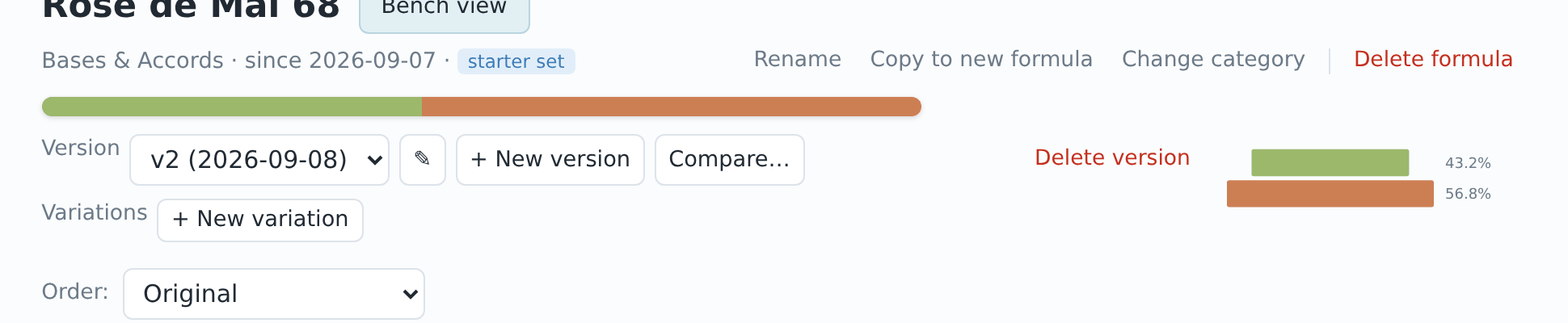
The head of a formula has two rows. The first holds what you work on: the name, the list of its versions with the pencil, + New version and Compare, and at its end ⋯, the menu with Rename…, Copy to new formula…, Move into…, Delete version and Delete formula. The second row, smaller, says what the formula is: its category, the day it was made, and starter set or frozen where that applies; on its right is how you look at it: the order of the lines (section 5) and Bench view (section 10). On a narrow window the version list and then the name give way, with the whole text in their tooltip, before the first row breaks. A menu closes again with a click beside it or with Escape.
Another presentation of the same recipe is a version too: the formula at 20 % instead of 15 %, with the costly material taken from the 10 % dilution instead of the pure one (make a new version and change the dilutions with Preserve rel % and exchange solvent, section 7), or made up as a 44 g batch instead of 100 g (Batch scaling, section 8). Give such a version a label with the pencil ("20%", "soap", "44gr") so the list tells them apart.
Formulas imported from Formulair are frozen too (section 17): you read them, compare them and copy them, but to work on one you make a new version.
Frozen means the amounts are fixed, not that the entry is untouchable. You can still name a version with the pencil, write notes, add trial-log entries, set colour marks, arrange the bench view and use Mark as prepared on a frozen version: those are your annotations about it, not the recipe itself. In the version list a 🔒 marks a version that came in from an import, and the name it carried there is shown after the version number as a reference; the window behind the pencil has a tick box show the import reference to hide that name in the list once the grouping is done. It only hides it: the reference stays in the file, so a second Formulair import still recognises the formula, and the app writes "Imported as “…”." once into the notes of the version.
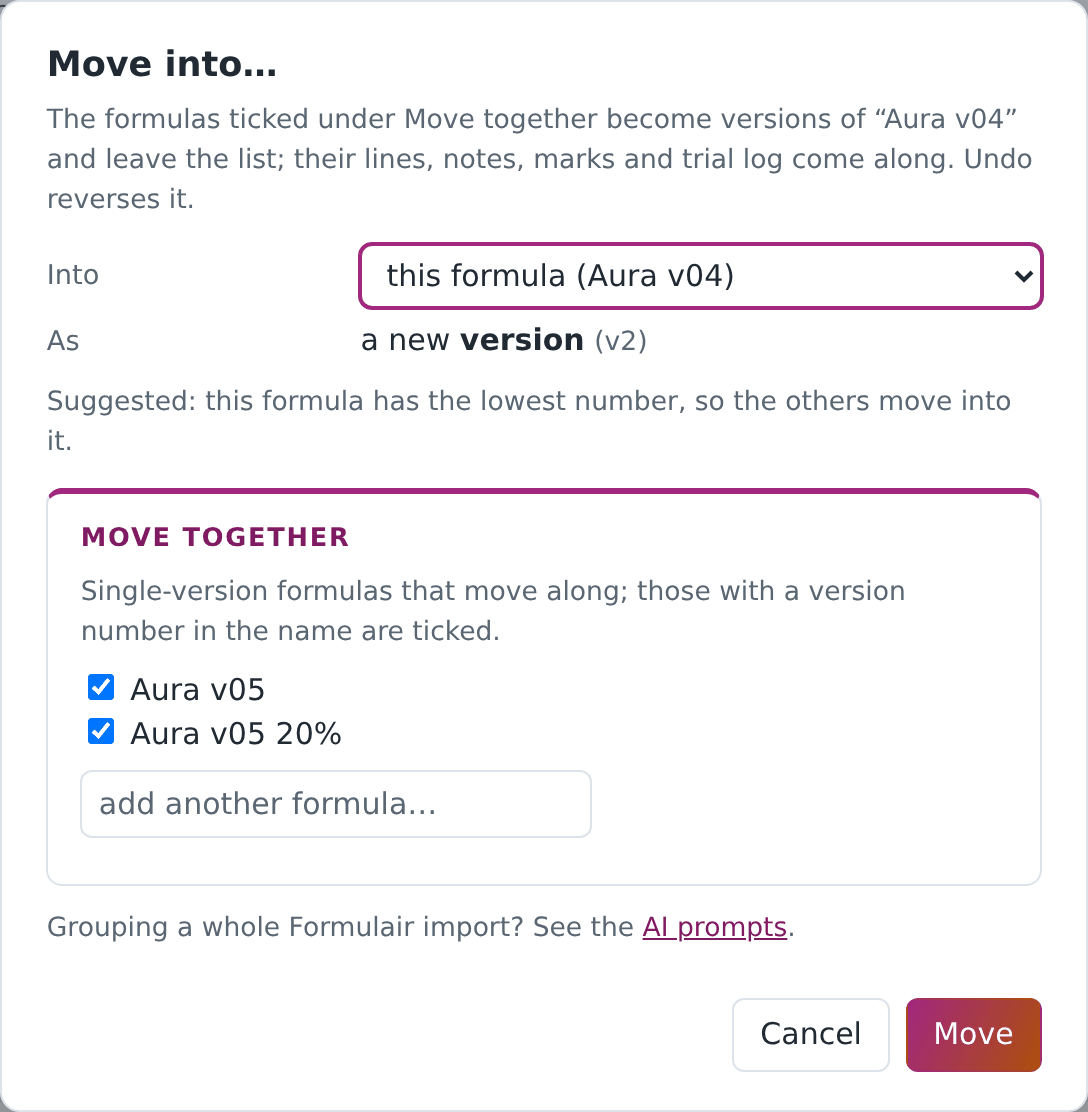
Move into…, in the menu ⋯, appears on any formula that still has one version, whatever it came from: a formula from the Formulair import, one you brought in with Import formula…, or one you typed yourself. It makes that formula a new version of another formula and removes it from the list. Lines, notes, date, colour marks and trial log come along; an import keeps its import name as a reference and stays frozen, a formula of your own arrives as an ordinary version that keeps its name as the version label, so nothing of it is lost from the list. Everything is one Undo step. This is how you group the flat Formulair import (section 17). When other single-version formulas share the name, the dialog lists them under Move together: those whose name carries a version number straight after the shared name ("Aura v04", "Aura v.5", "Aura versie 6", "Aura 7", "Aura v05 20%"; "Aura blanche 2" is another formula) come ticked and go into the target in the same go, as its next versions, in the order of that number and then by name. Untick what should stay, and add any other single-version formula with the search field below the list. Opened from one of the numbered ones, the dialog suggests the one with the lowest number (or with no number at all) as the target, and if that is the formula you opened, it offers this formula and the others move into it; opened from the one without a number, choose this formula yourself. You can always choose another target; a formula that has already received versions cannot be moved itself any more.
Copy to new formula…, also in ⋯, takes the version you are looking at as v1 of a new formula, with its lines, bench arrangement, notes and trial log; the notes open with a line saying which formula and version it was copied from. Rename… does what it says. The category of a formula is chosen on its page, in the second row of its head, as on a material page: a click on the category opens the list, the colour of the category, which its dot follows, and + New category. Categories are shared between formulas. Classify several… above the Formulas list gives several formulas a category at once, in the same window as for materials but without the pyramid; a frozen formula takes part too, because the category belongs to the formula and not to a version. A new formula starts in Uncategorised unless you pick another category, whatever you happened to be looking at.
Delete version, in ⋯ with Delete formula, asks first and names the formula and the version it is about. When it is the only version it says so: the formula then stays in your list without lines, and Delete formula is what removes the formula itself. Undo (Ctrl+Z) brings a deleted version back during the session.
5. Editing a formula
A formula line is a material, a dilution and a weight in grams. To add one, type the material's name in the Add material… box under the table (the list suggests as you type) and press Enter or click Add line; the line starts at the material's base dilution with weight 0. Type the weight, choose another dilution from the list if you have one (a trace dilution keeps the decimals it needs, so 0,001 % and 0,01 % do not both read as 0 %), or pick custom… for a percentage you do not stock (the app then warns with ⚠ that this dilution is not in your list, see section 7). Remove a line with ✕, and swap the material on a line for another with ⇄: the dilution and the weight are carried over, so a line you weighed stays weighed. Both the box and ⇄ accept an alternative name of a material you own (give your Ambroxide the alternative name Ambroxan, and typing Ambroxan finds it), so you do not create the same material twice, and the suggestion list shows each material with its alternative names beside it, so typing one of those names brings up the materials that carry it. When nothing of yours carries the name you typed, the app does not go straight to creating one: it runs the same search as the list panel in section 2 (name, alternative names, CAS number, supplier, and the description) and opens Which material? with what that finds and what it matched on: Use this one takes the material you meant, None of these goes on to create it. ⇄ never creates a material: its Which material? has Replace in place of those two buttons, and a name the search finds nothing for gets a message. Adding a material the version already holds at that same dilution asks first, because a second line means the weighing sheet lists it twice while Compare adds the two together. Say yes and an amber line keeps warning about those duplicate lines, in the table and in the bench view alike, because it is nearly always a slip. Weights can be typed one after another without the mouse: Tab confirms the weight you typed and moves to the next one (after the last, to Add material…), Shift+Tab to the previous, and Enter keeps you in the field you are in. A weight you leave as it is does not move you on: Tab then goes to the next control on its line. Step away in the middle of a number, to another tab or another program, and the field keeps what you typed with the cursor where it was: you type on when you come back.
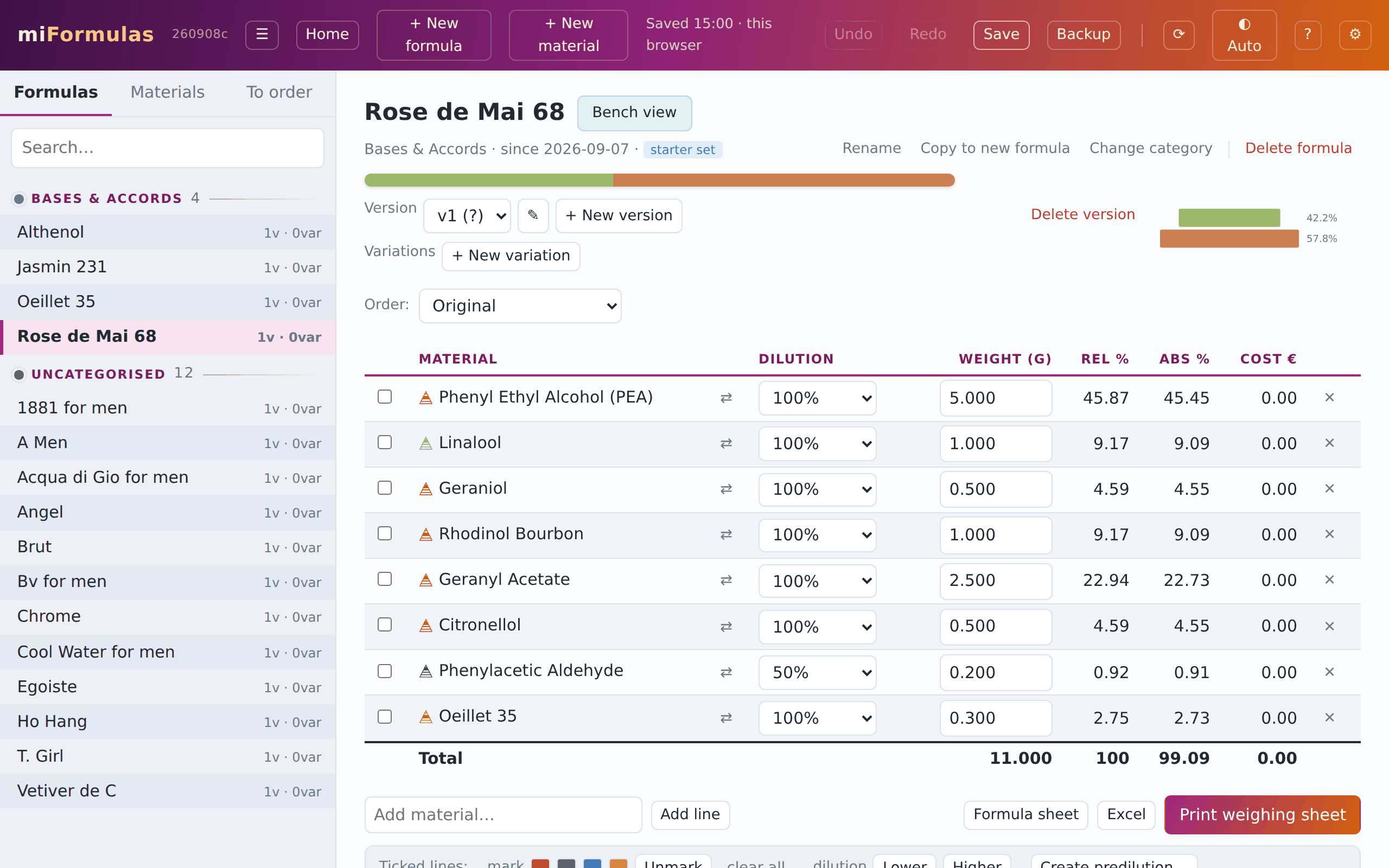
If you add a material that is not in your inventory, the app offers to create it as a "to order" material: it goes on the order list, and the line is marked until the material is delivered. With a materials library loaded (section 16) it arrives with the facts the library holds, exactly as + New material… does; the same goes for a formula import and for Delivered… on the order list.
With the list on the right in the second row of the head (Original order, By category, Pyramid top → base, Pyramid base → top), or by clicking a column heading, the table changes its order; the order is also used for the printed sheets. The little icon before each material name shows its pyramid level in the colour of its category.
Under the table, on the left, are Add material…, Add line and Batch scaling (section 8, on the editable version only), which opens a strip under them; on the right Mark as prepared for the stock ledger (section 13), Print / export and Print weighing sheet (section 10). Below them stand four panels, two by two where the window is wide enough: Notes and the Trial log (section 9), Pyramid & categories (just Categories while no line has a pyramid level) and the IFRA check (section 12). They start closed, and their titles say what is in them: "recorded" or "empty" for Notes, the number of entries in the Trial log, the number of categories, and the verdict of the IFRA check. A panel opens and closes with a click on its title and stays as you left it, for every formula and version, also the next time you start the app on this computer. That is a setting of the computer and not part of your data, so Undo leaves it alone.
6. Percentages and the perfumery arithmetic
The table shows two percentages per line, and they follow perfumery practice rather than plain weight shares.
The content of a line is its weight corrected for the dilution: 2 g of a 10 % dilution is 0.2 g of material.
Rel % is the content of a line divided by the total content of all non-solvent lines. The column adds up to 100; solvent lines show a dash, because they carry no material. This is the composition of the concentrate, independent of how much ethanol is around it.
Abs % is the content of a line divided by the total weight of the formula, solvents included. The total of this column is the concentration of the mix: a formula with 15 % abs in total is a 15 % concentrate. Solvent lines show their share of the weight here, and the total leaves them out.
The cost of a line is weight × cost per gram × dilution, and the total cost is what the batch cost you in materials, counted over the lines that carry a price: a material without one counts as nothing, so the total is complete only when every line has a price. The column appears as soon as one material in your inventory carries a price, and stays away while none of them does, because a column of zeros says nothing.
These rules are what makes the dilution tools work: changing a dilution while preserving rel % keeps the smell the same; the abs % and the total weight then tell you what happened to the strength and the batch size.
7. Changing dilutions
Change the dilution of a line by choosing another value in its dilution list. Because a different dilution means a different weight for the same amount of material, the app asks how to proceed:
- Preserve rel % and exchange solvent. The weight of the line changes so that its content stays the same, and the difference is taken from or given back to the solvent line (ethanol first, otherwise the first solvent). The total weight and the concentration do not change: this is the same formula, made from another bottle. Not available when there is no solvent line, or when the solvent line does not hold enough to give back.
- Preserve rel % only. The weight of the line changes, nothing else; the total weight and the abs % shift.
- Preserve weight. The grams stay as they are, so the material content and the rel % change. Use this when the weighing is the fact and the dilution was wrong.
A solvent line, and a line that still weighs 0 g, change dilution without the question, because there is no material content to keep: the grams stay as they are. On a line you have just added with Add line, once you have typed its weight, Preserve weight is chosen to start with: you are copying a recipe, and the grams on paper are the grams of that dilution.
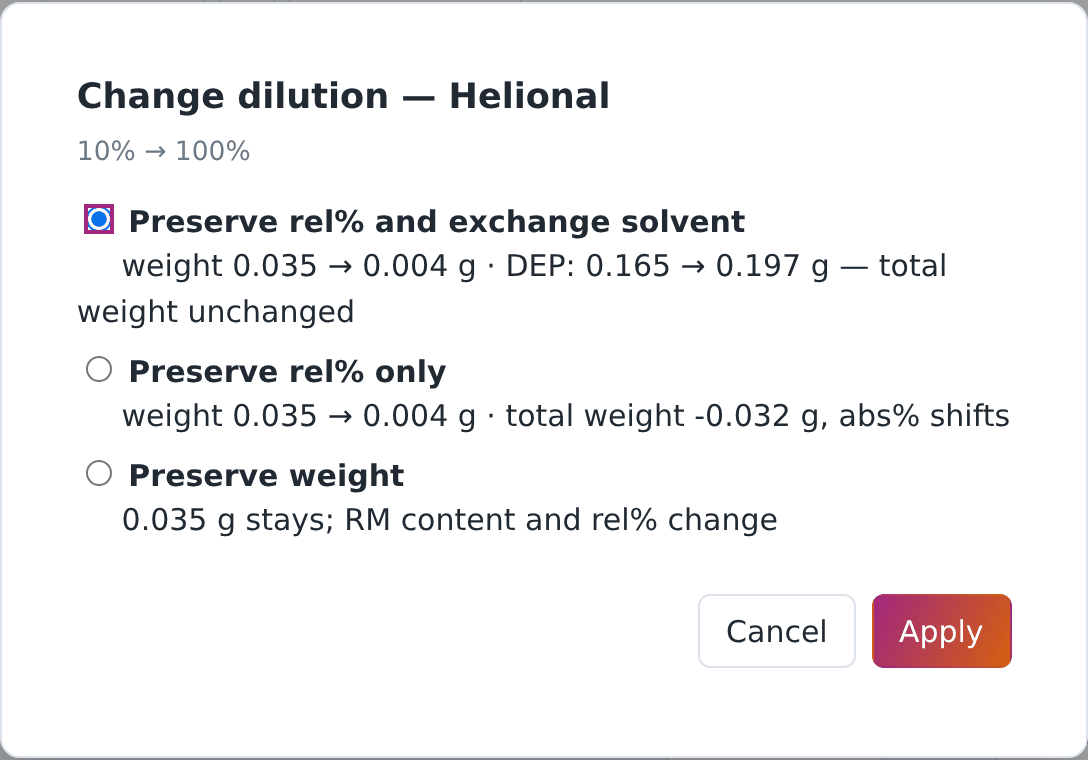
When you replace a material with ⇄ by one that does not offer the line's dilution, the same question comes up, for the nearest dilution the new material does have; Cancel keeps the old material.
Tick lines and the tick bar appears under the table (section 9). On the version you can still edit, its Lower and Higher shift all ticked lines to the next lower or higher dilution that the material offers, preserving rel % and exchanging the solvent in one go (so the formula needs a solvent line); lines already at their lowest or highest are skipped and reported, and so is a ticked solvent line, because the solvent is what takes up the difference.
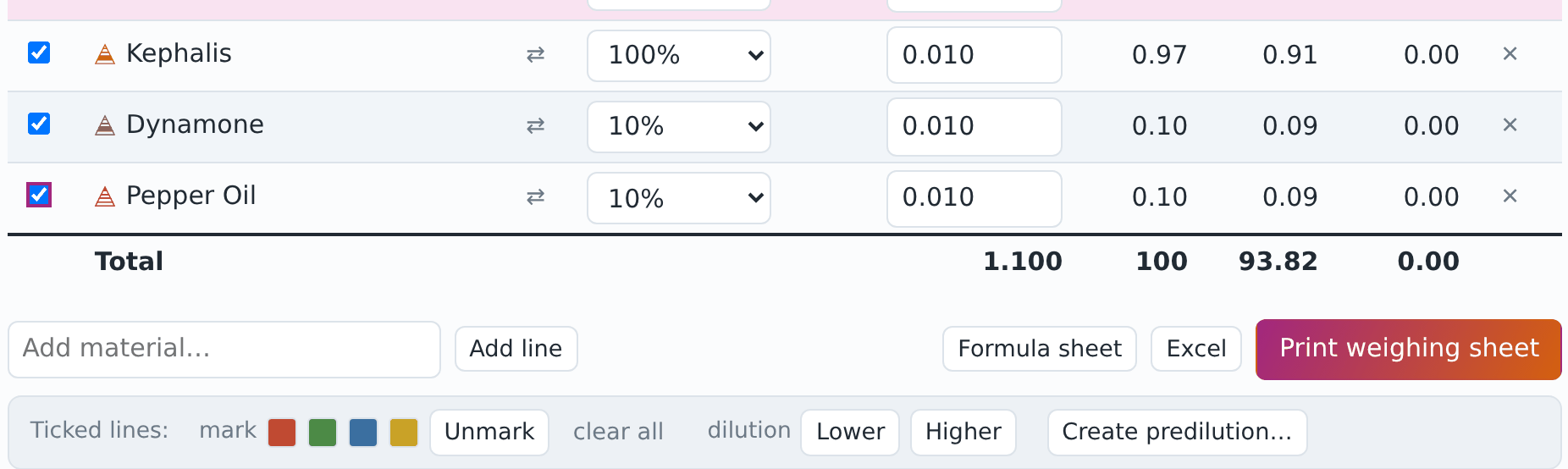
Lines with a dilution you do not stock are marked ⚠, typically after an import. They compute correctly; to change one to a dilution you have, use Preserve rel % and exchange solvent. Only the version you can still edit shows the mark; a new version made from an older or frozen one shows it again.
8. Batch scaling and premixes
Batch scaling, the button under the table, opens a strip with three fields, in the order you use them. Concentration (abs %) with Set EtOH changes only the ethanol line so that the formula reaches the concentration you type, adding an ethanol line if there is none (ethanol is a material ticked as a solvent with Ethanol or EtOH in its name, so an "Alcohol 96 %" is not taken for it, and without such a material the button says so); the figure after it, max …%, is the most you can reach with no ethanol at all. Target total then rescales the whole formula to a given weight, and Apply factor multiplies every weight (2.5 turns a 40 g trial into 100 g). Scaling far down loses nothing in the arithmetic: the app keeps every weight to six decimals and shows three. For 50 g at 20 %, set the concentration first and the total after it: the other way round, the ethanol comes on top of the 50 g. Batch scaling is there on the editable version only, and the printed weighing sheet always shows the weights as they are stored. To weigh another quantity, make a new version and scale that one: the batch on your bench then carries a version number that points back into the app, which a rescaled print would not.
Premixes. You scale a formula to the weight you intend to make, and that nearly always leaves lines too small to weigh. The limit is the drop: you cannot weigh out less than one drop of a liquid. Let's say that 25 mg is a practical minimum. Create premix… groups the lines you ticked into a premix, which you can scale up by a factor until even the smallest line can be weighed. A new version of the formula is automatically created in which one line of the premix takes the place of the materials you selected.
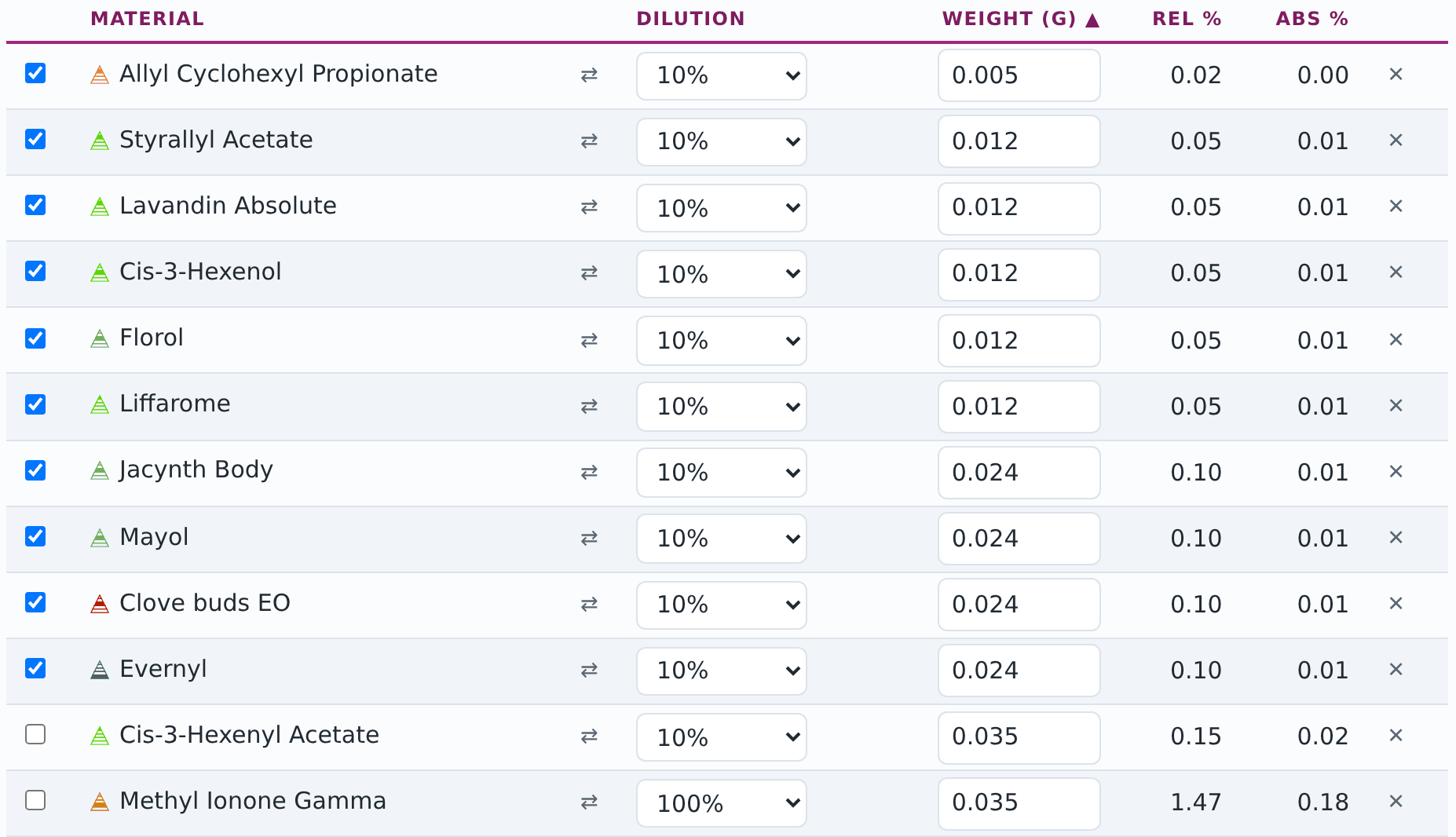
An example from the starter set: Acqua di Gio for men, its v2 at 12 %, taken into a new version and scaled to 20 g with Target total. Click the Weight (g) heading to sort the lines by weight: fifteen lines stand under 25 mg, from 0.005 g to 0.024 g. The first remedy is the 10 % dilution that you keep of most materials: tick the fifteen (a click on the first, a Shift-click on the last) and choose Lower in the bar under the table (section 7). The five that were at 100 % move to their 10 % dilution and weigh ten times as much: Patchouli Oil, Rosemary CT camphor EO and Benzyl Salicylate go from 0.012 g to 0.118 g, Clary Sage Oil and Calone from 0.024 g to 0.236 g, and the ethanol line gives up the 0.743 g they gained, so the total stays at 20 g. The other ten were at 10 % already, the lowest dilution they have, and the app reports them as skipped. From Allyl Cyclohexyl Propionate at 0.005 g to Evernyl at 0.024 g, together 0.158 g, they are still too small: tick those ten and choose Create premix….
The window proposes a name and asks for a batch factor. Its preview shows what you will weigh: the weight of the mix, its aromatic strength and its smallest line, in grams like every other weight in the app. Raise the factor until that smallest line is well above 25 mg: a factor of 10 makes the 4.8 mg of Allyl Cyclohexyl Propionate (0.005 g on the screen) into 48 mg, and the mix 1.582 g.
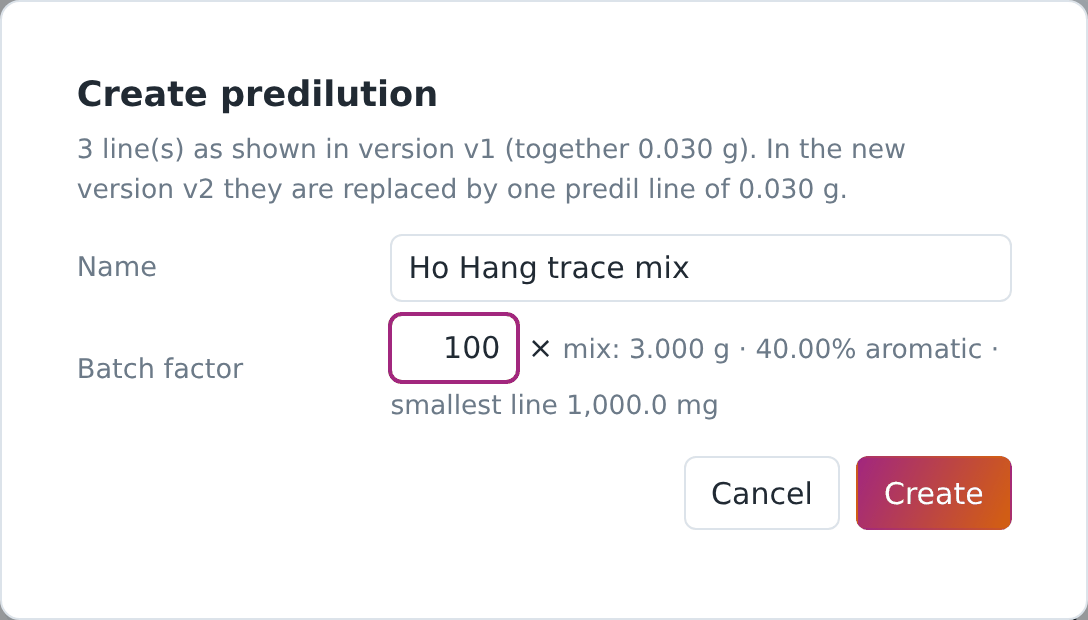
Create then makes three things at once, in one Undo step:
- the premix, as a frozen formula in the category "Premixes": the weighing sheet of the mix, ten times each of the ten lines;
- a material in the category "Premixes" with the aromatic strength of the mix as its dilution (10 % here, because all ten lines are 10 % dilutions) and, when your materials carry a price, its cost per gram;
- a new version of your formula in which the ticked lines are replaced by one line of that material with the same content, so rel % does not move: 0.158 g of the premix, which holds what the ten lines held.
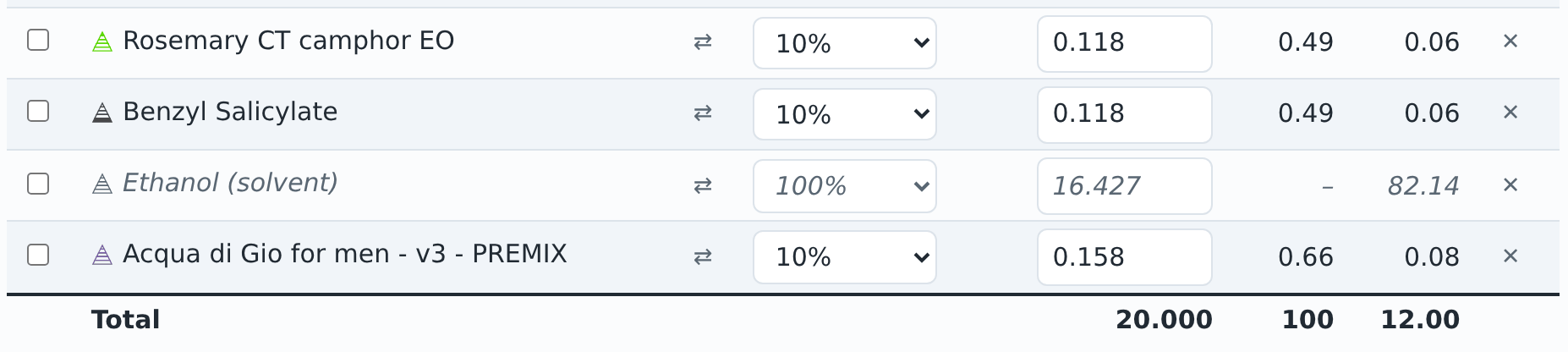
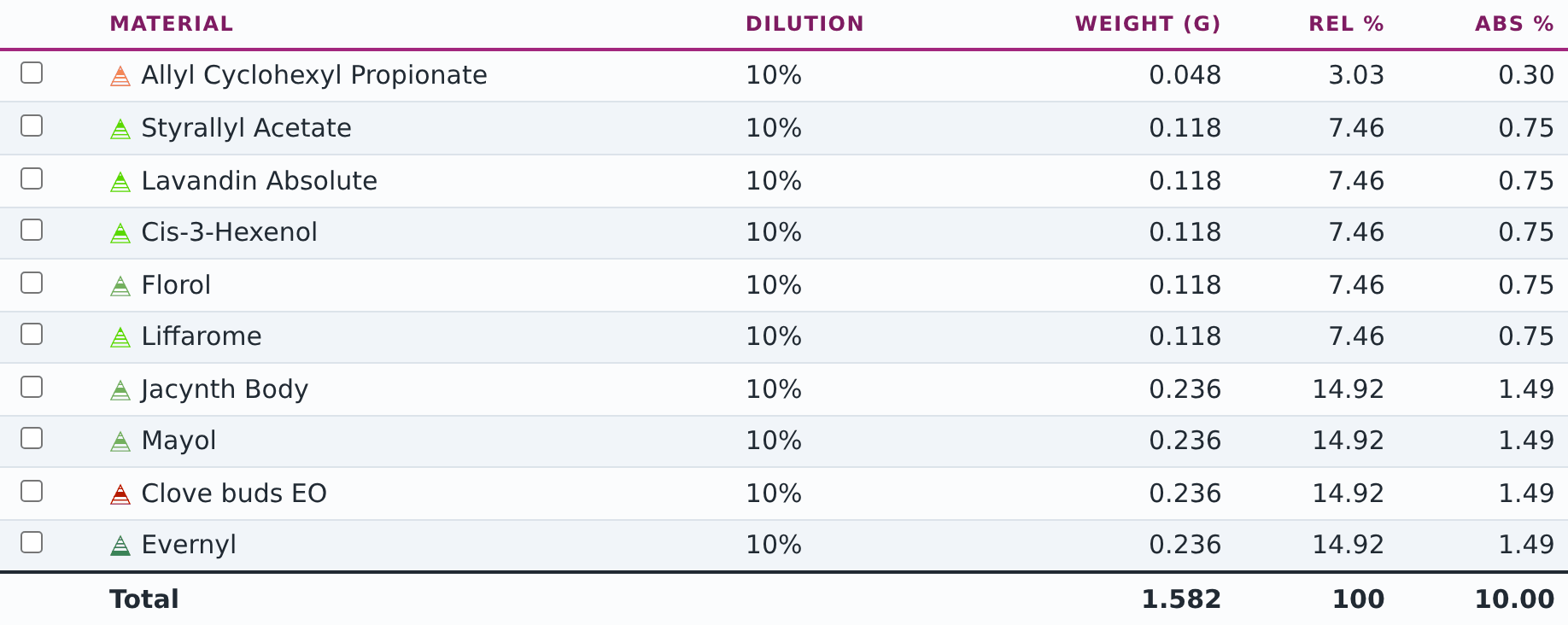
You weigh the mix once and then 0.158 g of it into the batch: one weighing instead of ten, and the 1.424 g that is left will do for nine more. A ticked solvent line, or a line of 0 g, is left out, because neither belongs in a premix. The IFRA check cannot look inside a premix, so it switches off on a version that holds one (section 12). The premix material keeps out of the way: it sits in a closed group Premixes at the bottom of the Materials list, the Welcome page does not count it, and Export my inventory as a library… leaves it out; a search finds it, and so do Add line and ⇄.
9. Colour marks, notes and the trial log
Tick lines with the checkboxes on the left (Shift-click ticks a range) and the tick bar appears, with the number of lines you ticked; it stays at the bottom of the window while the table runs on below it, and goes when you untick the last line. In it you mark the ticked lines red, green, blue or yellow, unmark them, or clear every mark in the version at once with Clear all, which asks first and says how many go (or that there are none). Marks are per version, and they carry over into new versions and copies, and into a formula you move into another with Move into…. They stay inside the app: a shared file, the Excel exports and Export all my formulas carry the recipe, not your marks, because a colour means something to you and nothing to the person you send it to. Use them as you like: what changed, what to smell for, what to check.
Notes is a free text per version, shown on the formula sheet; while its panel is closed, the title says "recorded" when it holds text. The Trial log is a dated list of short entries ("day 3, macerated, top too sharp") that also prints on the formula sheet.
10. Bench view and printing
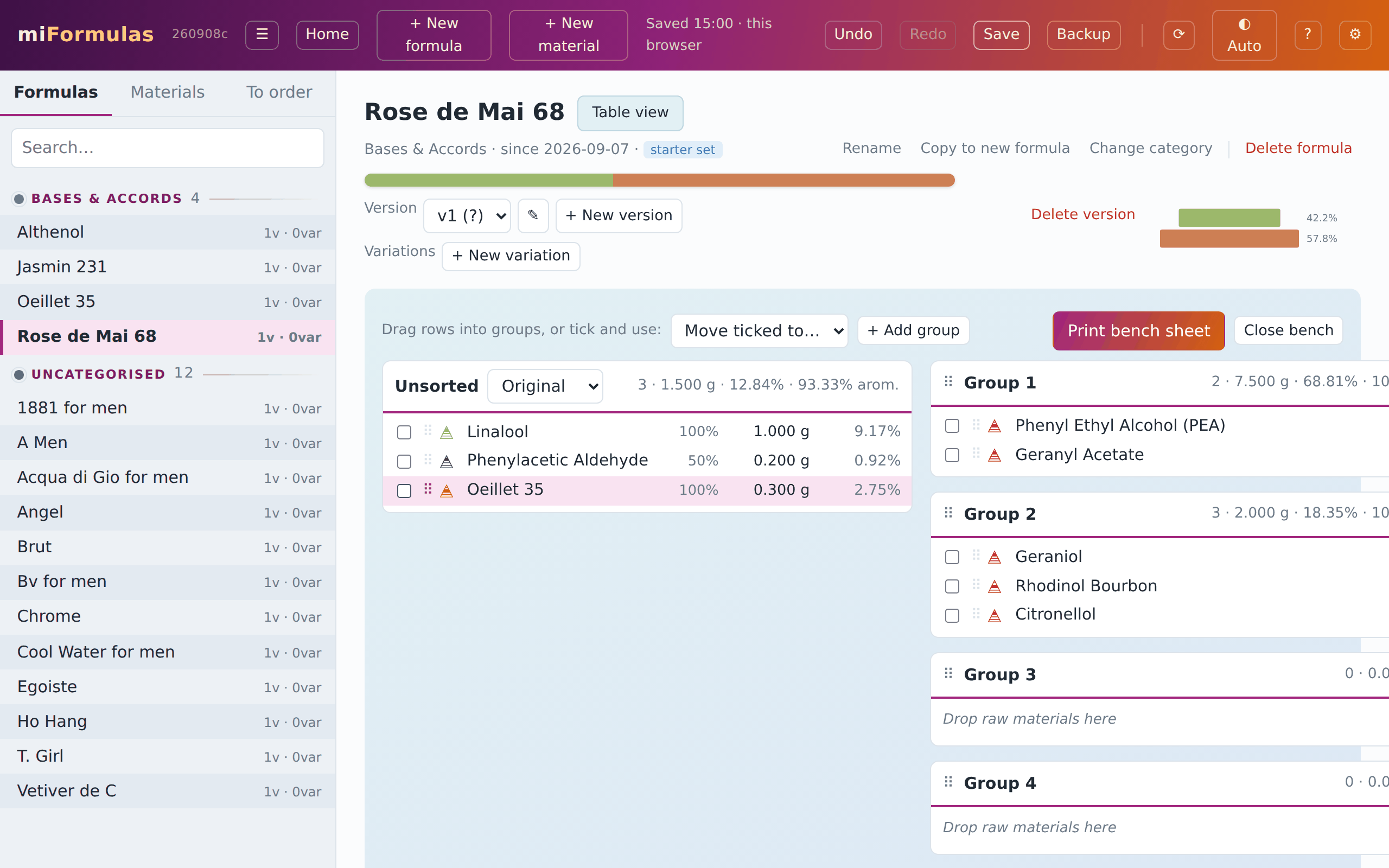
Bench view (the button at the end of the second row of the head, which reads Table view while the bench is open) is something you will not find in other formulation apps. It follows the way many perfumers build a batch: start with the core materials, smell, then add the next group step by step. Bench view turns the formula table into that kind of worksheet. The lines start in the Unsorted column; drag them into named groups, or tick several lines and choose Move ticked to…. The Unsorted column keeps every sort order of the table (original, A to Z, dilution, weight, rel %, category, pyramid top to base or base to top), so sorting by category, ticking all the rose materials and moving them into one group takes a few clicks. Five groups are there to start with; + Add group, above them, makes as many more as your batch needs, and you can rename, reorder (the ⠿ handle, or ↑ and ↓) and delete groups as you like; ⇤ empties one back into Unsorted without deleting it. Each group shows its line count, weight, rel % and aromatic strength, so you see what each step adds to the batch. The arrangement is saved with the version from the first thing you move, and it hangs on the lines themselves, so changing a dilution or deleting one of two identical lines leaves the other where you put it; opening the bench view changes nothing, and arranging it does not change the date of the formula. Weights are changed in Table view; the bench view shows them. The groups stand beside the Unsorted column wherever the page has room for two columns, with the list open on a laptop too, and below it on a narrower one, so the group buttons are always within reach. Print bench sheet prints the groups with a checkbox per line, in the order you will weigh them, and what is still in Unsorted as a last block, so the sheet holds the whole version; like the weighing sheet, it marks a material you do not own yet "(to order)". The bench view works on the version you opened it from, named above the bench: the category and the version list stay in the table view, where you choose them.
From the table view, under the lines on the right: Print weighing sheet, and the menu Print / export with Print full formula, Excel export and Share this version. Each says in its tooltip who it is for. The two prints are not the same sheet: the full formula is the record of the version, the weighing sheet is what you work from at the bench. Ctrl+P or File › Print without one of these buttons prints that same weighing sheet of the version you are looking at, in bench view as well; outside a formula it prints a line saying so, and from this manual a line that points at the version to print online, so what goes to the printer is never a sheet left over from earlier.
- Print weighing sheet prints the lines in the current order with a checkbox, the pyramid icon, the dilution, the grams to weigh and rel %, exactly as the version holds them; it never rescales, so what you weigh always matches a version number (section 8). A fridge material carries the ❄ on the lines at its base dilution, and a material you do not own yet reads "(to order)", so you notice at the bench and not at the cupboard.
- Print full formula prints the complete entry with weights, both percentages, the total, and the notes and the trial log underneath; the cost per line is there once a material of yours carries a price, exactly as the column on the screen appears only then. This is the record of the version, the one to keep on paper or as a PDF.
- Excel export downloads the entry as a CSV file, which a spreadsheet opens directly. Use this for a colleague who does not use miFormulas: they can read it, sort it and work in it. It also comes back: Import formula… reads the file with its title row, so a version you changed in the spreadsheet returns as a new version of its formula (section 16). A line whose material you have since deleted has no name to write; the app says how many there are and asks before it leaves them out.
- Share this version downloads the entry as a file for someone who does use miFormulas, who imports it in one action; section 16, under Sharing a version, says what it holds.
Printing uses the browser's print dialog; choose "Save as PDF" there for a PDF. It always comes out dark on white, whichever theme you work in.
11. Comparing versions
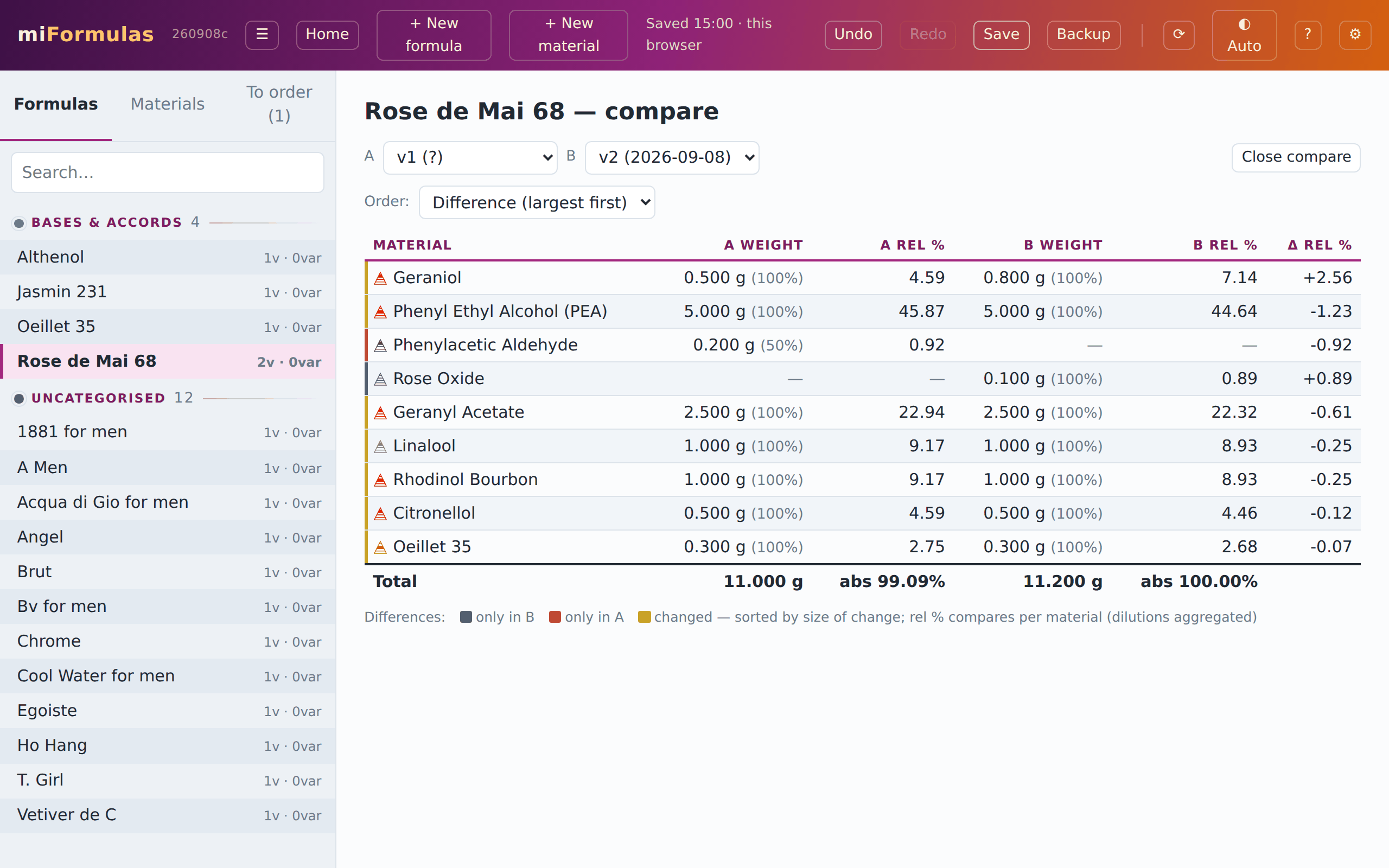
Compare (shown as soon as a formula has two versions) puts two versions side by side, aggregated per material: weight and dilutions in A, weight and dilutions in B, rel % in each, and the difference in rel %. Lines only in B are green, lines only in A red, changed lines yellow; the default order puts the largest changes first, and the totals show the weight and the concentration of both. A is the older of the two and B the newer, so the difference reads as what changed since A; opening Compare on the very first version puts that one in A and the next in B. Change A and B with the two lists and close with Close compare, which puts you back on the version you came from. Two versions side by side is not a sheet, so printing is done from one version: close the comparison first.
12. IFRA check and category panel
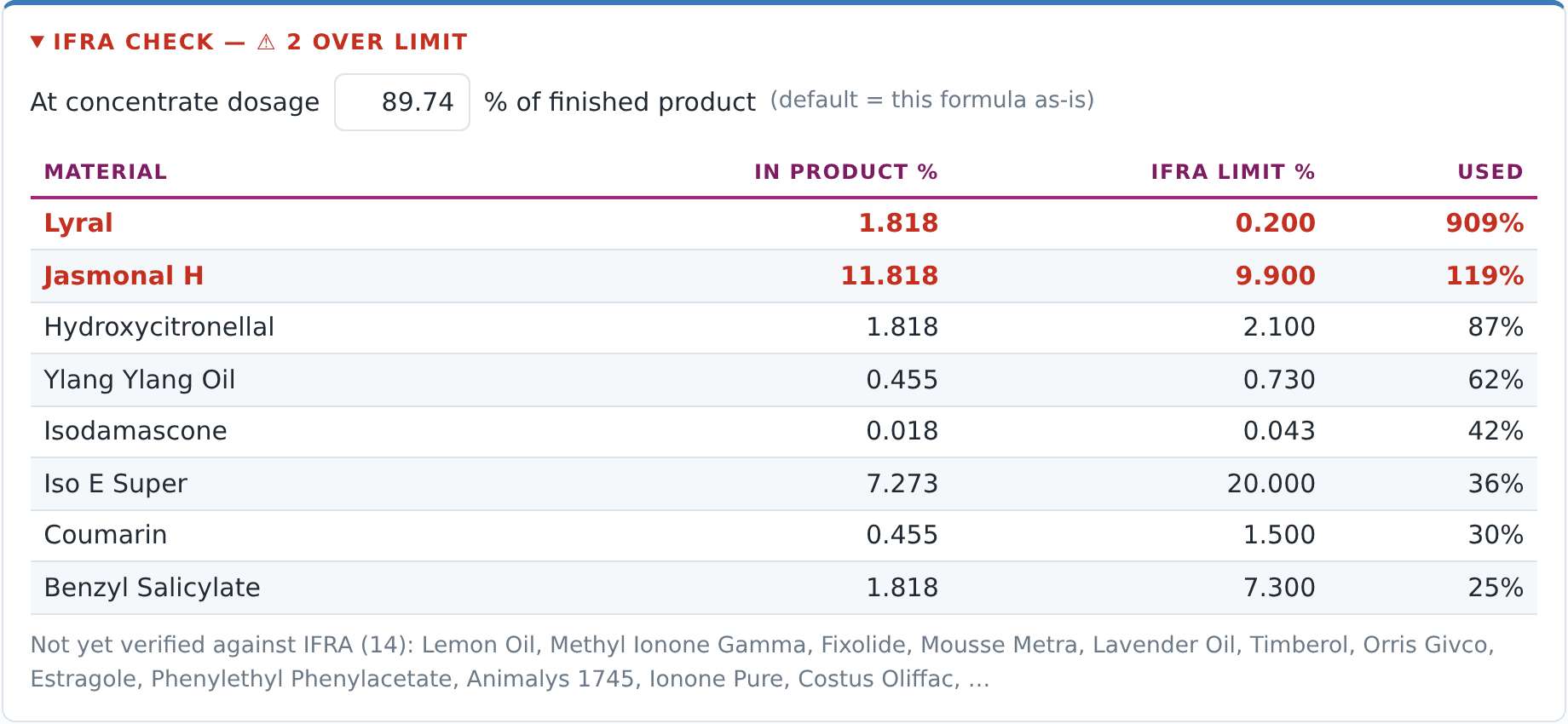
The IFRA check panel judges the formula against the limits you entered on the materials. An IFRA limit is a percentage of the finished product, and the finished product is everything in the bottle, so the check works from each material's share of the whole weight of this version, solvent lines included, and not from its rel %, which stands on the non-solvent content alone. That share is compared with the material's limit: the version as it stands, with whatever solvents it holds, is what ends up on skin. A concentrate therefore reads high here; to check it at the strength you will use, dilute it in a new version (Set EtOH, section 8) and look at that one. The starter formulas show both: v1 is the concentrate, v2 the same formula diluted in ethanol.
The heading says at once whether the formula is within limits or how many materials are over (a share exactly on its limit is within it); the table shows the restricted materials with their share in the product, their limit and the percentage of the limit that is used, the worst first. It stops at eight rows, or at however many are over their limit, so nothing over a limit is ever left out; a line under the table says how many further materials stayed below theirs. A material you ticked as a solvent stands in that table like any other, with its own share: IFRA counts it as part of the finished product whatever role it has in your formula. Materials without a limit entered are listed as not yet verified, and so are materials with a figure below zero, which cannot be a limit; when nothing in the formula carries a limit yet the heading says so, because an empty check is not a clearance. A limit of 0 reads as prohibited. A line whose material you have since deleted is named separately: it still counts in the weights, but there is nothing left to check it against. A premix switches the check off. Its materials live as text in the description of the premix material, not as lines, so the app cannot see them; checking anyway would report the formula as clean while a restricted material sits in the mix. The heading then says the check is off, and the panel names the premix: check the version from before the premix was made, or the premix itself under Premixes, where its materials are lines again. The check knows only what you entered, and only for the product category you had in mind when you entered it. The limits that the miFormulas materials library brings along were looked up one by one in the IFRA Standards Library for Category 4 when the library was compiled. IFRA limits can be wrong or out of date: a later amendment does not reach them by itself, and miFormulas is not affiliated with IFRA. Check them against the current IFRA Standards before you rely on them, and certainly before you sell or give away a product.
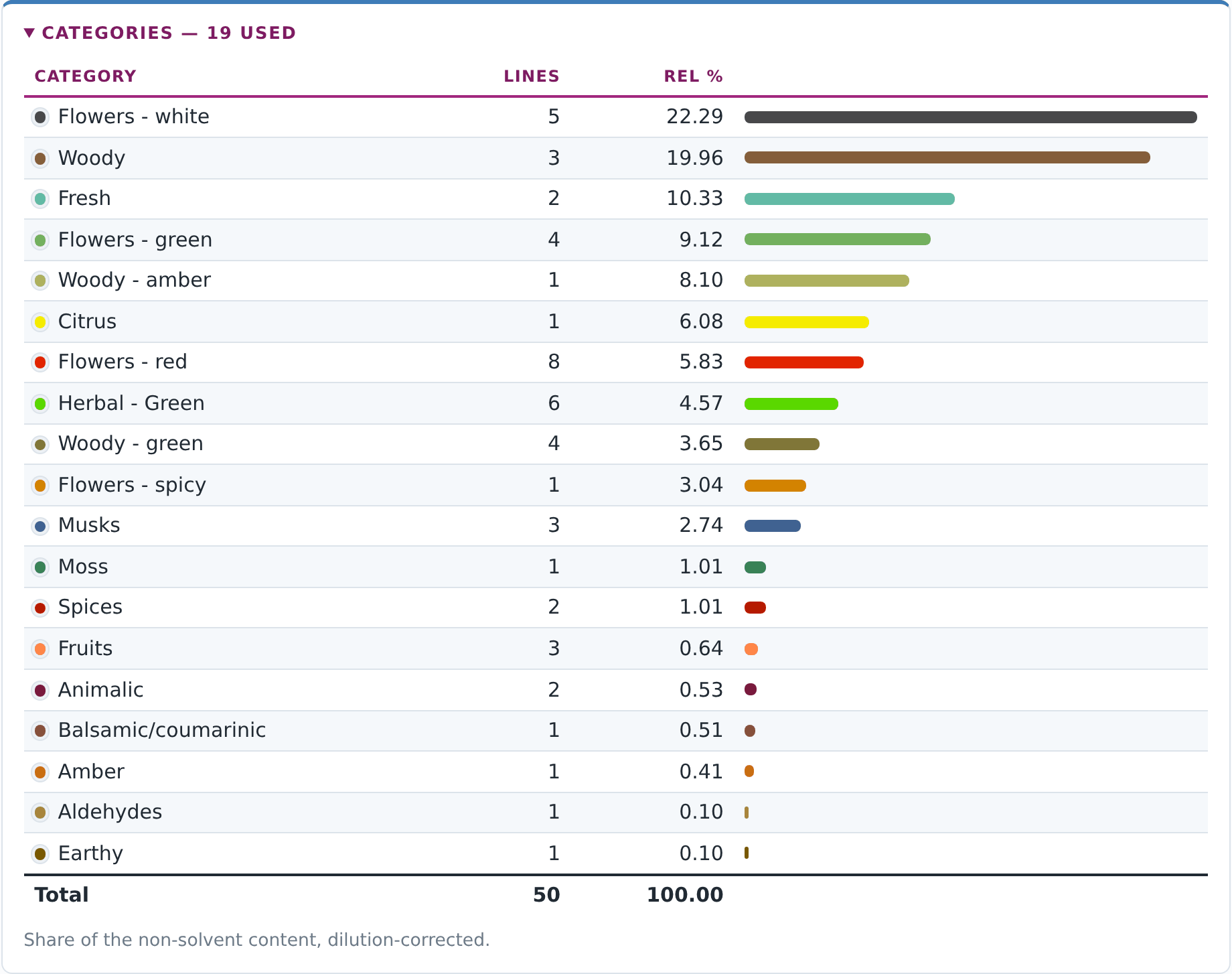
The Pyramid & categories panel shows what the concentrate is made of, in two ways; as long as no material in the version has a pyramid level, it shows only the table and is called Categories. The pyramid drawing works per pyramid level, over the material that carries one: a line whose material still has no level (?) is left out, so those percentages are shares of what is classified, not of the whole concentrate. The table under it shows how the non-solvent content is spread over material categories, dilution-corrected, with a bar per category.
13. Stock, orders and deliveries
Stock is an optional ledger per material, in grams of the base concentration. Open the Stock panel on a material and set a stocktake (what is in the bottle now) to start tracking, or add a Purchase there: on a material that is not tracked yet, a purchase starts the ledger at once, with a stocktake of 0 g before it, so the stock is what you bought. From then on purchases add, and two things deduct: Dilution made, the row with the percentage, the total and the button Deduct base (you made 50 g of a 10 % dilution out of a base at 100 %, so 5 g of base left the bottle; with a base at 10 % it would be 50 g, and a dilution stronger than your base is refused; a percentage the material did not have yet joins its dilutions, dated today) and Mark as prepared on a formula, which deducts every base-dilution line of tracked materials, once per version. Purchases in millilitres are converted with the material's density; without a density they are logged but not counted, and a first purchase in millilitres, the one that would start the ledger, asks for the density first. A purchase also looks at the purchase date of the material: an empty one becomes today, and when it holds another date the app asks whether to change it, with a calendar on today. Set date gives the material that date and books the purchase on it too, as Delivered… does below; No change, or Escape, leaves it as it was. The ledger follows the base material only, not the dilutions you made from it: a formula line at 10 % does not touch the stock, and an empty bottle of dilution is no problem as long as the base material is still there, because you can make a fresh dilution and log it as Dilution made. The estimate is only as good as the entries; the ledger keeps the last events so you can remove a wrong one. The ledger does not follow a change of base: set another dilution as the base and the grams stay as they are, now counted as grams of that dilution, so set a new stocktake when you switch. The Note under the purchase date and the density is for what the figures do not say, such as what is left of an older bottle next to a new one; while the panel is closed, its title ends in “· note” when the note holds text.
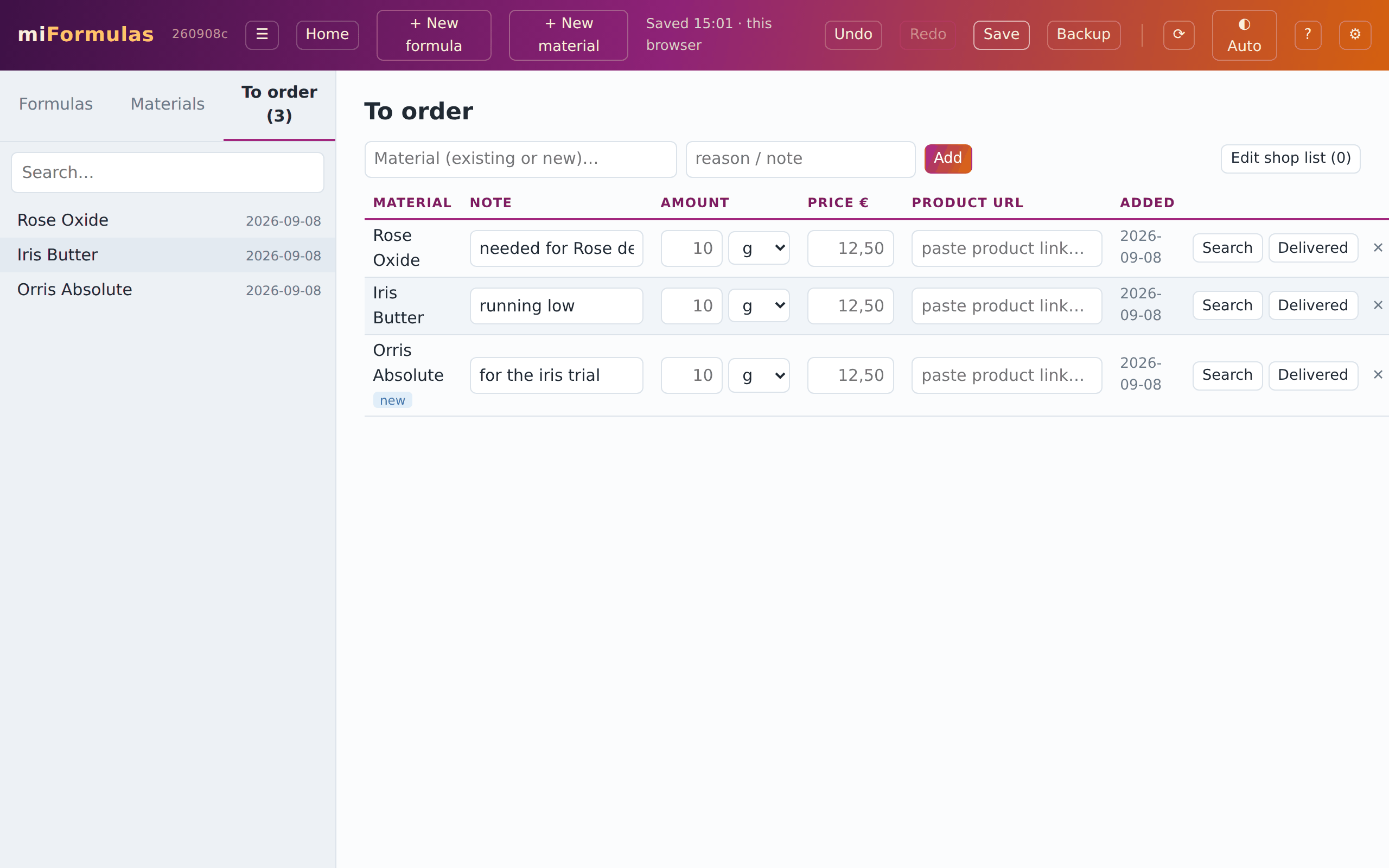
To order is the shopping list. Add a material from the list itself (existing or new), with Add to order list on a material page, or automatically when a formula or an import mentions a material you do not have. An entry you added before the material existed belongs to that material once you create it, so the list does not get a second entry for it, and an entry under the old name follows when you rename the material. Each entry has a note, an amount and unit, a price and a product link. A link shows as the name of the shop with ↗, which opens the page; ✎ beside it changes the link. The magnifier, Search my shops, opens a Google search limited to the web shops you listed under Edit shop list (0)… (one domain per line; the figure counts them). As long as that list is empty it is Search the web, because that is what it would do. The date an entry was added is in the list on the left and in the tooltip of its name.
Delivered… closes an entry. Its window says which material it is about to update, or that it creates a new one, and has these fields:
- Amount purchased, a number with its unit (g or ml, gram to start with). It is recorded on the material, and with the price it gives Cost € / g, divided by the base dilution, because that field is the price of a gram of pure material.
- Price paid €. It is only there to work out the cost per gram; the price itself is not kept.
- Purchase date, today unless you change it, for a delivery you book in later.
- For a material whose stock you do not track yet, or a new one, Track stock, ticked to start with: the ledger starts with this purchase (a stocktake of 0 g, then the purchase), and Add to stock ledger below it follows the amount purchased. Untick it if you do not keep stock.
- For a material whose stock you track, Add to stock ledger, the same purchase booked into the ledger, which follows the amount purchased unless you change it, and Old stock used up. Leave that box off and the purchase is added to what the app still counts, the ordinary case of a second bottle beside the first; tick it and the ledger starts again from this purchase, with a stocktake of 0 g on the purchase date, so a bottle you finished long ago does not keep counting.
- Density g/ml, when you bought in millilitres and the material has none yet: the window asks for it there and then and keeps it on the material, because without it neither the cost per gram nor the stock can be worked out.
Confirm, and the material is created if it was new and loses its "to order" label. Every entry of that material goes, and you stay on the list, because a delivery rarely comes alone. What counts as new is decided by the same folding as everywhere else, alternative names included: type "Vertofix coeur" while you have "Vertofix cœur" and the entry is that material, not a second one; when several of your materials answer to the name, the window asks which one first (section 3). A material that still carries the label while it is no longer on the list shows Mark as owned at the top right of its page, in place of Add to order list.
14. Where your data lives, and the other ways in
miFormulas stores everything in one JSON file, miformulas-data.json. The app can keep that file in three places, and the top-right of the header always tells you which one is in use. Before the first save of a session it says where the data came from ("Data kept in this browser", "Loaded", "Connected to server"); after every save it names the time and the place ("Saved 14:02 · this browser", "Saved 14:02 · miformulas-data.json", with the name of your own file, or "Saved 14:02 · server"). When the header would otherwise need a second row (a long file name, a clock with AM and PM, or a window narrower than about 1300 pixels), only the time is shown; the place is then in the tooltip. Where it would still need one, the state is short as well ("Unsaved", "Browser", "Server"), so the header keeps its height while you work. Between a change and the save that follows it a few seconds later, the header says "Unsaved changes" ("Unsaved" on a narrower window) in colour, which disappears by itself. When something goes wrong the header says so in full and names the way out; section 20 lists those messages.
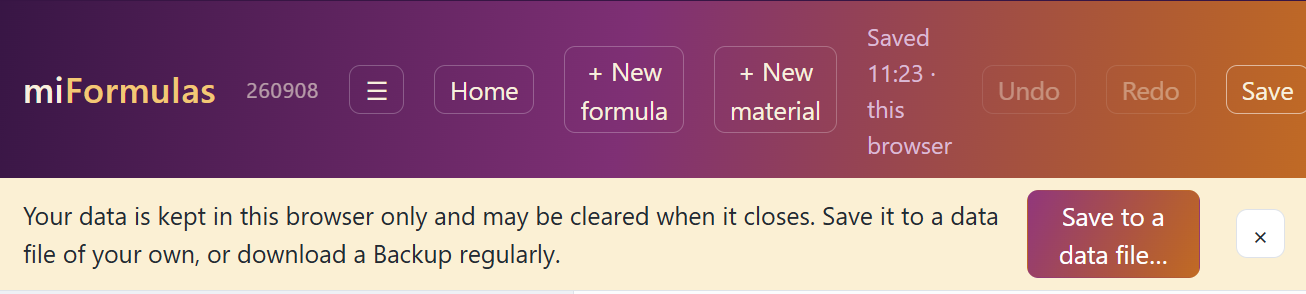
In the browser. On miformulas.com the app keeps the data in the browser's own storage on that computer. This is the quickest way to try things out, and it is fine for everyday use if you download a Backup regularly. Two things to know: every browser has its own storage (Edge and Chrome on the same computer do not see each other's data), and a browser that is set to clear site data when it closes will take your formulas with it. The app asks the browser to keep the storage persistent; as long as the browser has not confirmed that, a bar with an amber edge under the header reminds you to make backups. It is one line, and the ✕ closes it for good, because it says the same thing every time; the Welcome page keeps telling you where your data lives, under Start here.
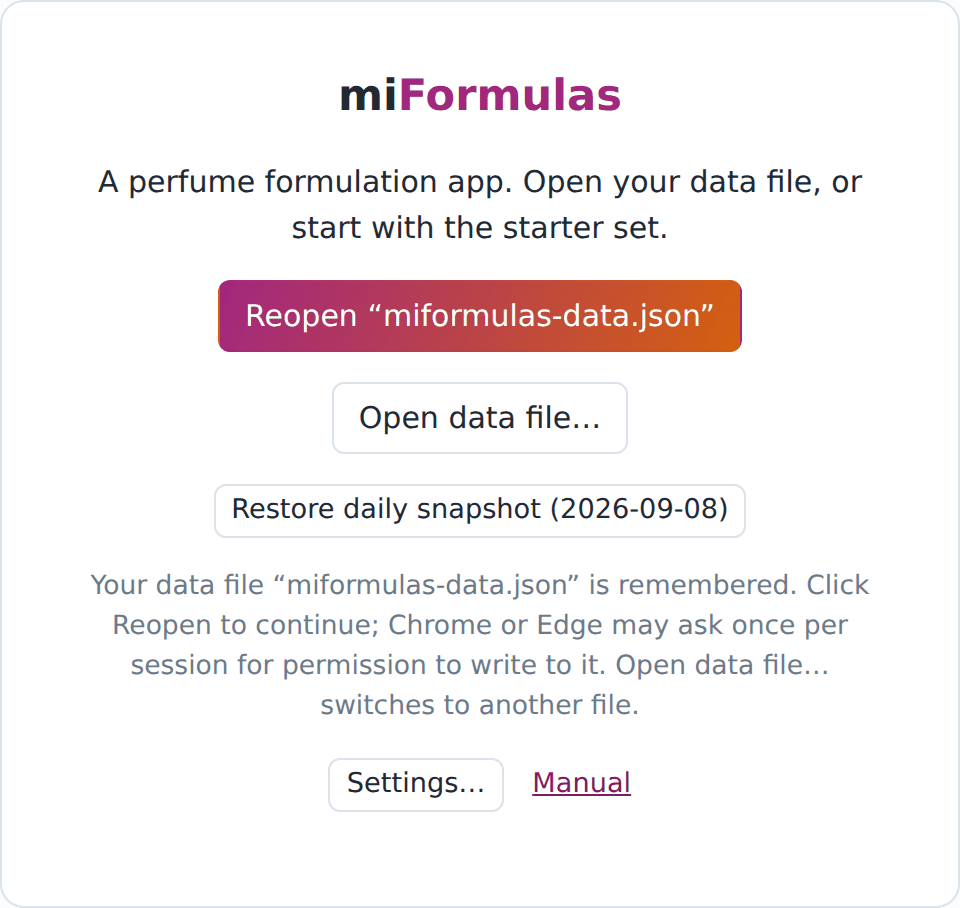
In a file. In Chrome or Edge the app can read and write a data file on your disk directly. You see the file, you can copy it, put it in a synced folder, and open it on another computer. The app remembers which file you used; the next time you open it you click Reopen and, if the browser asks, allow it to write to the file again. This works with the downloaded app (below) and just as well on miformulas.com itself: Save to a data file… (in the amber bar when there is one, otherwise on the Welcome page, and in Settings) moves your work from the browser's storage into a file, Open data file… on the start screen switches to an existing file, and the site remembers the file for next time. For a site the browser can also remember the permission itself, in particular once the site is installed as an app: the app then opens straight into your data, and Reopen only appears when the browser wants a fresh click. Combined with "Install as an app" (section 15) that gives you an app with its own icon, your own data file, and updates that arrive by themselves. Firefox cannot write to files. On the site you work in the browser's storage and use Backup to save; a downloaded copy opened in Firefox runs in the read-only fallback, where you pick the data file once, the app keeps a cached copy of it, the start screen offers Continue with data from … with the date and time of that copy next time, and Backup is the way to save what you change. Safari has no direct file access either: on the site and in the Dock app (section 15) your data lives in the browser's storage and Backup is the way to save; a downloaded copy opened in Safari has only been tried as far as the start screen.
On a server. A free Cloudflare Worker, or a web server of your own with PHP (a NAS at home, a small hosting account), holds your data file, and every device with the token shares the same data. The server refuses to overwrite changes made from another device in the meantime and keeps a daily snapshot. Section 18 explains the setup. With a server configured, the start screen's Open data file… reads Connect to server instead, and asks for the token if the server wants one (saying so when the server refused the one in Settings); when the server does not answer as expected, the start screen says so and points to Settings.
One window at a time. In one browser, one window saves your data: the first one you open. Open miFormulas a second time, in another tab or as the installed app beside a tab, and that second window shows your data read-only; the header says "Read-only: open in another window" and the Welcome page says why. As soon as the first window is closed, the second one reloads by itself and takes over, on the place where you were. Without this, two windows would each write their own copy over the other's. With a server the rule does not apply: there the server itself refuses a save from a window that did not see the latest data, with the conflict warning above.
Whichever mode you use, Backup in the header writes a copy of the data file with a date and time in its name (Chrome and Edge ask where; the other browsers put it in your downloads folder), and Open data file… on the start screen opens any such file. Moving between modes is nothing more than a Backup on one side and an Open on the other.
The other ways in. Section 1 has the setup that gives you everything; these are the others, in order of preference:
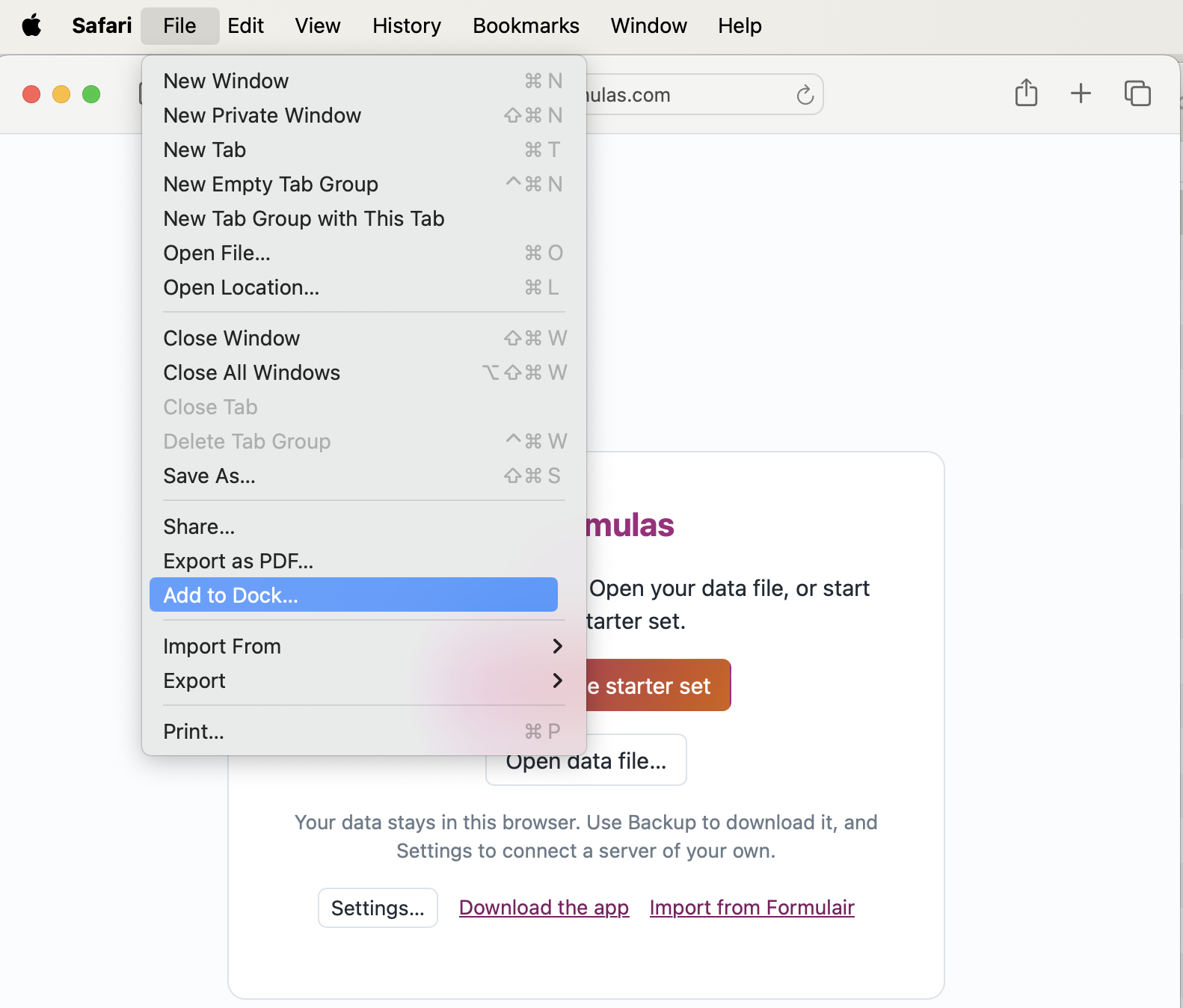
- Safari on a Mac, without Chrome. Choose File › Add to Dock (the start screen's Add to Dock… link explains it) and you get the same app in the Dock. Safari cannot write to a data file, so the data lives in the app's storage and Backup is your safety net; section 15 has the details.
- On an iPhone or iPad. Open https://miformulas.com in Safari and use Add to Home Screen (the start screen offers the link and explains where it is). You get the app with its own icon and its own storage, separate from the Safari tab. It cannot keep your data in a file, because no browser on iOS can write one: download a Backup now and then, and if you want the same data on your phone and on your computer, that is what a server of your own is for (section 18). A phone is a fine second screen for the bench; the wide views, Bench view above all, come into their own on a bigger screen.
- On an Android phone or tablet. Open https://miformulas.com in Chrome and tap Install as an app; Chrome shows its own Install app window, and the app is then installed with your other apps (press and hold its icon in the app list to put it on the Home screen). It shares its storage with Chrome, so what you did in the tab is still there. The four steps of section 1 work as on a computer, Save to a data file… included: the Android file window opens in Downloads, you can browse to another folder and make one on the spot, and the name miformulas-data.json is filled in for you. The difference: Chrome on Android lets a site keep access to your file only until you close the site's tabs, so at every start the app shows Reopen and Chrome asks whether it may edit the file; tap Reopen, then Allow. A server of your own (section 18) avoids that question. A tablet is the better screen for the wide views, Bench view above all. Section 15 has the pictures.
- Firefox runs the app, but keeps the data in the browser only, cannot install it and may clear the storage when it closes, even if you allowed persistent storage: use it to have a look, not for daily work.
-
The app file on your own computer. For those who want the file itself, to work offline: on the start screen of miformulas.com click Download the app; when the site opens straight into your data, Settings (⚙) has it too. The file
miFormulas.htmllands in your Downloads folder. Give it a folder of its own, for instanceDocuments\miFormulas(Windows) orDocuments/miFormulas(Mac), and open it there in Chrome or Edge. The download is meant for Chrome and Edge on a PC or Mac; in Safari or Firefox the link says so first, and a phone or tablet does not offer it. The start screen now offers Start with the starter set and Start empty; choose one and the app explains that it will create your data file, then asks where to keep it. Only the starter set goes online, once, to fetch its sixteen formulas; Start empty works with the network switched off. Putmiformulas-data.jsonin the same folder as the app and keep that name. From then on the app saves to that file automatically, and the next time you open the app it offers Reopen “miformulas-data.json”. Make a subfolderbackupsin the same folder for the copies that Backup makes.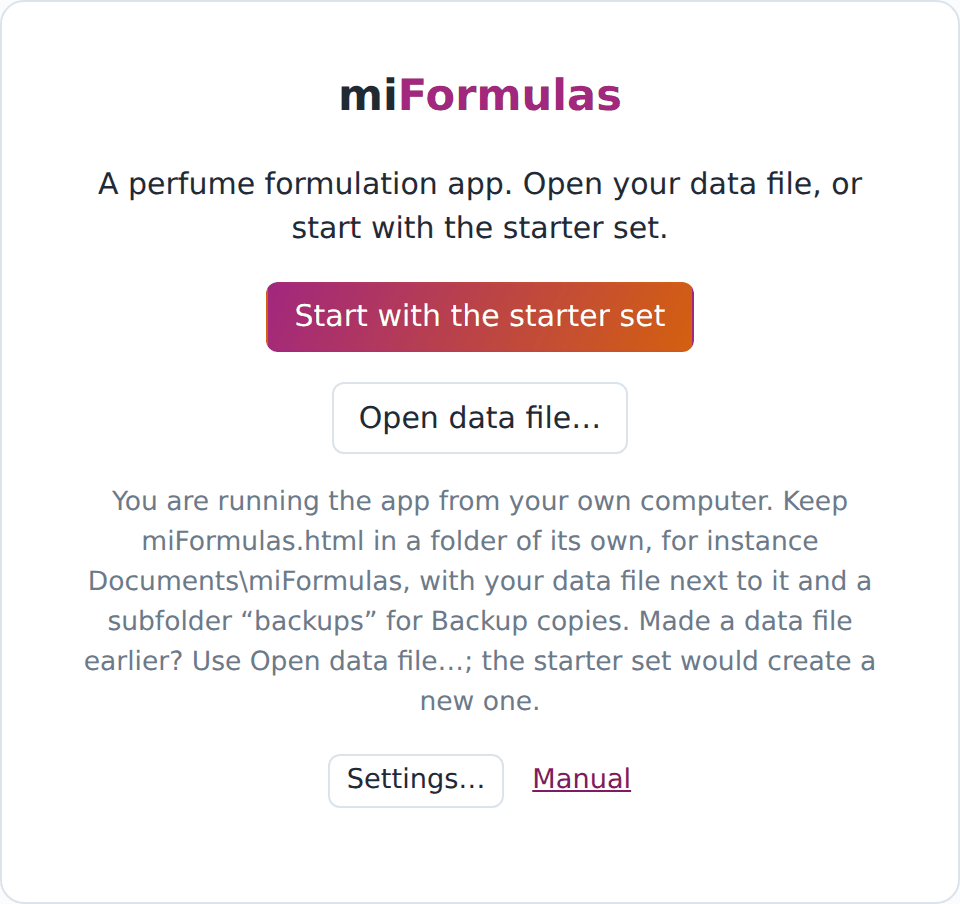
The downloaded app, opened from your own computer. 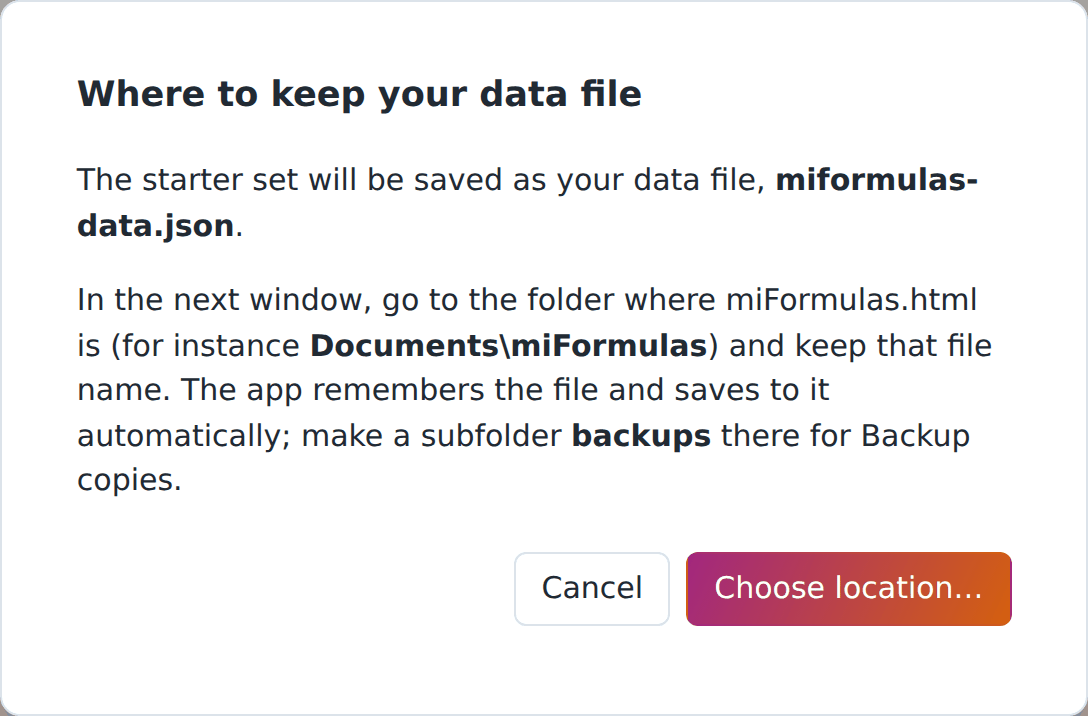
Start with the starter set creates the data file next to the app. -
Coming from Formulair? Open https://miformulas.com/formulair-import.html, or click Import from Formulair… in the app when you are using it on the site; the downloaded app does not show that link, because the importer is a page on the site. It converts your Formulair database in the browser and adds it to miFormulas; nothing is uploaded. Section 17 has the steps.
- Everything at once. On the GitHub page https://github.com/miformulas/miformulas click the green Code button, then Download ZIP. The ZIP holds the app (as
index.html; rename itmiFormulas.htmlto use it as the app file of this section), the Formulair importer, the starter data, the server endpoint and the tools. - The same data on your computer, your laptop and your phone: section 18. The free way there needs no server and no domain of your own.
Two things about the downloaded app that surprise people:
- The link between the app and your data file is kept by the browser, not by the HTML file. That is why the browser, and not miFormulas, asks for permission to write to the file, and why a freshly downloaded copy still offers to reopen the data file you used before, whatever folder it sits in.
- If Reopen fails because the data file was moved, renamed or deleted, the app says so, forgets the file and offers the starter set and Start empty again. If you still have the file, use Open data file… to point the app at its new place.
If you already made formulas on miformulas.com before downloading the app, click Backup there first, put that file next to the app and rename it miformulas-data.json; then choose Open data file… on the start screen of the downloaded app. The app keeps saving to the file you open.
Updating the downloaded app. The site and the installed app update by themselves; a copy on your own computer does not. In Chrome and Edge, Settings (⚙) in that copy has Check for updates, with the build of your copy beside it. It fetches the app from miformulas.com, only when you click it, and compares the builds. If there is a newer one, Update… opens a save window in the folder of your data file (in Documents when no data file is open yet): choose your miFormulas.html and confirm when the window asks whether to replace it. The app first saves what is not saved yet, writes the new version over the file and reloads, and then says which build it is. Your data file is a separate file and stays untouched. A copy from before build 261010b has no such button: download the app once more and put the new miFormulas.html in place of the old one.
15. Install as an app with its own icon
If you want miFormulas to feel like a program of its own rather than a tab, install it as an app: two minutes, no download, nothing difficult. It then opens in its own window without address bar or tabs, has its own icon in the taskbar, the Start menu or the Dock, and shows up when you switch between programs. Underneath it is the same app in the same browser: the installed app and the site in a normal tab share their data, their remembered data file and their updates. It loads from miformulas.com each time it starts, which is how it stays up to date, so it needs an internet connection to open; for work without a connection, use the downloaded app (section 14).
Browsers only offer this for pages served over https, so it works with miformulas.com and with your own server if that has an https address. A downloaded miFormulas.html cannot be installed this way; the last part of this section shows a shortcut that comes close.
The one-click way (Chrome and Edge, Windows and Mac). Open https://miformulas.com. When the browser can install the site, the start screen shows the link Install as an app, and the same button appears at the bottom of Settings (⚙) once you are working. Click it, and the browser's own install dialog appears with the name and icon; confirm, and the app opens in its own window. Close the tab you installed it from: one window at a time saves your data (section 14), and the app takes over as soon as the tab is closed. Nothing is downloaded and nothing else is installed: the browser does the work, and the installed app shares its data and its updates with the site in a normal tab. Want your data in a file of your own? Save to a data file… (step 4 of the setup in section 1) creates miformulas-data.json where you choose and remembers it. Chrome and Edge keep the permission to write to that file for an installed app, so from then on the app opens straight into your formulas, without questions. In Safari on a Mac the start screen shows Add to Dock… instead, which explains the File › Add to Dock route.
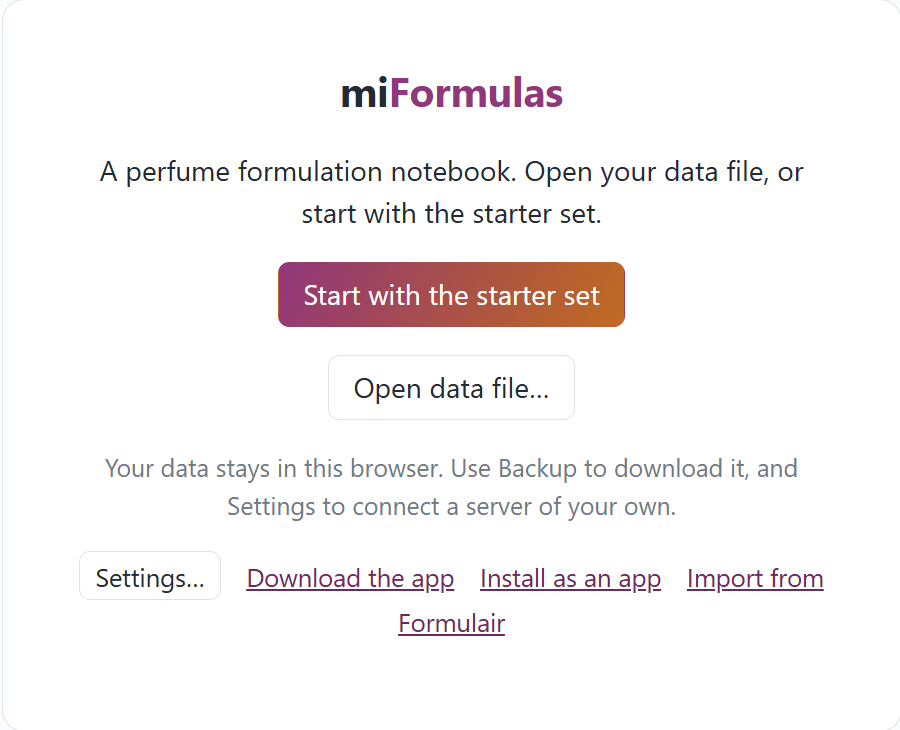
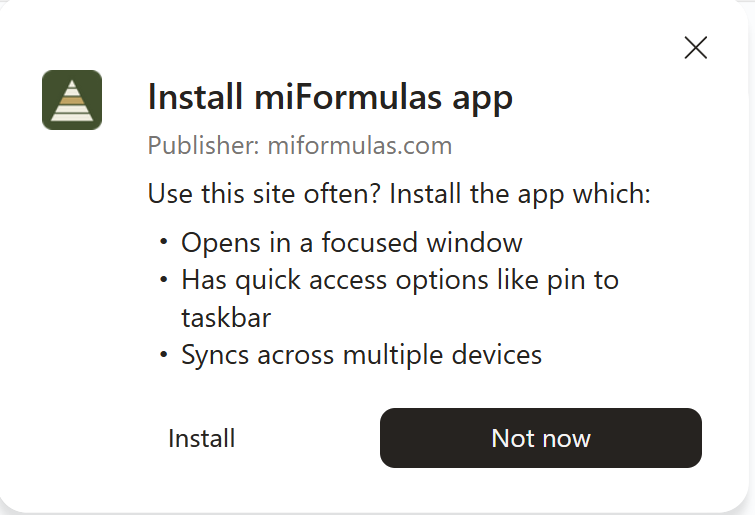
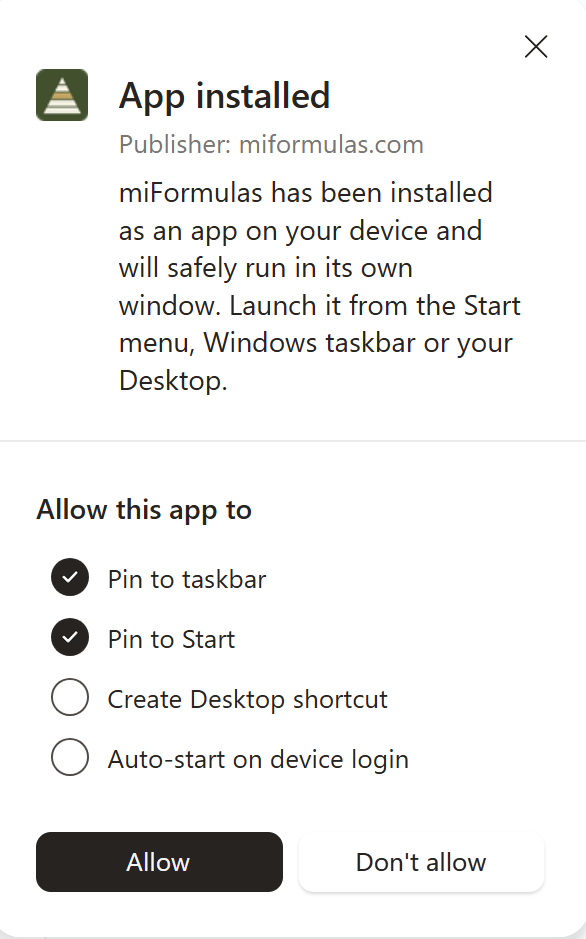
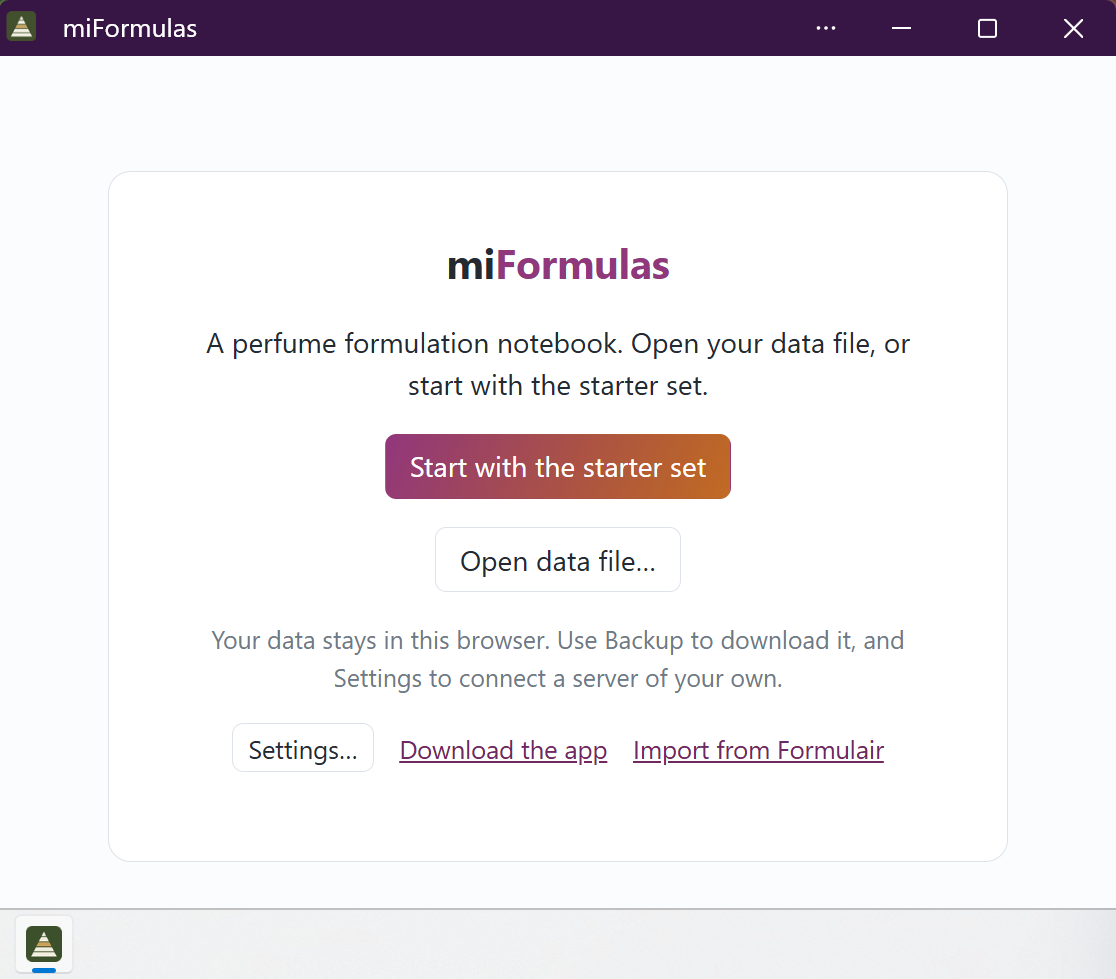
If the link does not appear, your browser did not offer the installation; the menu routes below do the same.
Windows
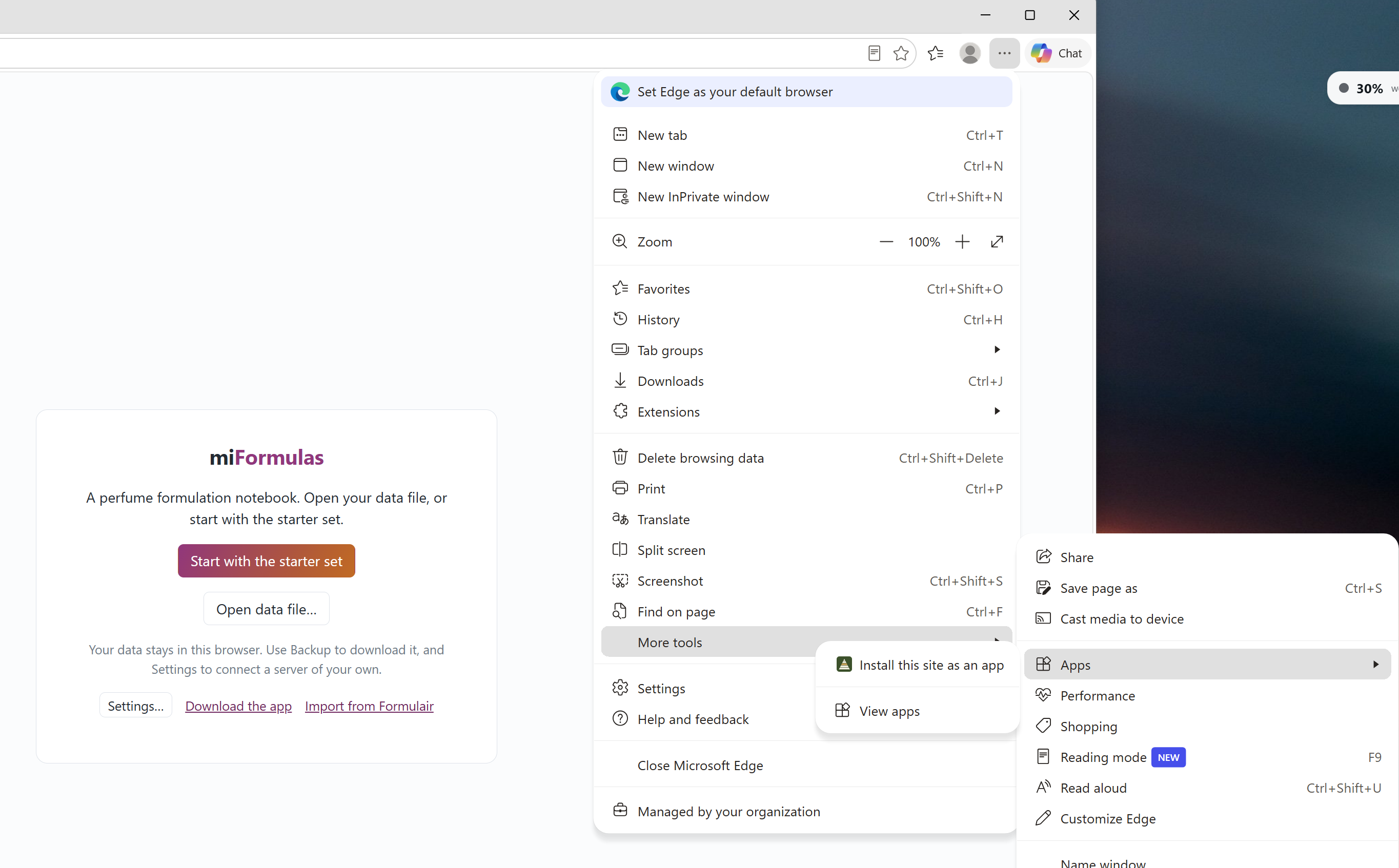
Microsoft Edge. Open https://miformulas.com. Click the ⋯ menu (Settings and more) in the top-right corner, then Apps, then Install this site as an app. Edge proposes the name "miFormulas" and the app icon; click Install. Edge then offers to pin the app to the taskbar and the Start menu, to create a desktop shortcut and to start it with Windows; tick what you want and confirm. The app is now listed under Apps in the Start menu like any other program. To remove it, open the app, click ⋯ in its title bar and choose App settings, then Uninstall; or use Windows Settings, Apps, Installed apps.
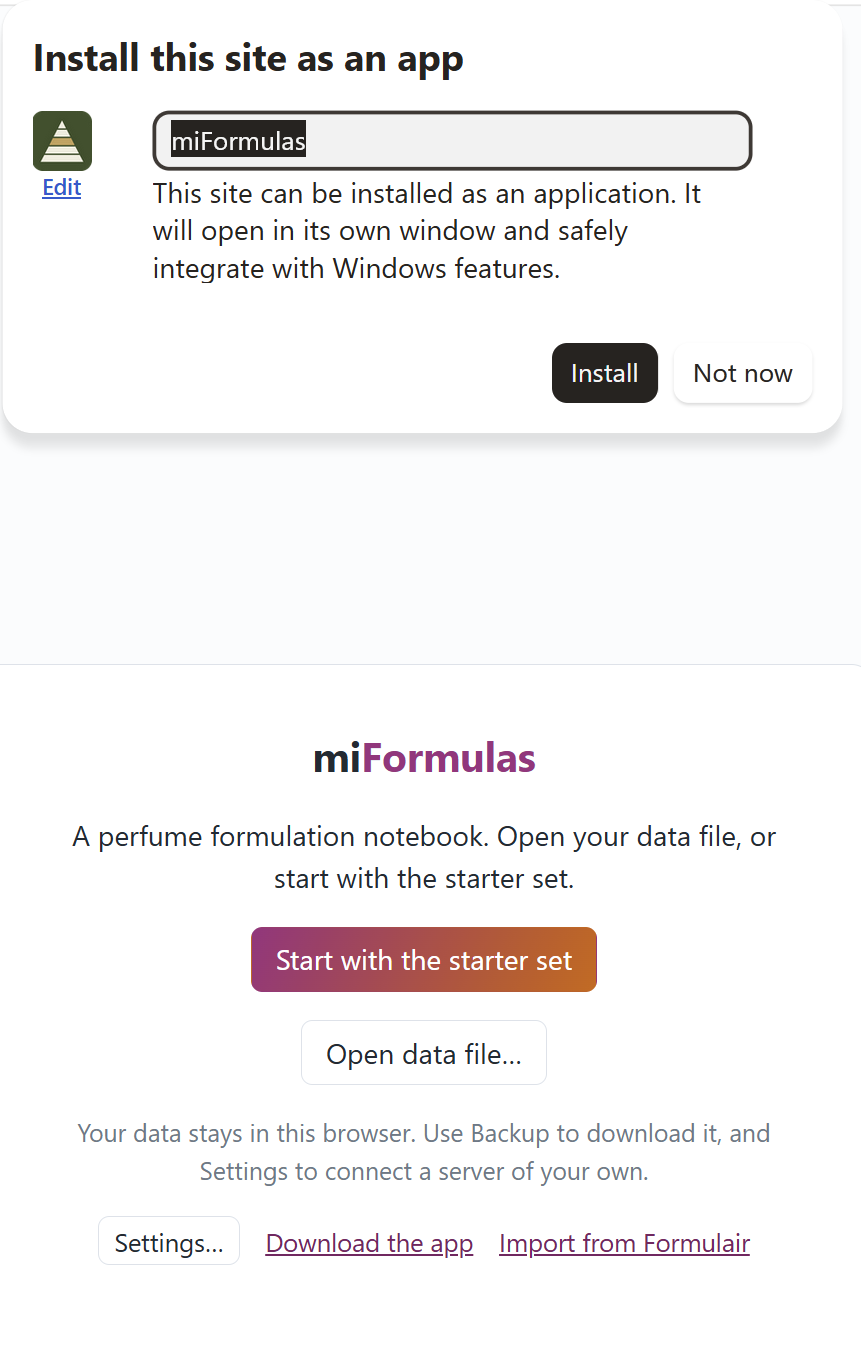
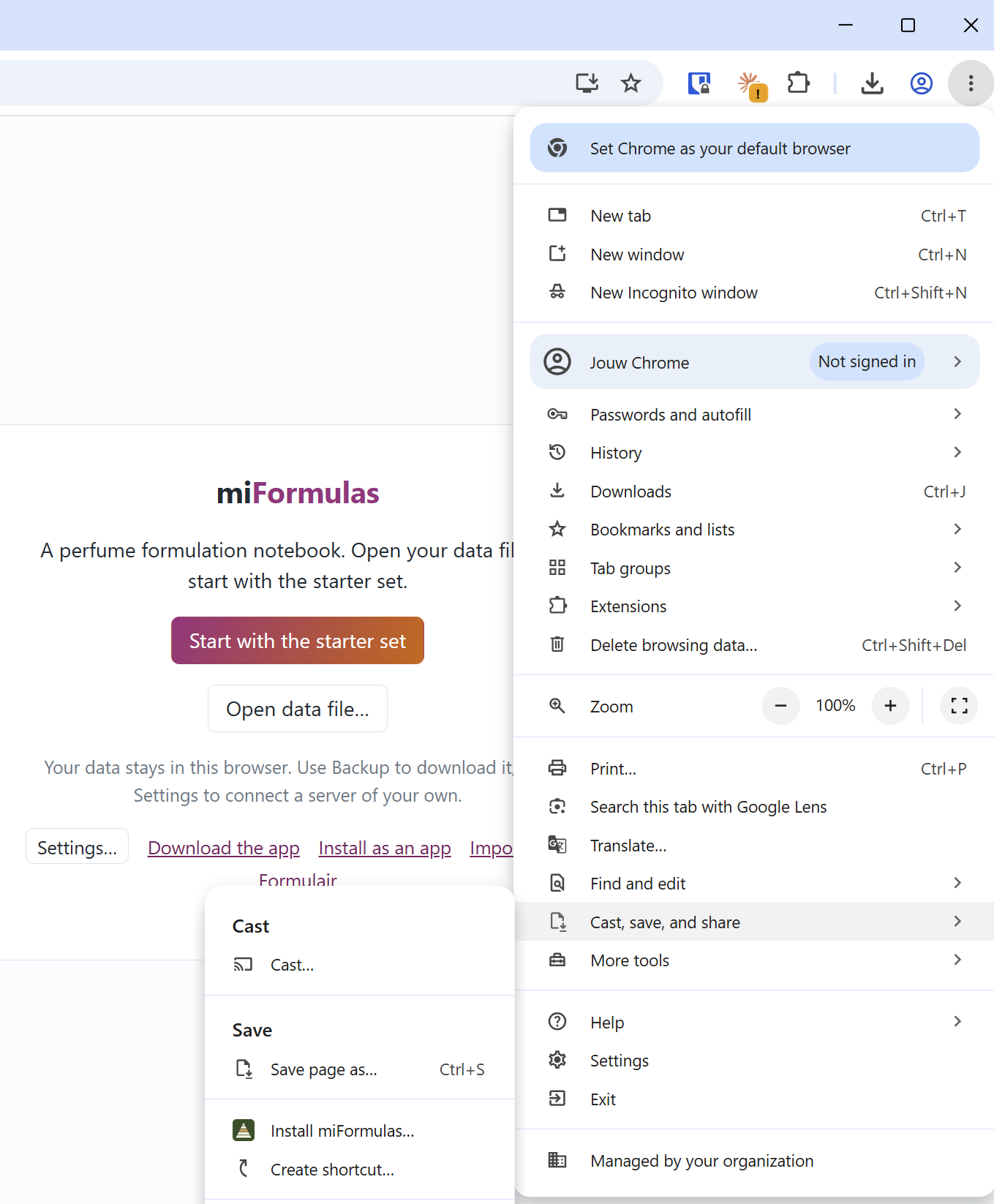
Google Chrome. Open https://miformulas.com. Click the ⋮ menu, then Cast, save and share, then Install miFormulas… (Chrome knows the app by name; for a site without a manifest the item reads "Install page as app…"), and confirm with Install. The small install icon at the right end of the address bar does the same. Chrome puts the app in the Start menu; right-click its taskbar icon while it runs to pin it. To remove it, open the app, click ⋮ in its title bar and choose Uninstall miFormulas….
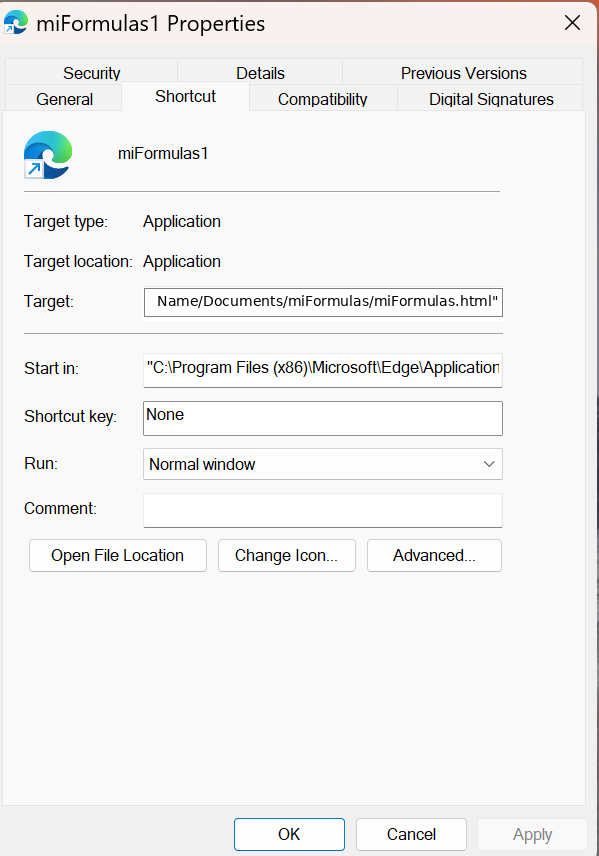
The downloaded file. Edge and Chrome do not install local files as apps, but a shortcut can start the browser in app mode with your local copy. Right-click the desktop, choose New, Shortcut, and as location paste one of these lines, with your own path to the file:
"C:\Program Files (x86)\Microsoft\Edge\Application\msedge.exe" --app="file:///C:/Users/YourName/Documents/miFormulas/miFormulas.html"

"C:\Program Files\Google\Chrome\Application\chrome.exe" --app="file:///C:/Users/YourName/Documents/miFormulas/miFormulas.html"
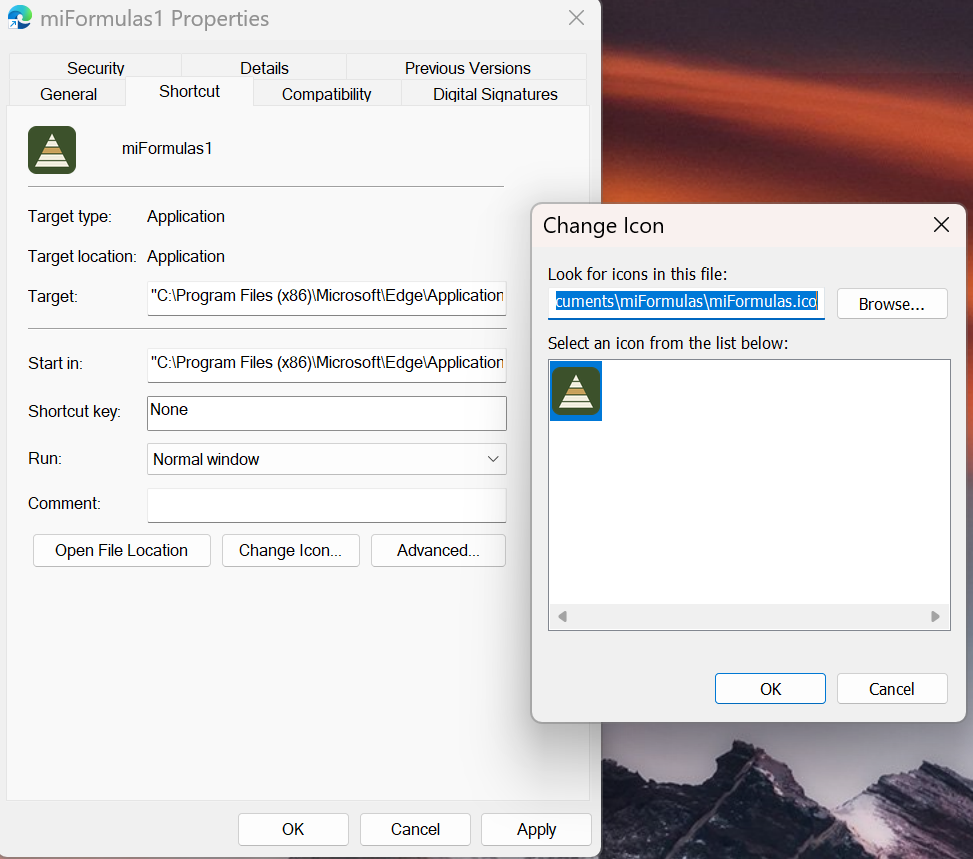
Name the shortcut miFormulas. To give it the miFormulas icon, right-click the shortcut, Properties, Change Icon…, Browse…, and pick miformulas.ico from the icons folder of the ZIP (or download it from https://miformulas.com/icons/miformulas.ico). The window that opens has no address bar and gets its own miFormulas icon in the taskbar, separate from the browser. The data file and the Reopen behaviour are exactly as in section 14.
macOS
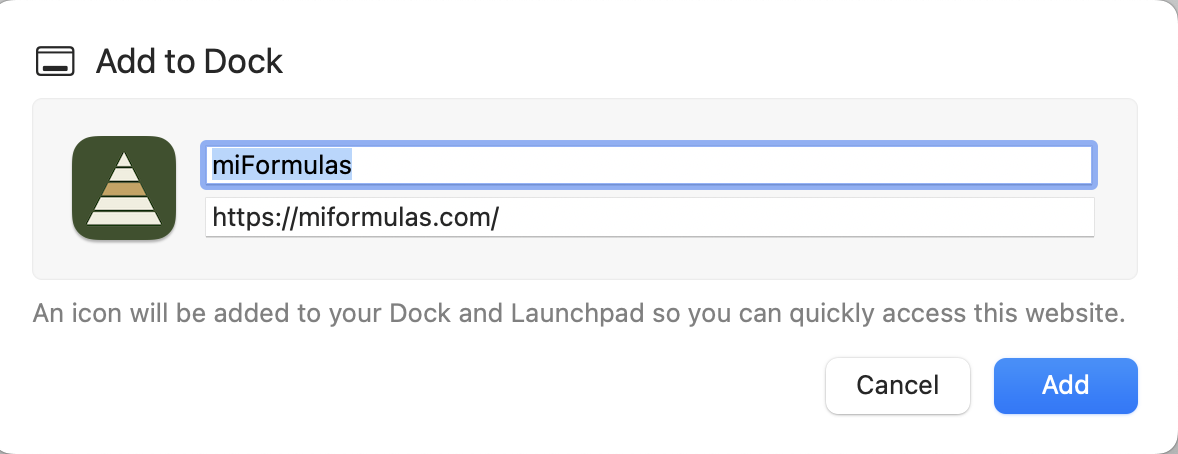
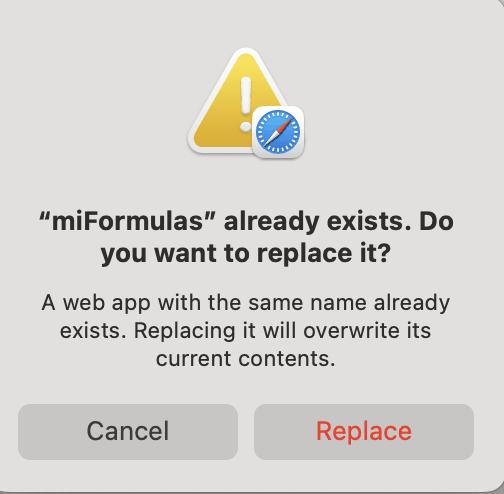
Safari (macOS Sonoma 14 or later). Open https://miformulas.com, then choose File, Add to Dock. Keep the name miFormulas and click Add. The app appears in the Dock and in the Applications folder of your home folder; open it from either. To remove it, drag it from your home folder's Applications folder to the Bin. Keep in mind that Safari cannot write to a data file. The Dock app keeps your data in its own storage, where it stays between sessions; the system only clears it when you clear website data or leave the app unused for a long time. Backup is your safety net, not your way of working: download one now and then, and use Chrome or Edge if you want a data file you can see and copy. The Dock app's storage is separate from Safari's tabs, so load the starter set, open your data file or fill in Settings in the Dock app itself. One trap: choosing Add to Dock a second time replaces the existing app and wipes its storage; download a Backup first.
Chrome or Edge. The menus are the same as on Windows: in Chrome ⋮, Cast, save and share, Install miFormulas…; in Edge ⋯, Apps, Install this site as an app. The app lands in the Applications folder (Chrome Apps) and in Launchpad; drag it to the Dock to keep it there. Chrome and Edge on the Mac can write to a data file, so Open data file… and Reopen work as on Windows.
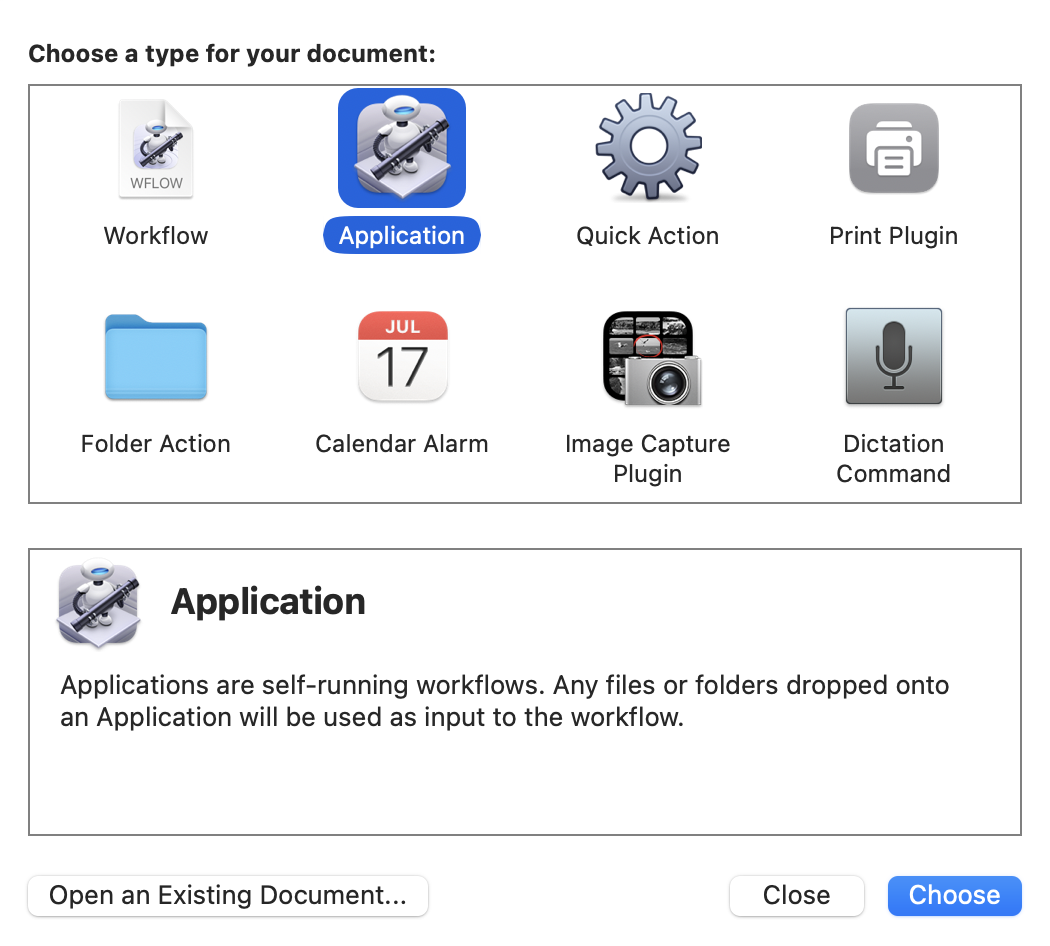
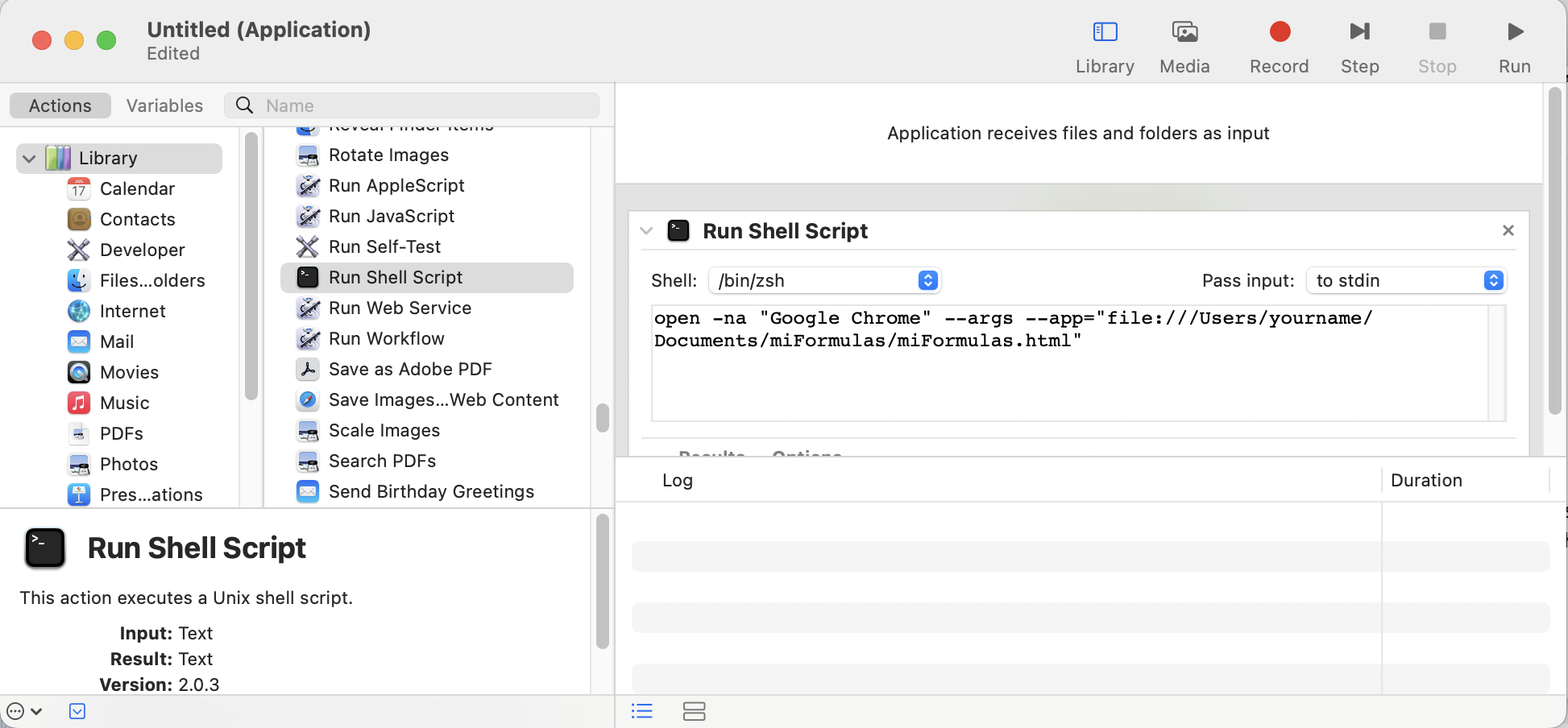
The downloaded file. Neither Safari nor Chrome installs a local file as an app. What works is a small launcher: open Automator, create a new Application, add the action Run Shell Script and paste, with your own path:
open -na "Google Chrome" --args --app="file:///Users/yourname/Documents/miFormulas/miFormulas.html"
Save it as miFormulas in your Applications folder and drag it to the Dock. To give it the miFormulas icon, open miformulas.png from the icons folder (https://miformulas.com/icons/miformulas.png) in Preview, select all and copy, then select the launcher in the Finder, press Cmd+I and paste onto the small icon in the top-left corner of the Info window.

Android
Chrome (version 132 or later, January 2025, which is when Chrome on Android learned to write to files). Open https://miformulas.com and tap Install as an app on the start screen; confirm Chrome's Install app window. The app is installed with your other apps, so look for it in the app list and press and hold its icon there to add it to the Home screen. It opens without an address bar and works on the same data as the Chrome tab, which is why anything you tried in the tab is still there. Close that tab once the app is open: one window at a time saves your data (section 14), and the app takes over as soon as the tab is closed.
Save to a data file… works here as well. The Android file window opens in Downloads; browse to another folder if you prefer, for instance Documents, where the folder icon with a + makes a new folder. Keep the name miformulas-data.json and tap Save.
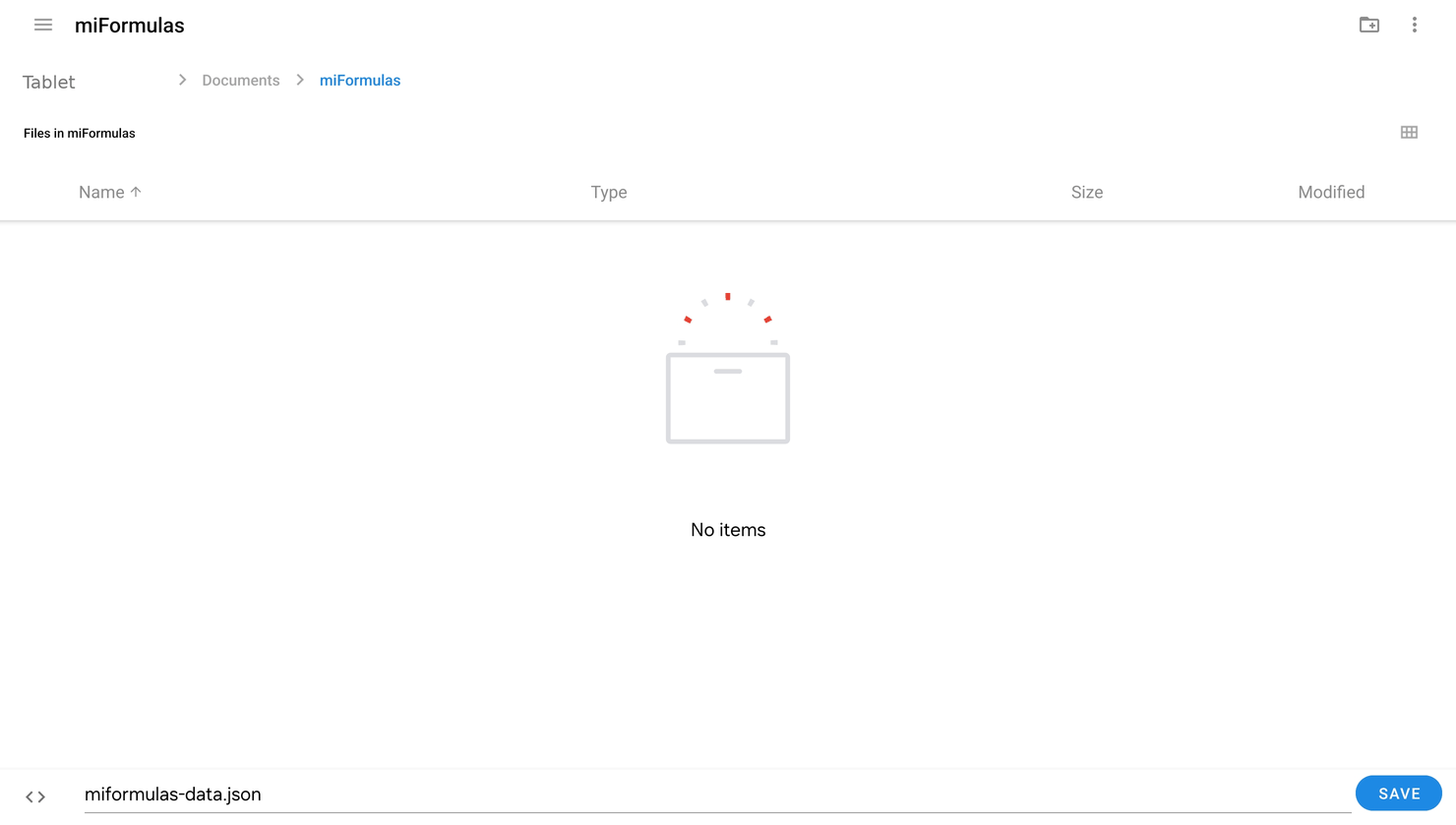
At every start the app shows Reopen and Chrome asks whether the site may edit the file. Tap Allow and you are in your data. Chrome on Android grants that permission only until you close the site's tabs, so unlike on a computer the question comes back every time. A server of your own (section 18) avoids it, and gives you the same data on your phone and your computer.
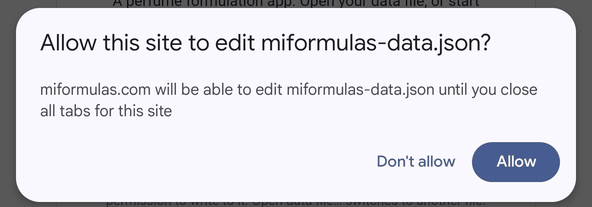
Firefox and Samsung Internet on Android have not been tried.
16. Import, export and sharing
The ⇅ button in the header opens Import & export, a window with everything that comes in and goes out. It is grouped under three headings, as in Settings, with what each button does under it. Import, on the left: Import formula… first, then the materials (a CSV, the library) and, on the site, Import from Formulair…, which opens the importer described in section 17 (the downloaded app leaves it out, because the importer is a page of the site). Export, on the right, and under it Back to an earlier state: the two ways back of section 20, Restore a Backup… and Restore daily snapshot, in red because they replace all your data. On a narrow screen the headings stand under each other. The Welcome page keeps the two ways in that a new inventory starts with, and once you have work of your own a single line that points at the window.
Sharing a version
Share this version, in the menu Print / export under the lines of a formula, downloads the version you are looking at as a miformulas-import file, the format Import formula… reads (below). Send it to someone who does use miFormulas and they import it in one action, instead of typing your formula line by line. It holds the material names with their dilution and weight, the CAS numbers, a mark on every line saying whether it is a solvent in your inventory, the category, the label and the date of this version and its notes, and nothing of your own lab: no price, no supplier, no stock, no trial log, no colour marks. The lines keep the order of the version, not the sort order on your screen. A line to a material you deleted is left out, after the app has said how many and asked. Weights and dilutions are never converted, here or on the way in, so a dilution the other does not stock arrives with a ⚠, and converting it is up to them. A material they do not own yet is created for them as "to order", with its CAS and, where the file says so, as a solvent, so that their rel % and abs % read the same as yours. Where the two of you disagree about what is a solvent, their own material decides and the import page says so. A premix goes as one line, without its recipe; when the version uses one, a message after the download names it, so that you share its formula as well.
Formulas coming in
Import formula… reads a miformulas-import JSON file: a formula transcribed from a photo or a document, or shared by another miFormulas user, either as a new formula or as a new version of an existing one. The import page shows every line with its match in your inventory (always by name, or by one of the alternative names of a material; a material id in the file is ignored, because an id from another data file points at another material). When the file names the material differently from you, that name is shown behind the match ("Ambroxide ← Ambroxan"), because this is the one moment at which you can check it; and when several of your materials answer to the name in the file, they are all named, so you see which one the import would take. It also shows the total weight (with, for a transcription, the reminder that a round number such as 100 or 1000 suggests a complete one; a file shared from another miFormulas is not a transcription, so there that line stays away), which materials are new (they are created as "to order" and put on the order list) and which dilutions you do not stock (⚠). It also reads the file critically, because such a file is written elsewhere: a line without a material name, a weight that is not a number or is negative, and a dilution outside 0 to 100 are shown in red with the reason, and Confirm import stays out of reach until you correct them in the file. A number is a number: "1:10", "3-4", "2 drops" or "0,5 ml" are refused as well rather than guessed at (write a dilution in percent: 1:10 is 10). A file with no lines at all is refused before the page opens, with a message that says what an import file needs; a file of several formulas none of which holds a line opens the page, which says there is nothing to import and keeps Confirm import out of reach. What can be read is repaired quietly: a decimal comma, thousands in groups of three, a percent sign after a dilution, a g after a weight, a missing dilution (which means 100), and a list or a number where text belongs, such as notes written as a list, which become lines; a field that cannot be read as text is left out, and the page says how many. A date may be written 2026-09-22 or in the short form of a spreadsheet (22/09/2026, 22.09.2026, or 9/22/2026 when the number format is American); a date the app cannot read is named on the page, and the version arrives without one. Where the file marks its solvent lines (a shared file does) and you disagree about one, your own material decides and the page says so; a file that says nothing about solvents, such as a transcription, has nothing to disagree about. If you already have a formula with the same name, a new version of it is preselected. Nothing else is converted: dilutions and weights come in exactly as written, and converting is up to you. The notes of the new version, or of the new formula, record where it came from (the day, the name and the source in the file) and the comments the file carries on its lines. Confirm, and the formula opens; Undo takes the whole import back, including the materials, order lines and categories it created. The file format is the small JSON shown in prompt 1 of docs/ai-prompts.md; anything that writes such a file can feed the app.
The same button reads a file that holds several formulas at once, the kind Export all my formulas writes. Such a file can hold tens of thousands of lines, so the page shows a summary instead of a table of lines: how many formulas, versions and lines, how many lines matched a material you own and how many materials will be created, how many lines use a dilution you do not stock and how many you and the sender disagree about being a solvent. Under that, one row per formula with its versions, lines and new materials. Every line is checked exactly as in a single import, and one that cannot be read blocks Confirm import with the formula it sits in named. The formulas arrive as new formulas, each with all its versions; one whose name you already have arrives as "Name (import)" and nothing of yours is touched, so you can join them afterwards with Move into… (section 4). The materials it creates are marked "to order" in Materials but are not put on the order list, because hundreds of rows there would drown the list you keep yourself; add the ones you want with Add to order list on the material page. The whole import is a single Undo step.
The same button also reads a CSV, the one Export all formulas (Excel) writes, so a collection that went out to a spreadsheet can come back. Choose a .csv file instead of a JSON one and the app puts its columns next to the fields it knows, the way the materials import does: Formula, Category, Entry, Date, Material, Dilution %, Weight g and Notes. Only Material and Weight g are required, and Continue takes you to the import page. The rows are grouped by Formula and Entry in the order they appear, an empty cell in either carries on the row above, and "v3 45gr" becomes the version label "45gr", because the app numbers versions itself. A material with " (solvent)" behind its name loses the suffix and comes in as a solvent line; in a sheet the app wrote itself (it has the columns Rel % and Abs %) a line without it is no solvent for the sender, so the next screen names the lines your inventory counts otherwise, as it does for a shared file. The Total line is not read as a line whatever stands beside it: it is the check on the weights, and a version whose lines do not add up to it is named on the next screen, without blocking anything. A row that holds a weight but no material name, a section heading for instance, is left out and counted on both screens. The date from the sheet comes along as the date of the version, also in the short form Excel writes back (22/09/2026). Two formulas with the same name stay two: a version that starts again after its Total line, with a Total line of its own further down, begins another formula, which arrives as "Name (import)". Rows after the last Total line of a version belong to that version, so a sheet you sorted, or a line you added at the bottom, comes back as the one version it was, and the check on the weights names it when the sum moved. A file that carries an empty date keeps it empty on the way in, so a version you never dated does not quietly acquire today's date on a round trip; a file that names no date at all does get today's. Rel %, Abs % and Cost EUR are ignored, because the app works them out from the weights; a sheet that holds percentages or parts instead of grams goes in the Weight g column and is read exactly as it stands, since nothing is ever converted. Without a Formula column the file name is the formula, and the whole sheet is one version unless an Entry column tells versions apart; one formula per sheet is the ordinary case. The Excel export of one version (section 10) reads back too: its first row, "Angel – v1 45gr", is the title, so the formula is Angel and the label 45gr, and since you have Angel, a new version of it is preselected. From there on it is the import described above. A sheet written from scratch, with one tab per formula or versions side by side in columns, has no shape the app can guess; for those the AI prompts below are the way in.
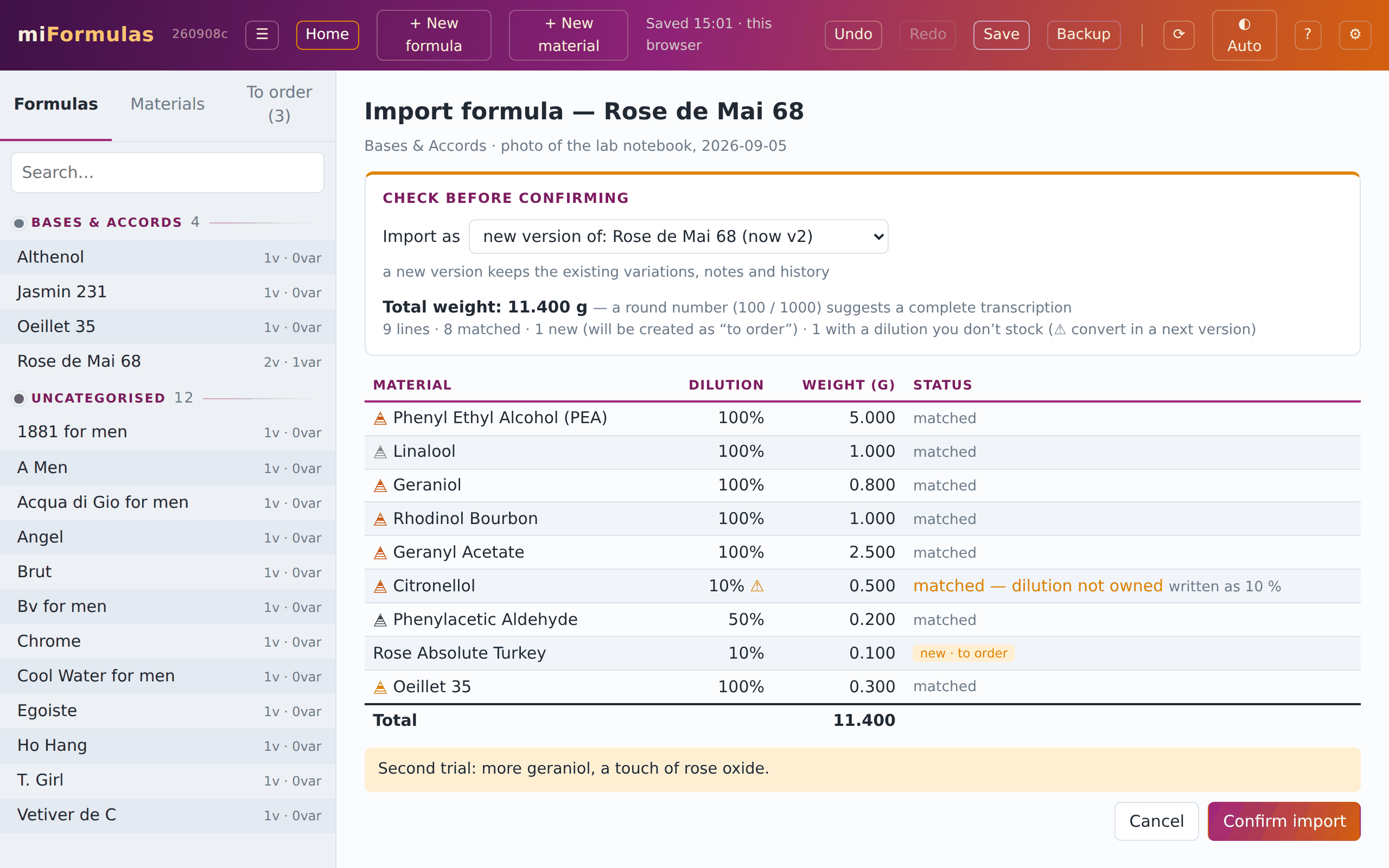
Turning a photo, PDF or spreadsheet into an import file. You do not have to write that file by hand. Any AI assistant that can read images and files (ChatGPT, Claude, Gemini, Copilot and others) produces it from a photo of a handwritten sheet, a scan, a PDF or a spreadsheet: paste the ready-made prompt from docs/ai-prompts.md (also at https://miformulas.com/docs/ai-prompts.html), attach the photo or file, save the answer as a .json file and import it. The prompt tells the AI assistant to transcribe verbatim, to leave dilutions and weights as they are (only a sheet in percentages or parts becomes grams on a 100 g batch, and the notes say so), to mark the solvent lines, to use the name on the sheet and never to invent one, and to report the total weight and every doubtful line. Attach the Export all materials (Excel) export as well and the assistant uses the exact names of your inventory, so that every line lands on the right material. The app offers the prompts where they help: next to Import formula… and next to the Excel exports in Import & export, under the server fields in Settings, in Move into… for grouping a Formulair import, and on the Welcome page while your list of formulas is still empty. The app itself never talks to an AI; the conversion happens in the assistant of your choice, with your files, on your account. That separation is deliberate: a built-in AI would need a paid API key and would send your formulas to a third party, and neither fits an app that keeps everything on your own computer.
Materials coming in
Import materials inventory from CSV… is the way in for the materials you already keep in Excel, Numbers or Google Sheets, which is where almost everyone keeps them. Save the sheet as a CSV first (in Excel: File › Save As › CSV; the app reads the comma, the semicolon and the tab, a decimal comma as well as a point, and the Windows encoding Excel uses when you do not choose "CSV UTF-8"). Then choose the file, and the app shows its columns next to the fields of a material and lets you match them on screen. It fills the matches in itself when it recognises the headers: its own, from Export all materials (Excel), and the usual names (Material or Ingredient for the name, CAS No., Vendor, Price, IFRA, Level for the pyramid, and Notes, which goes to the description, among others); anything it did not recognise you pick from the list, and only Name is required. Under the matching you see the first rows of your sheet as they were read, and a count of what will happen: how many materials will be created, how many rows are skipped because you already have a material with that name, and how many rows have no name. Every other row becomes a material of its own, also when the sheet holds the same name more than once: the same material bought from three shops stays three materials, and the final message names such names, so that you can rename one of each. An alternative name of yours does not count as a name you have. Nothing of yours is touched by an import. What the sheet leaves empty, the materials library fills in when it knows the name (section 3), so a sheet with nothing but names still arrives with CAS numbers, categories and pyramid levels. The window names the library that is loaded and says how many of the new names it knows; when none is loaded, it offers Get the latest library right there, so the first import does not have to pass through Settings. Pyramid takes the words Top, Top-heart, Heart, Heart-base, Base or the numbers 0 to 4; Solvent, Cupboard, Fridge and Freezer take yes or nothing; Dilutions takes the base first and the others after a slash ("100 / 10"), and a single figure like "10%" makes that the base; the same percentage twice in one cell is read once, as it is everywhere else in the app. A purchase date may stand as 2026-01-15 or in the short form of your spreadsheet (15/01/2026); one the app cannot read is left empty, and the final message counts it. A stock column (Stock g (tracked) in the export) becomes a stocktake dated today, so the ledger starts from that figure (section 13), and Stock note, the last column of the export, goes to the note of the Stock panel. A description over several lines in one cell keeps its lines. The whole import is one Undo step. Download a template in that window, or the link template beside this button in Import & export and on the Welcome page, writes a CSV with the columns the app uses itself and two example rows to overwrite, so nobody has to guess the format with an empty inventory.
Import materials library… reads a miformulas-materials JSON file: a library of materials with their facts, which the app uses when you add a material, when you tick several in Browse the library…, when you fill in a material you already have with Fill in from the library…, and in a search in Materials, under what your inventory finds. It is a reference, not your cupboard: nothing appears in your Materials tab until you create a material yourself. Its pyramid level may be a number from 0 (Top) to 4 (Base) or the word, as in the CSV above. A library can also link each material to its page on The Good Scents Company and on Olfactorian, as the published one does for most of its materials; the TGSC and Olfactorian links on the material page then open that page (section 3). One library is loaded at a time, so importing a newer or fuller one replaces the previous one, after a question that names both; the materials you own are never touched. Settings (⚙) names the library that is loaded, with its version, its number of materials and its licence, removes it again (after which + New material stops reminding you of it), and fetches the latest miFormulas library straight from the site with Get the latest library, so you do not have to download a file first; + New material offers that same button while no library is loaded. The library travels with your data, so it is in your Backup and on your other devices, and Undo takes an import or a removal back in one step. That is also why its size matters: it sits inside your data file, and every change you make writes that file whole, so a large library would be sent to your disk or your server over and over. The app names the size when you load one, and refuses a library above 2 MB; the published miFormulas library is a fraction of that.
Exports
Export all formulas (Excel) and Export all materials (Excel) download everything as CSV files, one row per formula line with both percentages and cost, and one row per material with all its fields, stock and dilutions. Read back with Import materials inventory from CSV… in another copy of the app, the materials file passes on your inventory without a single formula; what stays behind is the stock history (the stock arrives as a stocktake), the dates and notes of the dilutions, the order list and the colours of the categories. The formulas export carries a last column Notes, filled on the first line of each version, and writes more decimals whenever three would not hold the weight exactly, so that the file can be read back whole with Import formula…; only the trial log stays behind. The separators follow the number format in Settings: a comma for the decimal and a semicolon between the columns in Belgian and most European settings, a point and a comma in English ones, which is what Excel expects in each.
Export all my formulas writes every formula with all its versions as one miformulas-import file, the same format a single shared formula uses. It is the counterpart of Export my inventory as a library: the formulas and their lines, with the material names, their dilutions and weights, the CAS numbers and a mark on every line saying whether it is a solvent in your inventory, plus the label, date and notes of each version. Nothing of your own lab goes along: no price, supplier, stock, trial log or colour marks. Use it to hand a colleague your whole collection, or to bring the formulas of one miFormulas into another without overwriting what is there, which is what a Backup would do. A line pointing to a material you have since deleted has no name to match on: the app says how many there are and asks before it writes the file, as the other exports do.
Export my inventory as a library… does the reverse of importing a library: it writes the materials you tick as a miformulas-materials file of your own, named miformulas-my-materials.json. Premixes are not offered: they belong to your formulas. Everything is ticked to begin with, Shift-click ticks a range, and the counter says how many of the ticked ones carry a description you wrote yourself, because those descriptions go into the file exactly as they are. What stays behind is what is nobody's business but yours: stock, price, supplier, dilutions and dates. The file carries no name, version, licence or attribution either, because it is your data and not a publication. Use it to carry your own facts to another computer, or to give a colleague a head start; when a file like that is imported as a library, its descriptions take the place of the odour lines the miFormulas library would otherwise fill in.
17. Coming from Formulair
A word about Formulair first. I discovered perfumery together with Formulair, Sam Macer's formulation app for the Mac, and for an app built before the AI era it was remarkably complete: materials with their dilutions, formulas with notes and colour marks, costs, IFRA limits, stock. Only two things drove me to build miFormulas: the limits that come with a Mac-only app, and the possibilities that AI assistants now offer around a formulation notebook. The importer below is a bridge and a homage: everything you built in Formulair comes along.
The importer at https://miformulas.com/formulair-import.html reads the Formulair database entirely in your browser and adds your formulas and materials to miFormulas, whatever it uses to save (browser storage, a data file or a server). Nothing leaves your computer.
- The database is the file
DataModel.sqlitein Formulair's own folder, which the Finder keeps hidden; the steps below get a complete copy of it onto your Desktop. -
In Formulair choose File, Close; Formulair writes its latest changes into the database file and quits by itself (a plain Cmd+Q does not always write them). In the Finder choose Go, Go to Folder…, paste
~/Library/Containers/co.uk.lux-terra.Formulair/Data/Library/Application Support/Formulair/and copyDataModel.sqliteto the Desktop. A quick check:DataModel.sqliteshould now carry today's date, andDataModel.sqlite-walnext to it should be small (kilobytes, not megabytes). If the -wal file is large, your latest changes are still in it: copy all three files (DataModel.sqlite,-waland-shm) to a folderFormulairon the Desktop and fold them in with one line in Terminal,sqlite3 ~/Desktop/Formulair/DataModel.sqlite "PRAGMA wal_checkpoint(TRUNCATE);", then use theDataModel.sqlitefrom that folder.
Finder: Go, Go to Folder… with the Formulair path. 
The Formulair folder: DataModel.sqlite with its -wal and -shm files. After File, Close the database carries today's date and the -wal file is small. -
Open the importer: click Import from Formulair… on the start screen, in the Import & export box on the Welcome page or in the Import & export window (⇅), or go to https://miformulas.com/formulair-import.html. Drop
DataModel.sqliteon it and wait a moment; the file can be large because Formulair keeps a long sync history inside it. When it is done it asks once whether the copy is complete, and points at the sameDataModel.sqlite-walfile as step 2. If you point the browser straight at Formulair's own folder instead of at the copy on your Desktop, macOS asks whether the browser may access data from other apps: that other app is Formulair, so click Allow.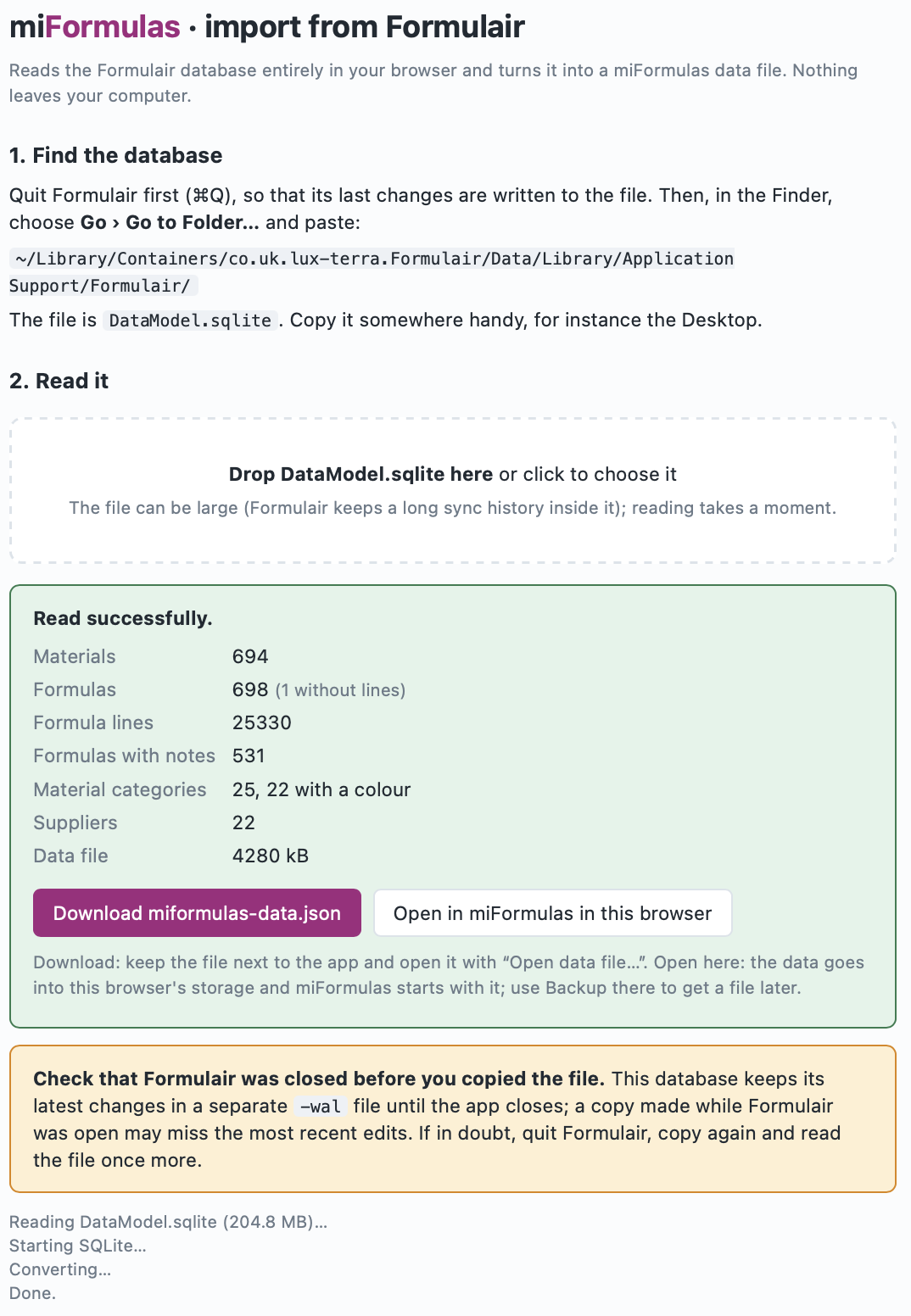
The Formulair importer after reading the database. -
Click Add to miFormulas. The app opens and adds everything to what is already there: a material you already have takes the Formulair material with the same name (its Formulair dilutions come along and empty fields are filled in), the others are added, and every Formulair formula arrives as a frozen formula. Two Formulair materials with one name are two jars: the first lands on yours, the second is added as a material of its own, so the price and supplier of neither are lost; the message names such a name, so that you can give one of them another name. A formula whose name you already have arrives as "Name (Formulair)". A message tells you the counts; one Undo takes the whole import back, and a formula imported before is not imported twice. Prefer a file? Download miformulas-data.json gives the same data as a file, for a server or your own tools. Back to miFormulas at the top returns to the app without importing. With the downloaded app, Add to miFormulas does not reach your copy: it adds to the site in this browser. Use Download miformulas-data.json instead, put that file next to
miFormulas.htmland choose Open data file… on its start screen.
Every Formulair formula becomes a miFormulas formula with one frozen version, keeping its notes, its date as Formulair showed it (also for a formula made after midnight), its category and its colour marks per line, and every material comes with its dilutions, CAS (if you wrote other names next to the CAS number in Formulair, the number stays and those names become alternative names), supplier, cost, IFRA limit, pyramid level, stock and description; categories keep their colours. Nothing is converted, amounts are in grams, and the one name the import changes is a formula name you already had.
Formulair is flat: "Aura v04" and "Aura v05" are two separate formulas there, and they stay separate here. Grouping them into one formula with versions v4, v5 and v6 is a decision for you, made afterwards in the app with Move into… (section 4): open "Aura v04", the one with the lowest number, and choose ⋯ › Move into…: the app suggests this formula as the target and lists "Aura v05", "Aura v05 20%" and "Aura v06" under Move together, ticked. Click Move: they become the next versions of "Aura v04" in one go, in the order of the numbers in their names; then rename "Aura v04" to "Aura" and give the 20 % one its label with the pencil. Opening another one first works too: the app then suggests the lowest-numbered formula as the target. A formula that already holds several versions can no longer be moved itself, so stragglers are moved from their own page. The app never groups by itself, because every perfumer names things differently. For a large collection, docs/ai-prompts.md has a prompt that lets an AI assistant propose the grouping from the list of names, for you to review before you start.
The same conversion exists as a command-line script, tools/formulair-naar-json.py, for those who prefer a terminal.
18. A server setup for cross-device use
A data file keeps your work on one computer. The moment you want the same formulas on a second computer and on your phone, something has to hold them in one place that all three can reach. That place is what the app calls a server: it loads from it at the start, saves to it after every change, and checks before each save that no other device wrote in the meantime.
It matters most for a phone. No browser on an iPhone or iPad can write to a data file, and Chrome on Android asks permission for the file at every start (section 15). With a server, both simply open the app and are in the same data.
There are two ways there. A costs nothing and needs no server, no domain and nothing installed; it is the way for most people. B is for those who already have a NAS or a hosting account with PHP.
A. A free Cloudflare Worker
Cloudflare runs small pieces of code, called Workers, and offers storage for files, called R2. The miFormulas endpoint is one file of about 170 lines that you paste into their editor; the storage holds your data file and the daily snapshots. Both have a free tier without a time limit, and miFormulas stays far inside it: R2 gives 10 GB of storage with a million writes and ten million reads a month, and a Worker 100,000 requests a day, while a data file of a few megabytes and a few hundred saves a day is what heavy use looks like. Enabling R2 may ask for a payment method; within the free tier nothing is charged.
What you end up with is an address like https://miformulas-data.yourname.workers.dev, a token you choose yourself, and your data in a bucket only you can read. It is https from the start, so Install as an app (section 15) works on every device.
The screens below are how the Cloudflare dashboard looked in October 2026. Cloudflare moves its buttons from time to time; when a name does not match, their own documentation at https://developers.cloudflare.com/workers/ is the place to look.
Before you start. Have your data ready: click Backup in the app and keep that .json file at hand. And choose a token now, a long random string of some twenty characters. You will paste it into two places and nowhere else.
-
Make an account at https://dash.cloudflare.com. The free account is enough, and you do not need a domain.
The two places in the Cloudflare sidebar, with what sits between them left out: Workers under Compute, R2 under Storage & databases. -
Create the Worker. In the sidebar choose Compute and then Workers & Pages, press Create application, and choose Start with Hello World!. Give it a name you will recognise,
miformulas-datafor instance; that name becomes part of the address. Deploy it once as it is.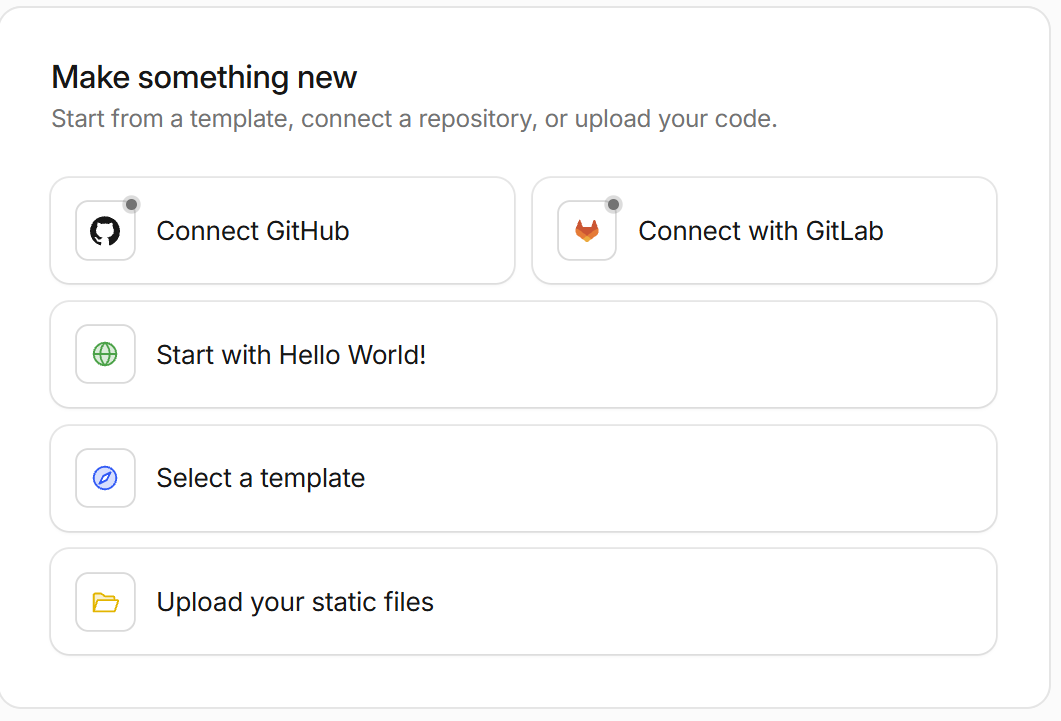
Creating the Worker: start from Hello World. -
Paste the code. Open the Worker's editor, select everything that is in it, and paste
server/worker.jsfrom the miFormulas repository over it (https://github.com/miformulas/miformulas/blob/main/server/worker.js, the Copy raw file button, the icon right of Raw). Deploy again.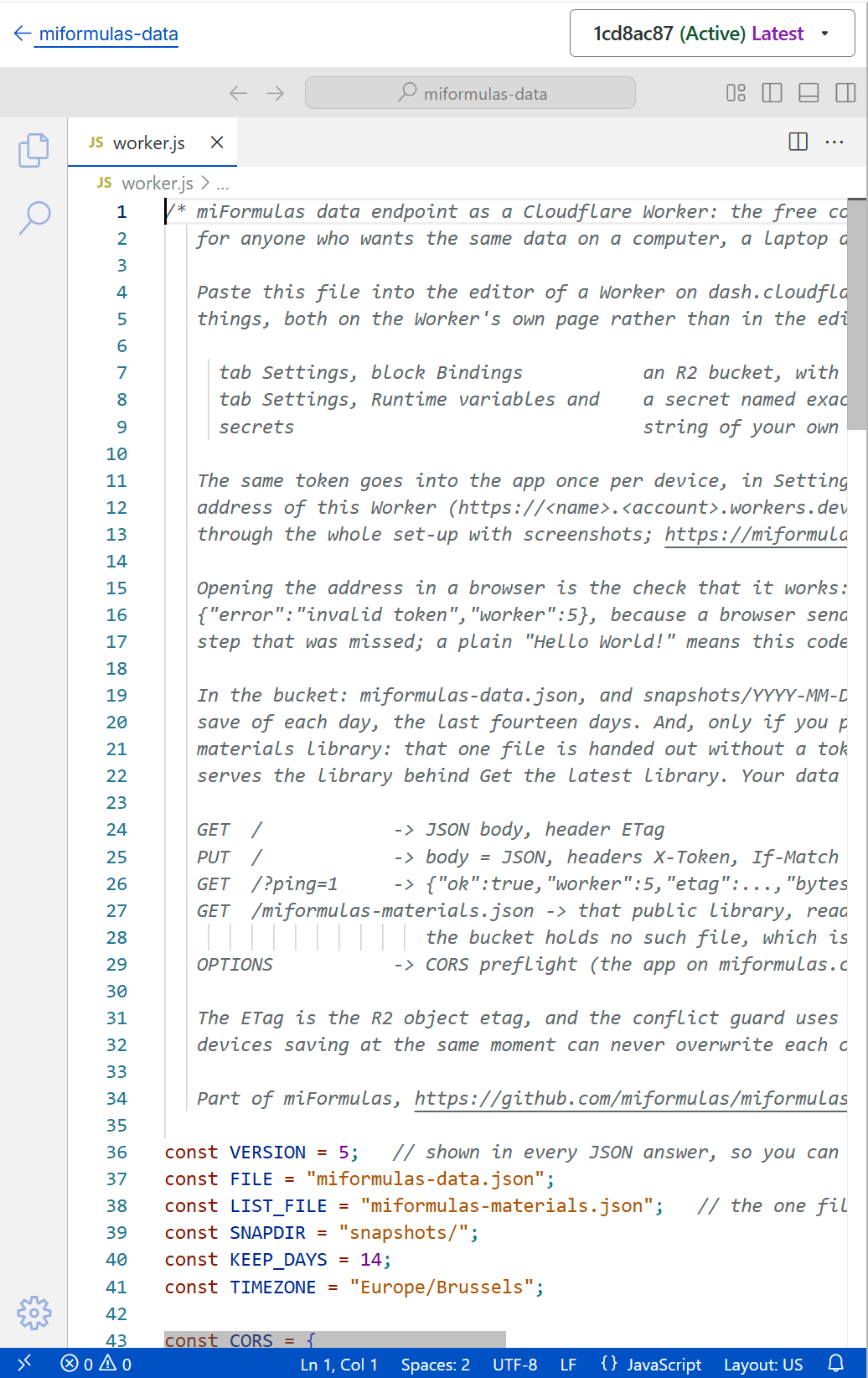
The Worker's code editor with worker.js pasted over the example. -
Create the storage. In the sidebar choose Storage & databases and then R2 Object Storage, press Create bucket, and name it,
miformulas-datafor instance. This is where your data file will live.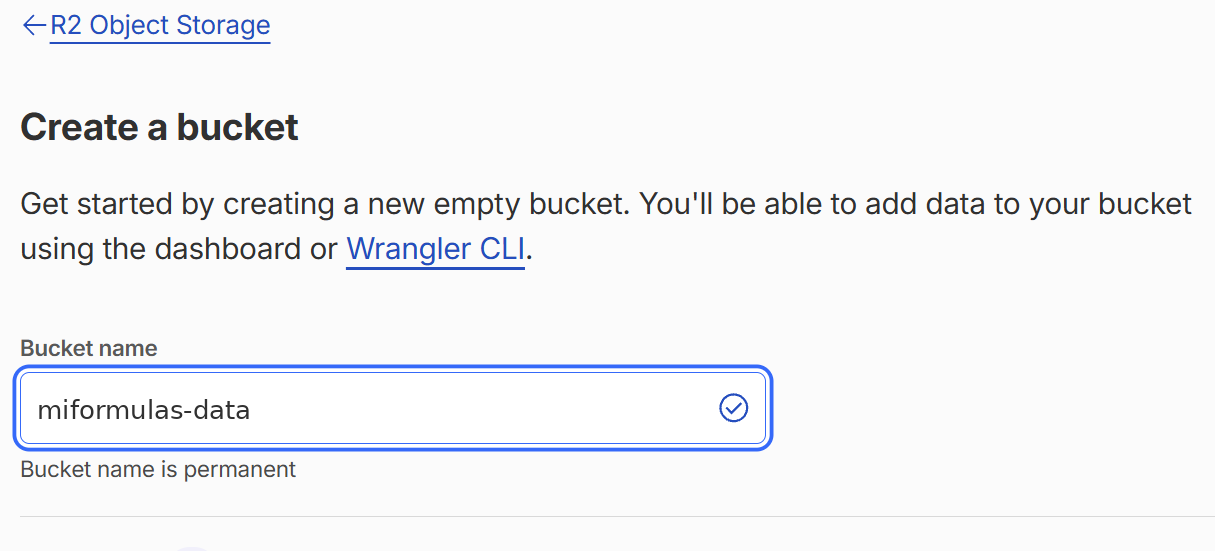
Creating the R2 bucket that will hold your data file. -
Connect the two. Back on the Worker's own page, not in the code editor, open its Settings tab and press Add binding in the Bindings block. Choose R2 bucket and press Add Binding; in the form that follows, the variable name must be exactly
DATA, and the bucket is the one you just made. That name is what the code looks for; finish with Deploy. A notice about a Wrangler configuration may appear: it is meant for those who deploy from their own computer, and you can close it.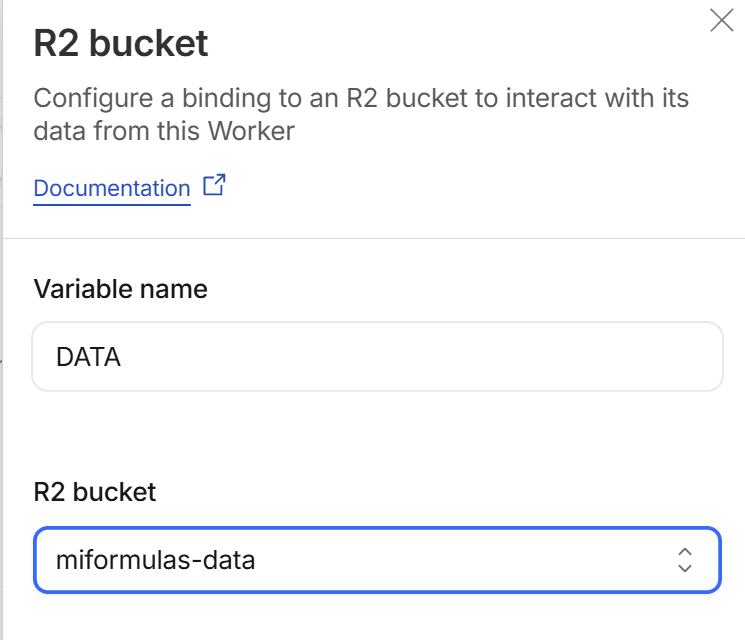
The R2 bucket binding: the variable name must be exactly DATA. -
Set the token. On the same Worker, open the Settings tab and find Runtime variables and secrets. Press Add variable, put exactly
TOKENin Key and your own token in Value, tick Secret, and confirm with Add 1 variable and deploy. Tick that box: a secret is not shown again afterwards, while a plain variable stays readable to anyone who opens the dashboard.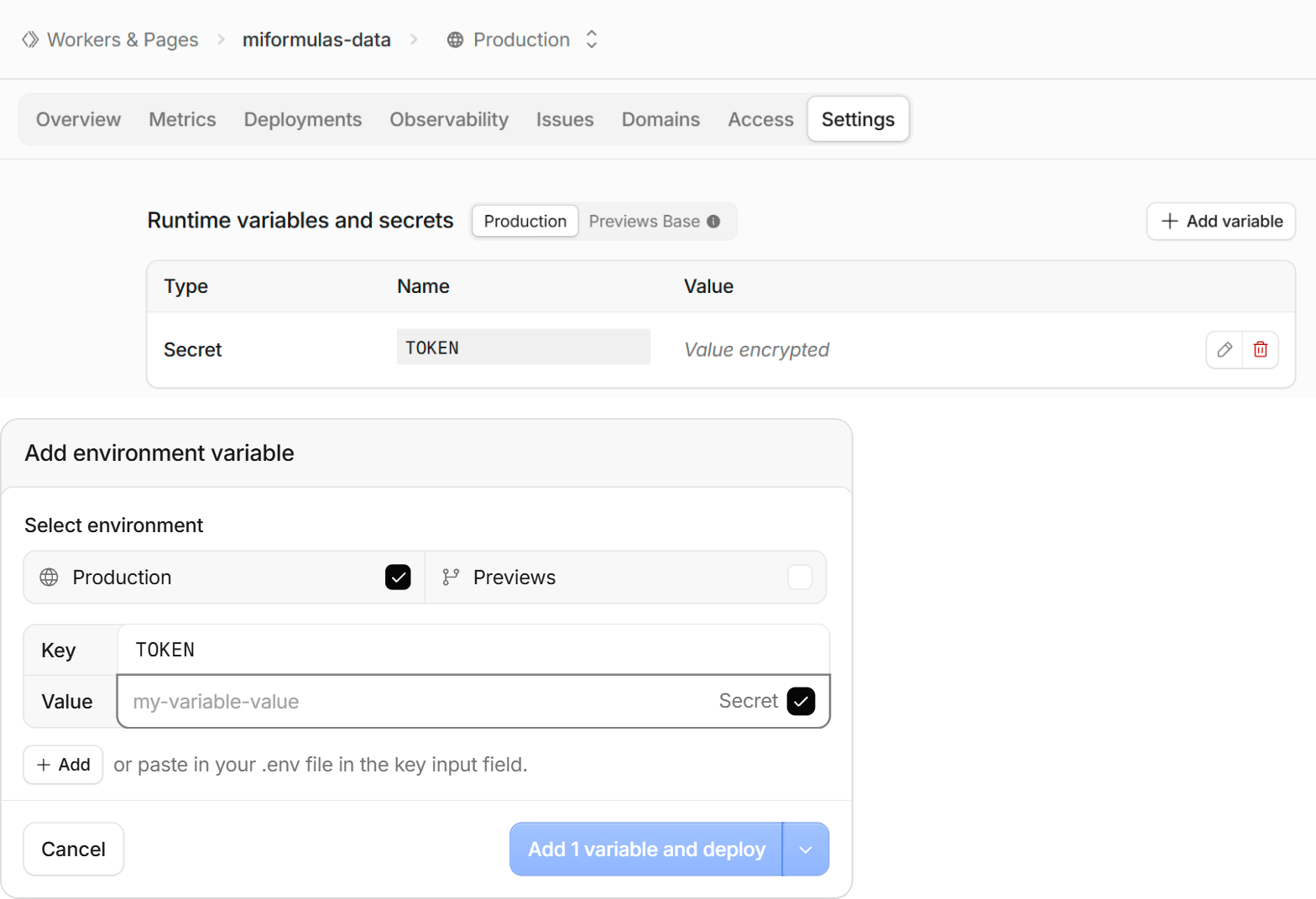
The token as a secret: Runtime variables and secrets, then Add variable with Secret ticked. -
Note the address. The Worker's Domains tab shows it under Worker URL, ending in
.workers.dev. That is the endpoint the app needs.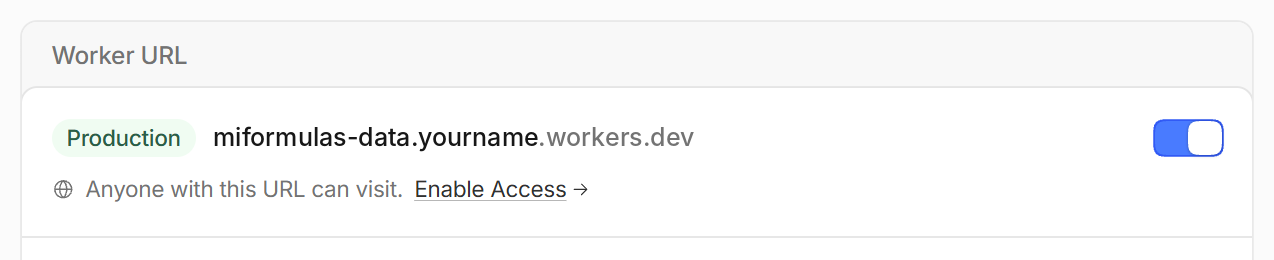
The address of the Worker, on its Domains tab under Worker URL. -
Check it before you go to the app. Open that address in a browser. It should answer
{"error":"invalid token","worker":5}. That is good news: the Worker is alive, it found its bucket and its token, and it refused you because a browser sends no token. The number is the version of the code you pasted, so it also tells you whether a newerworker.jsreally took. Any other answer names the step that went wrong.TOKEN secret is not set on the Workeris step 6,R2 bucket binding DATA is missing on the Workeris step 5, and "Hello World!" or a Cloudflare error page instead of JSON means the code of step 3 did not deploy.
The check in a browser: invalid token means the Worker is alive and found its bucket and its token. -
Connect the app. Open https://miformulas.com, click Settings (⚙), fill in the address as Server endpoint and your token as Access token, and click Apply. The app reloads, and because the bucket is still empty the start screen stays: it says the server has no data file yet, and offers the ways on. Put the data kept in this browser on the server is there when you worked in this browser before, and takes that work along in one click; Start with the starter set and Start empty create a new data file there; Open data file…, next to Connect to server, reads the Backup you put ready and the app saves that to the server. From then on the header says "Connected to server", and "Saved … · server" after each save.
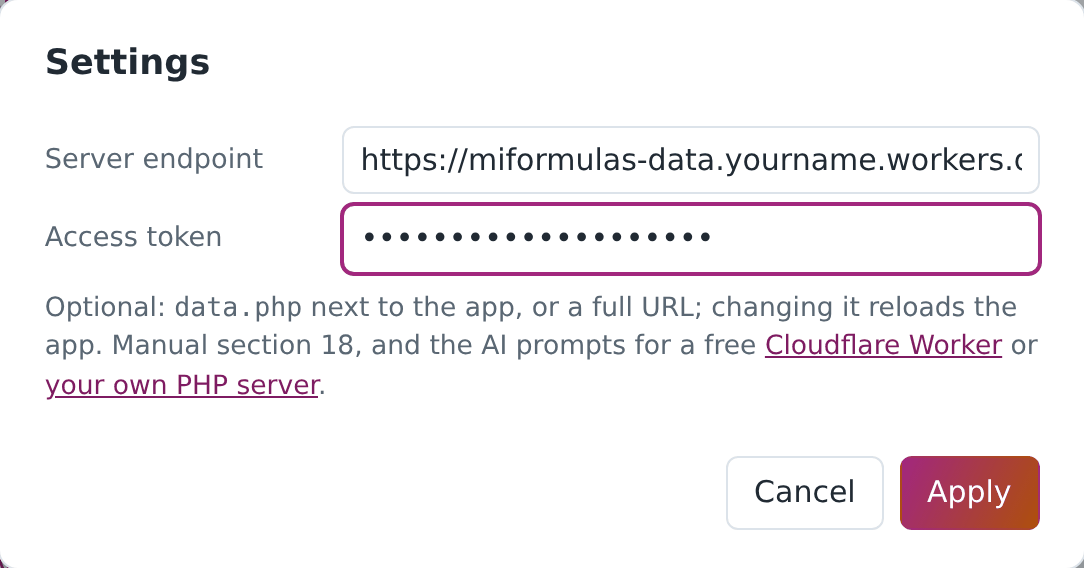
Settings in miFormulas: the address as Server endpoint, your token as Access token.
On your other computer and on your phone, only step 9: the same address, the same token. Install the app there (section 15) and it opens straight into your data.
Is my data really in there? The Worker reports on itself as well, at the same address with ?ping=1. A browser cannot send the token, so this one asks for a command line (curl.exe on Windows, curl on macOS and Linux):
curl -H "X-Token: your-token" "https://miformulas-data.yourname.workers.dev/?ping=1"
The answer is {"ok":true,"worker":5,"etag":…,"bytes":…}, where bytes is the size of the data file in the bucket, to hold against the size of your last Backup. The R2 page in the dashboard shows the same file with its size, next to the folder snapshots/.
Keeping it. There is nothing to maintain. The app itself comes from miformulas.com and updates itself, and the Worker only holds your data; a newer worker.js is worth pasting in only when the release notes say so, and your data stays where it is because the code and the storage are separate things.
B. Your own web server with PHP
You need a web server with PHP (8.x) that you can put files on: a Synology or QNAP NAS with its web station, a Raspberry Pi, a small hosting account.
-
Put
index.htmlandserver/data.phpin a folder on the server, and create a folderdatanext to them that the web server is allowed to write to. On a NAS this means giving the web server's user (oftenhttp) read and write rights on that folder; the endpoint tells you in plain words when it cannot write.That folder sits in the web root, and a web server serves what is in its web root: someone who tries the address
…/data/miformulas-data.jsongets your whole file, token or no token, because the token only guardsdata.php. On Apache the endpoint writes an.htaccessin that folder that denies it, and the repository carries the same file. Other web servers (nginx, Caddy, the web station of some NAS models) do not read.htaccess, so there the safe answer is a folder the web has no address for: opendata.phpand set$DATA_DIRto a path outside the web root,dirname(__DIR__) . '/miformulas-data'for instance. The last check of step 5 tells you whether your web server hands the file out. 2. Opendata.phpin a text editor and, on the line that starts with$TOKEN =, replacechange-me-to-a-long-random-tokenby a long random string of your own. This token is the password to your data. 3. Put yourmiformulas-data.jsonin thedatafolder (a Backup from the app, or the file from the Formulair importer), or let the app create one with Start empty. The starter set is not available on your own server: the app looks for it in that samedatafolder, which step 1 keeps closed to the web. 4. Open the server's address in a browser. The app detectsdata.phpnext to itself, asks for the token once, and from then on says "Connected to server" (and "Saved … · server" after each save). On other devices, open the same address and give the same token; or open Settings and fill in the server endpoint and token by hand, which also works for adata.phpat another address than the app: the endpoint answers the browser's preflight and allows any origin, so the app and your data may live on two different addresses. Those two fields are there when you open the app from a web address, which is what a server is; the copy you downloaded to your own disk does not show them. Ifdata.phpis there but not ready yet (the token not set, nodatafolder), the app says what it answers, and Connect to server tries again once you have fixed it. When it then says that the server holds no data file yet, reload the page (F5): the start screen offers Start empty and Open data file… for it. If you opened the address beforedata.phpwas on the server at all, the app took the site for one without a server: fill indata.phpas Server endpoint in Settings, with your token. 5. Check it when something is off. Open the address ofdata.phpitself in a browser:{"error":"invalid token"}is the good answer, because a browser sends no token. It tells you that PHP runs and that the file is reachable, and no more: whether thedatafolder is there and writable, the app says when it connects, and so does the call below. With the token it reports on itself. A browser cannot send a header, so this one asks for a command line (curl.exeon Windows,curlon macOS and Linux):curl -H "X-Token: your-token" "https://your-server/data.php?ping=1"The answer is
{"ok":true,"etag":…,"bytes":…,"dataDirInWebRoot":…,"htaccess":…}.bytesis the size of the data file on the server, which you can hold against the size of your last Backup."dataDirInWebRoot":truemeans that your data folder has a web address, also when it is a link to a folder elsewhere;htaccessonly says that the.htaccessof step 1 is there, and only Apache reads it. Whether your web server hands the file out, the one check that settles it is the one anybody can do: openhttps://your-server/data/miformulas-data.jsonin a browser. An error page (403 or 404) is the good answer; if you see your data, set$DATA_DIRto a folder outside the web root, as in step 1.
Reaching the server from outside your home is a matter of your network. A VPN such as Tailscale is the simple and safe way, and it can also give the server an https address, which the "Install as an app" options need. Do not put data.php on the open internet without https: the token travels in a header. None of this applies to way A, which is on the internet with https from the start.
The app on your own server does not update by itself: copy the new index.html over the old one, from the ZIP of section 14 or as Download the app gives it on miformulas.com (renamed index.html); the data stays.
What the endpoint does, on either way
It returns the data with an ETag and accepts a save only when the ETag still matches, so that two devices cannot overwrite each other as long as the server passes that ETag through (the app then shows a conflict warning: make a Backup, reload and redo the change; the very first save, when there is no data file yet, has nothing to match and is simply written), and it keeps a snapshot of the previous state on the first save of each day, fourteen days long: in data/snapshots on a PHP server, under snapshots/ in the bucket on Cloudflare. On a PHP server a save that finds no room for that snapshot is refused and changes nothing, so a full disk cannot take the state before today along with it; and a data file that is a link, into a synced folder for instance, stays a link, because the endpoint writes where it leads. A server that hides the ETag from the browser (a proxy that strips the header, or CORS without Access-Control-Expose-Headers) makes the app say so once: saving still works, but that protection is off until it is fixed. Both endpoints send that header themselves, together with the rest of the CORS block and an answer to the browser's preflight, so the app and the endpoint may sit at two different addresses; what can still take the header away is a proxy or a CDN in front of the server. A save is answered with the new ETag and with the number of bytes that were stored, the same figure ?ping=1 reports, so what is on the server can always be held against the size of your last Backup. Restoring a snapshot is copying that file over miformulas-data.json, or downloading it and reading it in with Restore a Backup… in Import & export (section 20). When the app starts without loading anything from the server, because it was unreachable or held no data file yet, the first save looks once more before it writes: if a data file has arrived in the meantime, nothing is sent and the app says so, so that a fresh start here cannot land on top of work that was saved elsewhere.
If you would like step-by-step instructions for your own situation, docs/ai-prompts.md has a prompt for each way. Keep in mind that an assistant knows the miFormulas side of it well and the Cloudflare dashboard badly: for way A the screens in this section are the authority, not what an assistant remembers.
19. Settings, theme and keyboard shortcuts
Settings (⚙, also on the start screen) has the number format (browser default, or a fixed locale such as 1.234,56 or 1,234.56; input accepts both comma and point in any case) and Open where you left off. That last one is off by default; with it on, the app starts on the formula or material you had open, and on the version you were looking at, as long as it is still there, instead of on the list. It is a setting of the device you set it on and not part of your data, so each computer and phone has its own, and switching it off forgets the place again. On the site there is also the server endpoint and its token; the app you downloaded has neither, because it always works on the data file next to it, and a server is set up in the Settings on the site. Emptying the server endpoint takes your data, as it is at that moment, along into this browser, where the app keeps it from then on; the server keeps its copy, and a data file you used before the server is no longer opened by itself. The window has five headings in two columns: General, with the number format and Open where you left off, Materials library and Starter set on the left, Where your data lives and This app on the right. Materials library (section 16) shows the name, version, number of materials and licence of the one that is loaded, its attribution when it carries one (with the source as its tooltip; a web address stays a link), and the buttons Import materials library…, Remove the library and Get the latest library. Under Starter set, Remove the starter formulas removes every formula marked "starter", with all its versions, and Remove the starter set materials every material marked "starter", including those you added stock, prices or notes to; a material that a formula still uses stays, and the message afterwards names it. To clear the whole starter set, remove the starter formulas first: as long as they are there, they use nearly every starter material. Each asks first and is a single Undo step, and each is greyed out once there is nothing left to remove. Where your data lives holds the server fields and the buttons that depend on the situation: Save to a data file… (Chrome and Edge) and Delete the data kept in this browser (which asks first, and takes the daily snapshot of section 20 with it) in browser-storage mode, and Forget the remembered data file when a file is remembered. This app holds Check for updates in the app you downloaded, and on the site Install as an app, when the browser offers it, and, on a computer and as long as the site does not use a server, Download the app. The installed app has its own window and icon, runs from the site and updates by itself (section 15); the downloaded app is a file on your own computer that works offline and that you update yourself (section 14).
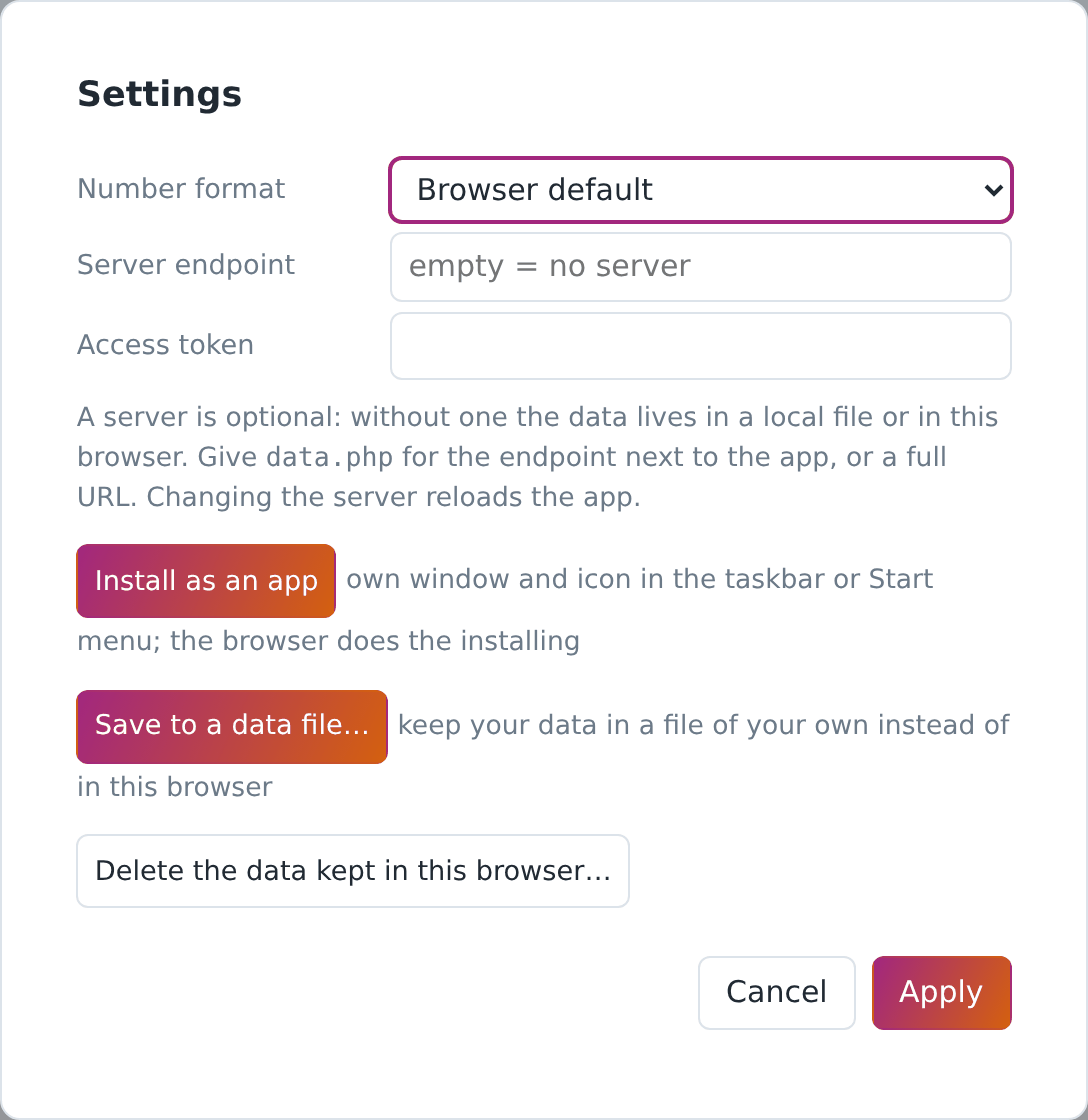
The theme button (◐, ● or ○, the icon showing which of the three is set) cycles between Auto (follows Windows or macOS), Dark and Light.
Keyboard shortcuts. On a Mac use Cmd instead of Ctrl.
- Ctrl+Z undo, Ctrl+Y or Ctrl+Shift+Z redo (the last ten of them). Both take you back to the formula or the material the change was on, so you see what came back. Once you have typed in a text field, Ctrl+Z there first takes back your typing, as anywhere else; in a field you have not typed in, such as the one the cursor goes back to after Add line or a weight, it is the app's undo.
- Ctrl+S save now, Ctrl+B hide or show the list panel, Ctrl+P print the weighing sheet of the version you are looking at (section 10).
- Shift-click on a checkbox ticks a range.
- In a formula, Enter in Add material… adds the line; in a weight you have just typed, Tab confirms it and moves to the next one (after the last, to Add material…), Shift+Tab to the previous, and Enter keeps you in the field.
- Enter in a small field with a button of its own presses that button: a trial-log note, the Batch scaling fields, a new dilution, a stocktake or a purchase, a material on the order list.
- In a dialog Enter is the button on the right (Create, Apply, Add, Confirm, Move and so on) and Escape closes it. Escape also closes a menu (⋯, Print / export).
- In the list panel a row takes focus with Tab and opens with Enter, and the same goes for material names, sort headers and colour swatches.
- Alt+Left and Alt+Right (Cmd+[ and Cmd+] on a Mac) go back and forward through the places you opened (section 2).
20. Backups and recovery
Backup in the header writes the complete data file, named with date and time (260907_1402_miformulas-data.json); Chrome and Edge ask where it should go and remember that folder. Make one before anything you are not sure about, and regularly in browser-storage mode; keep them in a backups folder.
The app also keeps one daily snapshot in the browser: the state as it was the first time you opened the app that day, so before your first change. A start from the starter set, an empty start and a restored snapshot do not replace it, so what is offered is the state of the last day you really worked. Whenever the start screen appears without your data (the file is gone, the browser copy could not be read, the server holds nothing yet or cannot be reached, or the browser cannot write to files at all), it offers Restore daily snapshot with its date; load it and use Backup to write it to a file. The other ways on from there ask first, because that start screen does not come back once the app has data. While you are working, the same button is in Import & export (⇅), as long as the snapshot belongs to the data that is open: it puts the snapshot in place of your data, where your data lives, after a question that shows what both hold, and Undo takes it back. So a mistake of this morning can still be undone after the app was closed. When the browser copy is the thing that could not be read, the start screen says so and points at your last Backup, because starting again there would write over what is left of it. Restored while the server was unreachable, the snapshot is not written to the server: before its first save the app reads the server, and if data is there it refuses to overwrite it; use Backup, or reload (F5) once the server is back.
If the app cannot open your data, the start screen says so and offers a Backup of everything that was read, and nothing else: a fresh start would write over the data that is still there. Download that file, reload, and if it happens again open it in another browser or in the downloaded app. A copy that could not be read at all is a different message: there the start screen says the data is damaged and points at your last Backup.
When the header warns you. A warning is always given in full: "Server not reachable: changes kept in memory, use Backup", "⚠ Conflict: changed on another device – reload (F5) before editing", "⚠ The server holds data that was not loaded here – use Backup, then reload (F5)", "Token rejected: use Backup, then reload to enter it again" and "Save failed – use Backup" (on a server with its status in brackets, and its reason when it gives one); in this browser's storage it is "Browser storage is not available; use Backup to keep your work." Each of them names the same way out, because a warning about your data is only useful with one. Two other states belong to particular situations: "Loaded (read-only fallback – use Backup to save)" in a browser that cannot write files (section 14), and "Cached copy – reload the file for the latest data" when the app started from the copy it kept while the file itself was not read yet. When the network comes back after "Server not reachable", the app saves again by itself. After a reload in server mode that could not reach the server, the start screen offers Connect to server and, if there is one, the daily snapshot. A data file from before build 260915b that still holds "variations" loads with a warning: they are left in the file untouched, but not shown, because another presentation of a recipe is now a version with a label (section 4).
In server mode the server keeps daily snapshots for fourteen days (section 18).
Open data file… on the start screen opens any of these files. While you are working, Restore a Backup… in Import & export (⇅) puts one in place of all your data, where your data lives now (this browser, your data file or the server), after a question that shows what the file and your data hold; the file itself is not touched, and Undo takes it back. Undo covers the last fifty things you did since the app was opened, deletions included (Redo the last ten of them); it does not survive a reload.
21. Privacy: who can see your formulas
Nobody but you. miFormulas runs entirely on your own computer, inside your browser, and your data lives where you put it: in the browser's storage, in a file on your disk, or on a server you own. There is no account, no cloud of ours, no telemetry and no automatic update check, and the author of the app has no way to see your formulas. The app sends your data nowhere but to a server you set up yourself.
This is everything the app does on the network:
- On miformulas.com it loads the starter set from the same site when you click Start with the starter set, and on the first visit it checks whether a
data.phpserver sits next to it; once it has had a clear answer it does not ask again. The browser also fetches the small app manifest and the icons from the same site, which is what makes "Install as an app" possible. - The downloaded app makes three kinds of request, and each only when you click: Start with the starter set fetches the starter set from miformulas.com, Get the latest library fetches the published materials library (see below), and Check for updates in Settings fetches the app itself from miformulas.com to compare its build with yours (section 14). None of them carries anything of yours; as with any web page, the server sees that an address asked for a file. Apart from those three clicks the app makes no request at all, so with a data file you can use it with the network switched off, and Start empty creates that file without going online.
- In server mode the app talks only to the server address you entered in Settings.
- Get the latest library, in Settings, and in + New material… and the CSV import window while no library is loaded, fetches the published materials library from
data.miformulas.com, on the site as in the downloaded app, and only when you click it. That request carries nothing of yours either: the library is a plain file that the server hands to anyone who asks. - Search my shops in the order list, the product links, the TGSC, Olfactorian and IFRA links on a material page and the links in the Help pages open Google, DuckDuckGo, the shop or the site in a new tab, only when you click them. The IFRA link also puts the CAS number on your clipboard, nothing else.
No analytics, no fonts or scripts loaded from elsewhere, nothing else sent in the background. The Formulair importer reads your database in the browser and sends nothing; its database engine (sql.js) is embedded in the file.
miformulas.com is served by GitHub Pages, a static file server: it hands the same HTML file to everyone and receives nothing back. Like any website, its logs record that a page was requested from an address. If even that is more than you want, download the app once and never visit the site again.
The AI prompts in docs/ai-prompts.md are the one exception, and you choose it yourself: what you paste or attach in an AI chat goes to that AI provider, under its terms, never to miformulas.
Check it yourself. The whole app is one readable file, and the source is public under the GPL at https://github.com/miformulas/miformulas.
- Open
miFormulas.html(orindex.html) in a text editor and search forfetch(. There are eight in the code: the starter set, thedata.phpprobe, four calls to your own server (load, a look before the first save when nothing was loaded, the save itself, and a look after a refused save, which tells a real conflict from a save of yours that did arrive), the published materials library behind Get the latest library, and the app itself behind Check for updates; the ninth hit is this sentence, because the manual is embedded in the app as the Help text. Search forhttpas well: apart from the attribution and the licence link at the top and threehttp-equivlines that ask the browser not to keep an old copy of the page, and sixhttp://www.w3.org/2000/svgthat name the format of the small pyramid icons and fetch nothing, the hits are the addresses named above, links the app opens only when you click them, and the manual itself. Apart from this sentence there is no<script src=, noXMLHttpRequest, nosendBeaconand noWebSocketin the file. - Or watch the browser: press F12, open the Network tab, and use the app for a while. With a data file, nothing appears at all.
- Or compare: the file you download from miformulas.com is the file in the repository, byte for byte.
These checks also tell you whether a copy of the app that reached you by another road was changed. Take the app from miformulas.com or from the repository.
22. Questions and answers
The start screen only offers Reopen, and I want the starter set. The browser still remembers your data file. Forget the remembered data file, under Settings… on the start screen, makes it offer the starter set again; the file itself stays where it is, untouched.
I worked in the starter set and now want only my own work. In Settings (section 19), Remove the starter formulas and then Remove the starter set materials. Keep the materials if you built on them: the two are separate for that reason. With nothing of your own yet and your data kept in this browser, Delete the data kept in this browser and Start empty come to the same thing.
How do I update the app I downloaded? In Chrome or Edge, Settings (⚙) › Check for updates compares your copy with miformulas.com and replaces it when there is a newer one; your data file is not touched. A copy without that button is older than build 261010b: download the app once more and put it in place of the old one (section 14).
I opened the app in another browser and my data is not there. Browser storage and the remembered file belong to one browser: Backup in the first, Open data file… in the second (section 14).
Edge asks every time whether the app may edit the file. That is the browser's rule for a local file: one click per session. The site, and certainly the installed app, usually keep the permission (section 14).
The amber bar says my data lives in this browser. Until the browser promises to keep its storage, the bar reminds you to keep a Backup; Save to a data file… in that bar moves your work into a file of your own in Chrome and Edge (section 14).
A line shows ⚠. Its dilution is not in the material's list. Add that dilution to the material if you do have it, or change the line to a dilution you have with Preserve rel % and exchange solvent.
The IFRA panel says "not yet verified". Those materials have no limit entered. Look them up on ifrafragrance.org and enter the limit, or 99 if there is none.
Where do the facts of a material come from? From you, or from a materials library you imported (section 16). A library adds nothing to your inventory: it is a reference, and a material you add whose name is in it arrives with its facts, every one of them editable. Without a library you type what you know.
Can I use it on a phone? Yes: Add to Home Screen in Safari on an iPhone or iPad, Install as an app in Chrome on Android. On iOS the data lives in the app's storage, so Backup is your safety net, and a server of your own (section 18) puts the same data on your phone and your computer; on Android a data file works, with one permission question at every start (section 14). The number keys of a phone show the decimal sign of your language: type either, the app reads a comma and a point the same way. On an iPhone the look-up links of a material open in a browser view on top of the app; the X at the top left brings you back.
How do I get my materials in? They are in a spreadsheet. Save the sheet as a CSV and use Import materials inventory from CSV… on the Welcome page, or in Import & export behind ⇅ in the header; the app shows your columns next to its fields and you match them on screen. Only the name is required. Section 16 has the details, and the link template beside that button writes a CSV with the columns the app uses itself.
And my formulas? Those are in a spreadsheet too. If the sheet came out of miFormulas, Import formula… (behind ⇅ in the header) reads the CSV of Export all formulas (Excel) straight back: choose the .csv instead of a JSON file and match the columns on screen. For a sheet of your own there is no such round trip, because a formula sheet has no single shape, one tab per formula, versions side by side in columns, the dilution inside the name; there an AI assistant with prompt 1 of docs/ai-prompts.md is the shortest way. Section 16 describes both.
Can the author of miFormulas see my formulas? No. Nothing leaves your computer unless you put it on a server of your own; section 21 lists every network request the app makes and how to check it yourself.
Where is the data of an installed app? In the browser that installed it, shared with the site in a tab; nothing you make is sent to miformulas.com (section 15).
I want the site to forget my data file. Settings (⚙) has Forget the remembered data file “miformulas-data.json”, with the name of the file, so you see which one it is about; the file itself is not touched.
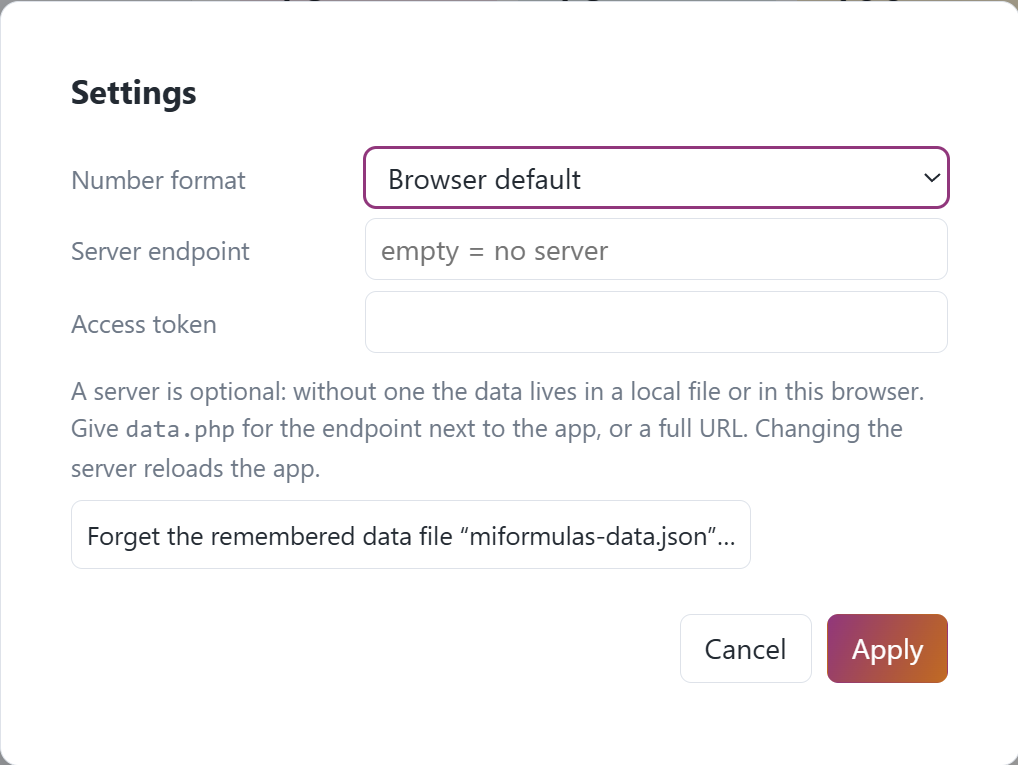
Where do I report a problem or suggest something? On GitHub, at https://github.com/miformulas/miformulas/issues (the Feedback link on the start screen goes there; writing there needs a free GitHub account). If you would rather not use GitHub, write to info@miformulas.com. The bar above the Help pages has both at hand, next to Close and Contents: Read online, with screenshots opens this manual on the site with its pictures, Report a problem opens that issues page, and Or write an e-mail opens a message to that address. Say which browser you use and the build number (next to the name in the header, or in the Help bar when the header leaves it out), and what you did; a Backup of a data file that shows the problem helps most, if you are willing to share it.
23. Licence
miFormulas is free software under the GNU General Public License version 3, with two additional terms under section 7 of the GPL: the name miFormulas is reserved, and every copy must carry the attribution to the author that the file NOTICE gives. The full text is in the files LICENSE and NOTICE in the repository at https://github.com/miformulas/miformulas.